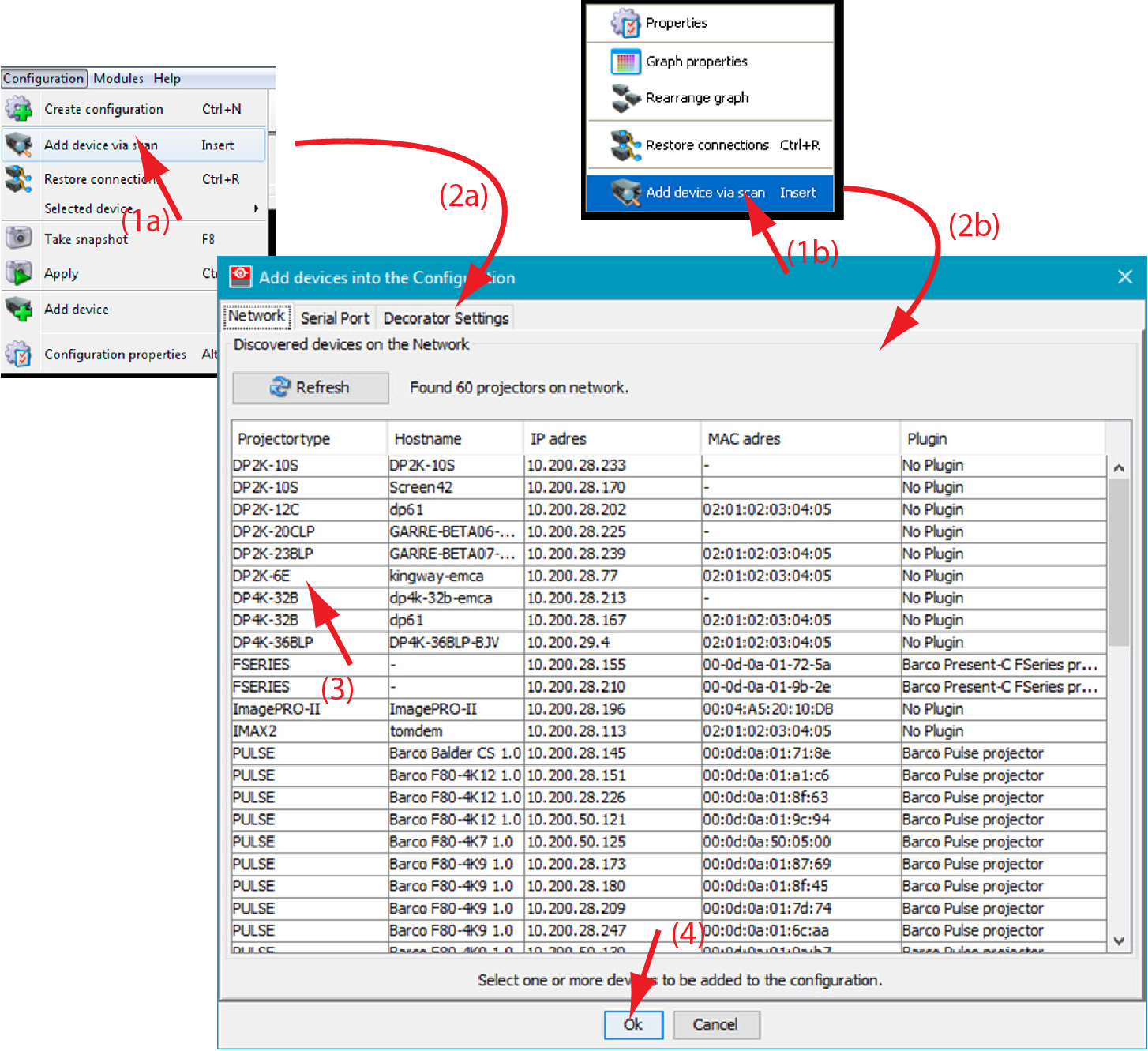
The network is scanned for possible devices which can be added to the configuration. The overview list shows all possible devices on the network and not only the devices with an installed plug-in. Even the devices which are already in the configuration are in the list.
Multiple devices can be added at the same time. It is not possible to add a device twice or to add a device for a non installed plug-in.
The overview window gives the following items:
Device type
Host name
IP address
MAC address
Plug-in name
How to add
Click Configuration on the menu and select Add device via scan... (1a).
Image 5–4Add devices via scan
or
right click on a not connected projector in the preview pane to open the content menu and select Add device via scan.. .(1b)
or
press Insert key.
A network scan is started and a device overview window is displayed (2a, 2b).
To select a device, just click on that device (3).
To select multiple devices, hold down the Ctrl button and click on the devices to add to the configuration.
Click OK to add the selected devices to the configuration (4).
Only the devices with installed plug-ins and which are not yet in the configuration are added to the configuration.
Decorator
The selected device can be added immediately with the desired decorator.
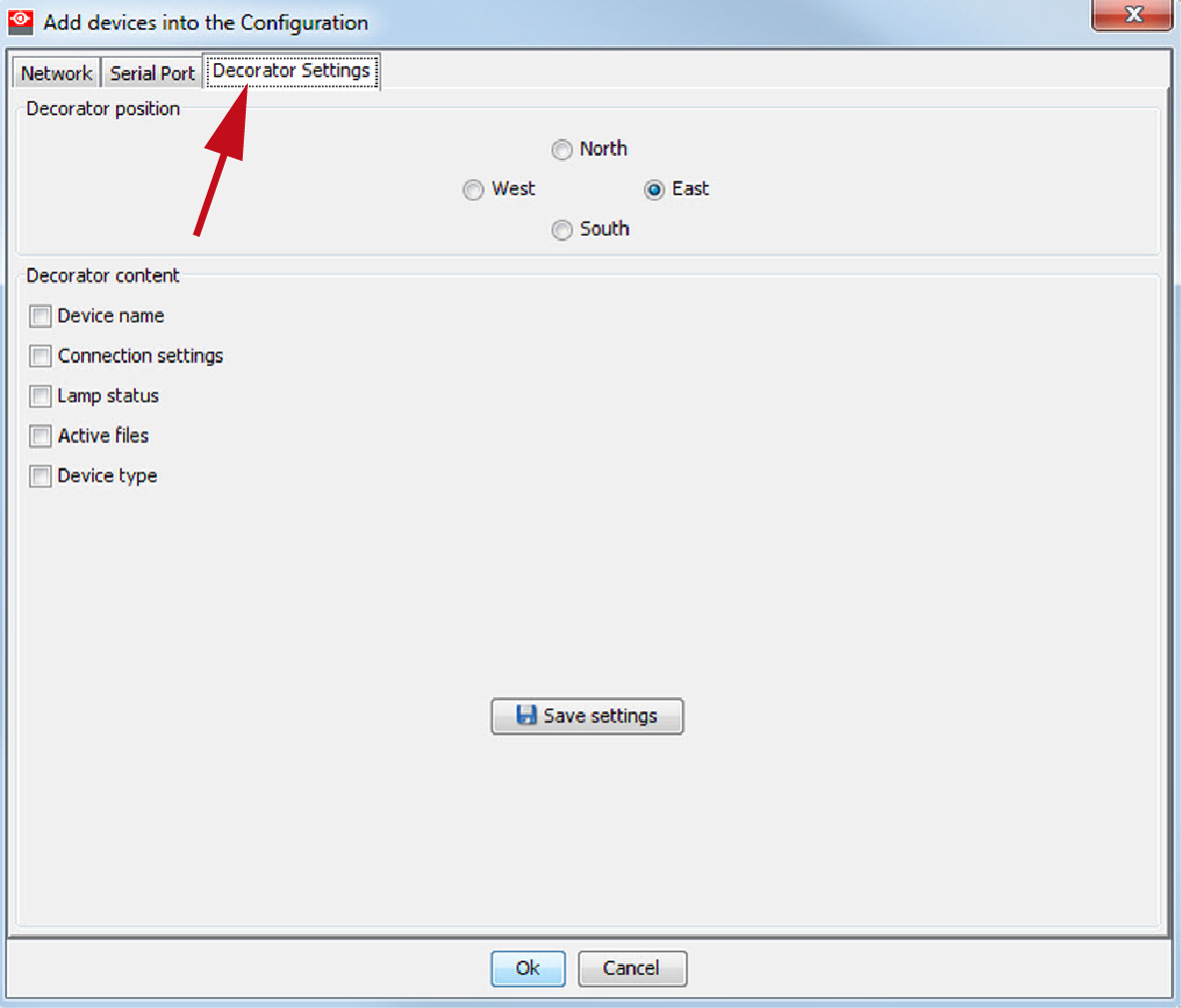
To set the decorator, click on the tab Decorator.
Image 5–5Decorator setting while adding a device
To add the decorator position, click on the desired radio button in the Decorator position pane.
The following choices are possible:
North
West
South
East
To indicate which information must be shown, check the desired check boxes in front of a setting.
The following choices are possible:
Device name
Connection settings
Lamp status
Active files
Device type
Click Save settings to save the current decorator settings.