
How to set background image
Right click in the preview pane but not on a pictograph (a).
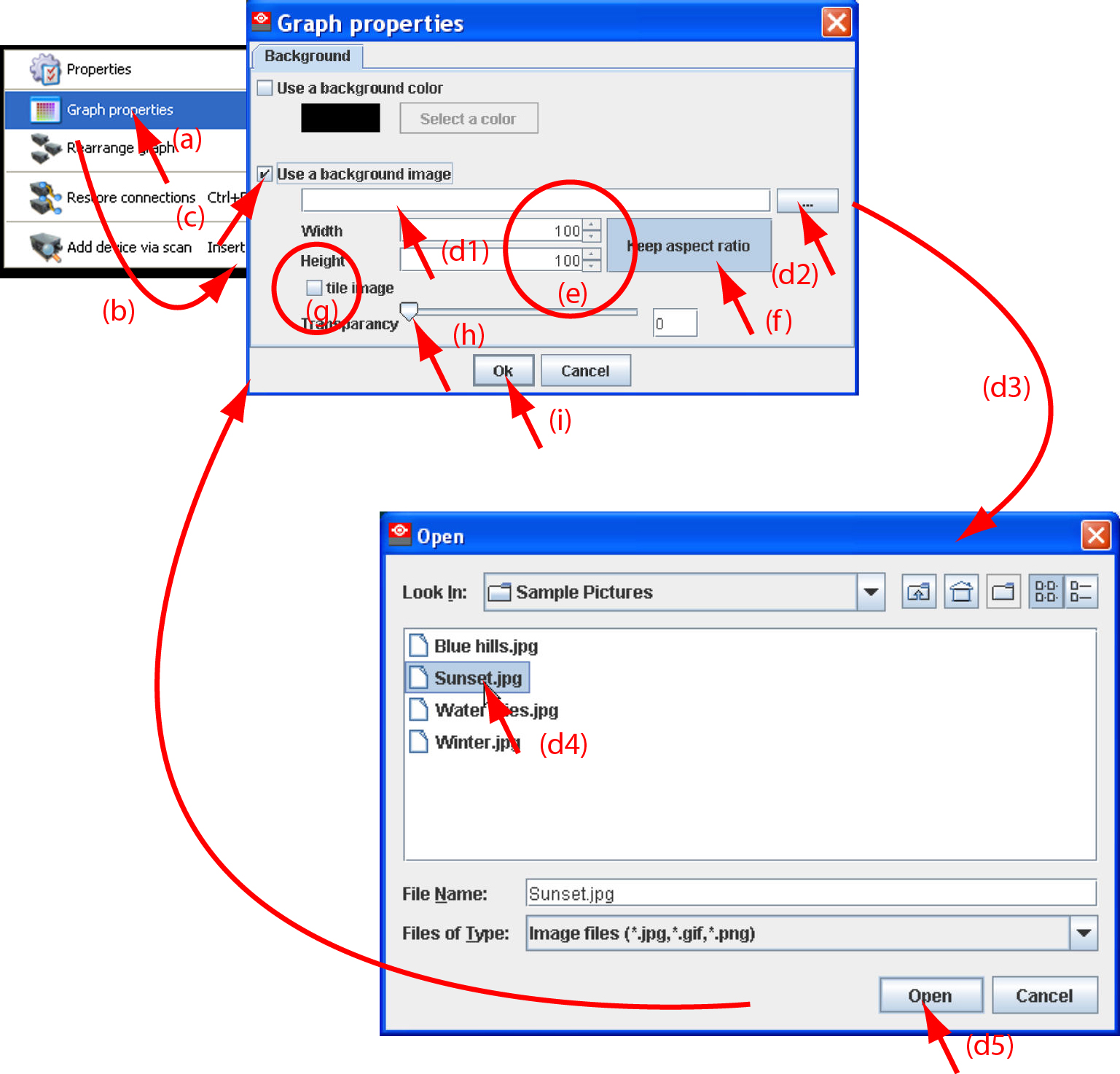
Image 5–23 Set background image A context menu opens.
Select .
The dialog box opens (b).
- Check the check box next to (c).
Fill out the complete path to the image (d1) and continue to step 6
 or
orclick on ... (d2)
An dialog box opens (d3)
Browse to the desired image (d4) and click Open (d5).
ordouble click on the desired image.
- Width an height of the image can be changed by clicking on the up down control next to width and height (e). To keep the original aspect ratio of the image, activate button Keep aspect ratio (f).
- To tile the image over the complete canvas, check the check box before (g).
Set transparency level by clicking on the slider and dragging to the desired location (h)
orby clicking in the input field next to the slider and entering the desired value with the keyboard.
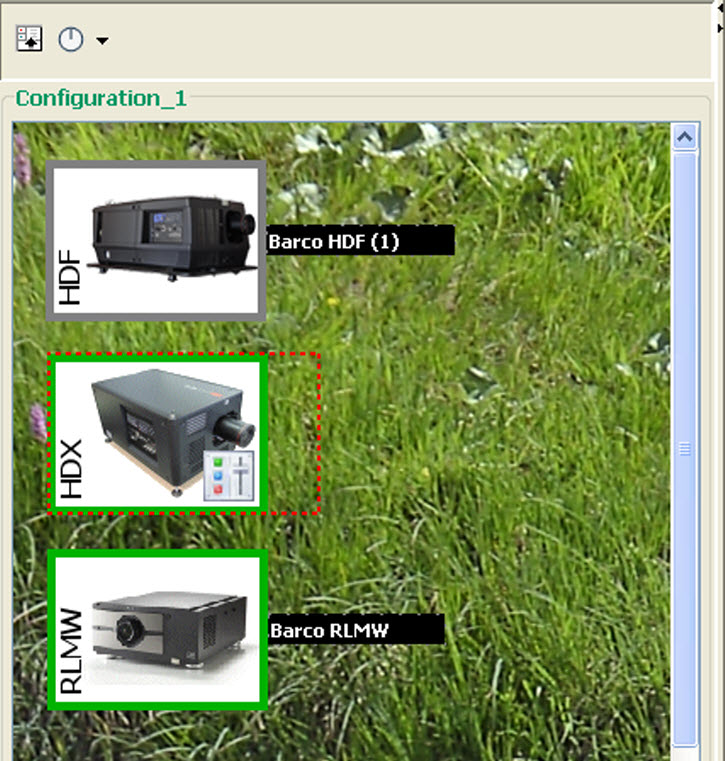
Image 5–24 Example background image