5.6 Reconnect a projector

Via the context menu
  1. Right click on a not connected projector in the preview pane.
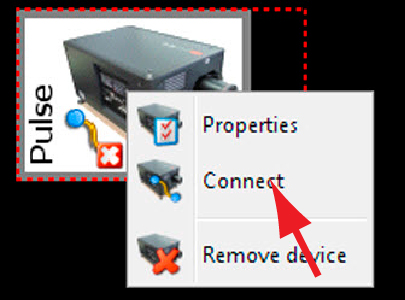
    Image 5–15 Connect projector via context menu

    A context menu opens.

  2. Select Connect.

    The projector tries to make a connection and to retrieve data. When it is successful the pictograph border becomes green, the properties are filled out. When it is not successful, the border stays gray and a projector not responding message is displayed.

Via the menu
  1. Select a not connected projector in the preview pane.

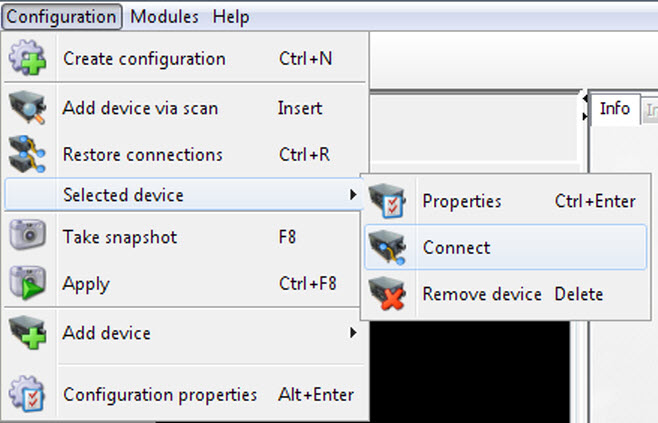
    Image 5–16
  2. Click Configuration on the menu and select Selected deviceConnect projector.

    The projector tries to make a connection and to retrieve data. When it is successful the pictograph border becomes green, the properties are filled out. When it is not successful, the border stays gray and a projector not responding message is displayed.

Via the projector properties
  1. Select a not connected projector in the preview pane.

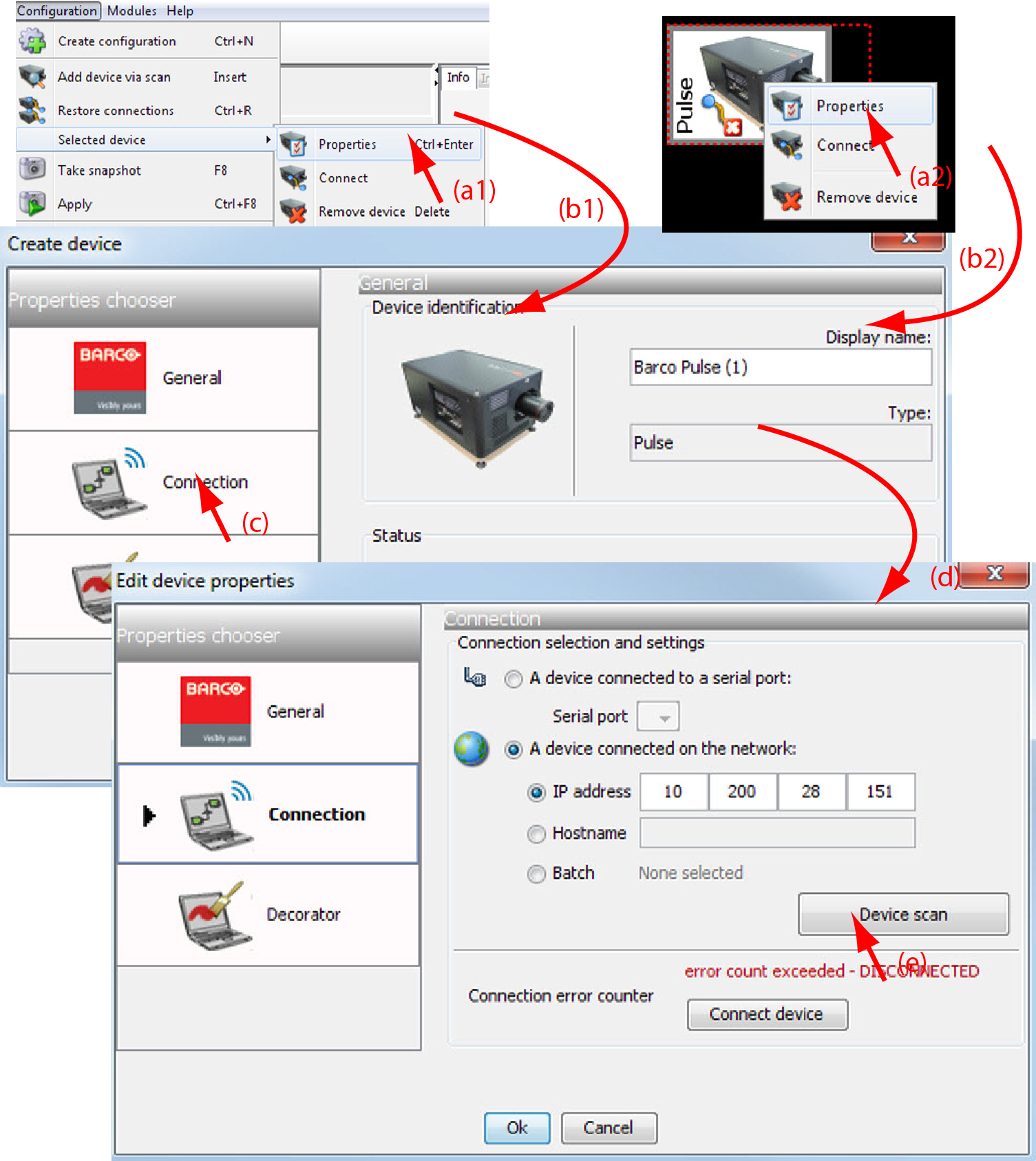
    The illustrations are just given as indication and be different from projector to projector.

    Image 5–17 Reconnect via the properties dialog box
  2. Open the projector properties via right click and selecting Properties.

    or

    via click on Configuration on the menu and selecting Selected deviceProperties (a).

    or

    by pressing Ctrl + Enter.

    The Properties dialog box opens (b).

  3. Click on Connection (c).

    The Connection tab opens (d).

  4. Click on Connect projector (e).

    The projector tries to make a connection and to retrieve data (f). When it is successful the pictograph border becomes green, the properties are filled out. When it is not successful, the border stays gray and a projector not responding message is displayed.