12.6 Edge blending

About offset and blending width or height

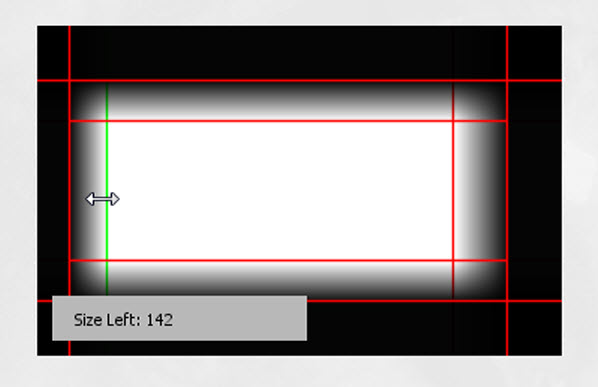
Offset is used to clip the image. The larger the offset value, the more the image is masked (by black bar) at the corresponding side. E.g. Top offset of 100 will blank the top 100 lines.

Height or width is used to create a blending zone with a smooth brightness drop off. This is used to compensate for the double brightness in overlap areas. The value is the size of the blended area in pixels.
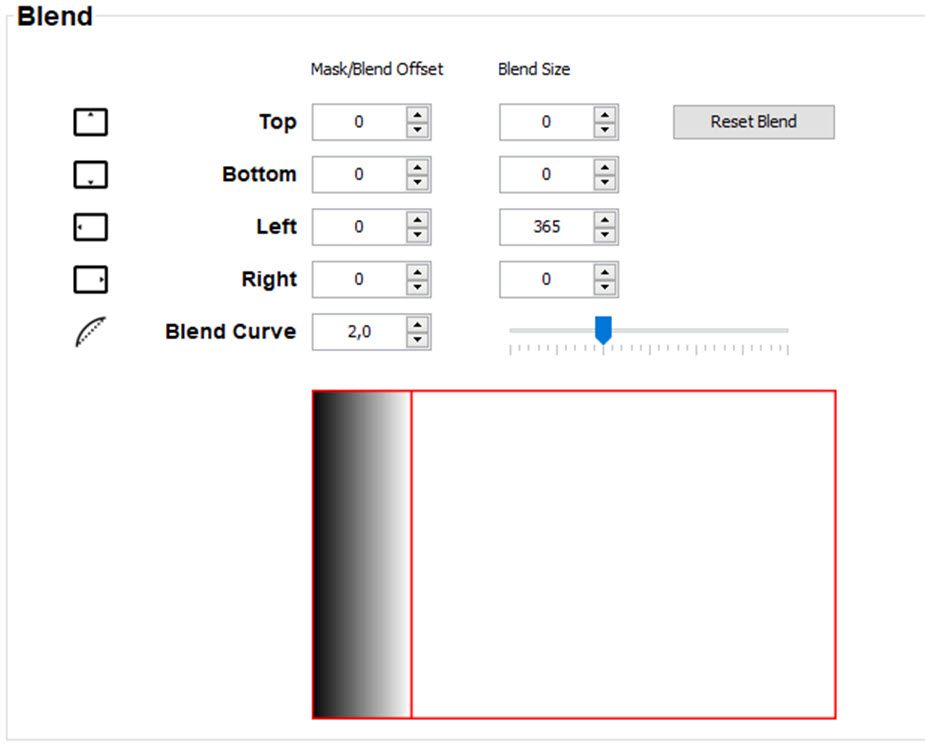
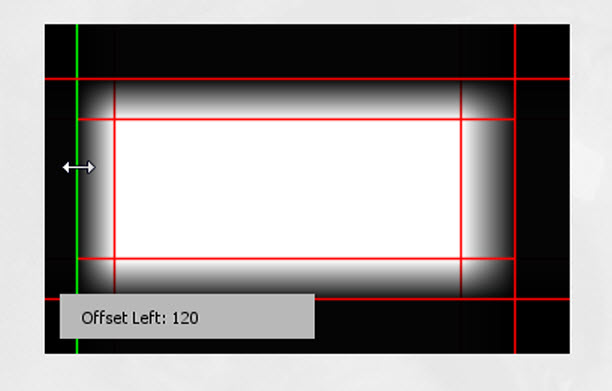
Image 12–8
Blend zones adjustment via drag and drop
  1. Hoover with your mouse over an offset line until the cursor becomes a 2 arrow cursor.

    Image 12–9

    The current offset value is indicated in the tool tip.

  2. Click and drag the line to the desired position.
  3. Hoover with your mouse over a width line until the cursor becomes a 2 arrow cursor.

    Image 12–10

    The current value is indicated in the tool tip.

  4. Click and drag the line until the desired width is obtained.
  5. Repeat in the same way for the other edges.
Blend zones adjustment via value changing
  1. Click on the up down control of the spin box of an Offset until the desired value is reached

    or

    click in the input field, select the current value and enter a new value with the numeric keys.

  2. Click on the up down control of the spin box of a Size until the desired value is reached

    or

    click in the input field, select the current value and enter a new value with the numeric keys.

  3. Repeat in the same way for the other edges.
Note: Do not forget to disable the Show Blend lines.
Note: Use Reset Blend key to reset the blend offset and blend size.