5.5.3.2 Set up an Ethernet connection

Possibilities

To establish a Ethernet connection, the following ways are possible:

IP
Internet Protocol. The network layer of TCP/IP. Required for communication with the internet.
Host name
This is the name that will be returned, along with the IP address in response to the UDP broadcast query for projectors/touch panels.
DNS server
Computers, Projectors, Touch panels connected to a network are referenced by their IP address. The only problem is that remembering IP addresses is not easy. If you need to use hundreds of addresses then it will become impossible to remember them. This is why domain names are created. Internet names (domain and host names) are just aliases to these IP addresses. When you use an Internet address it is automatically translated to an IP address. In fact a program or device that translates those Internet names to IP addresses is called a DNS Server.
Via entering an IP address
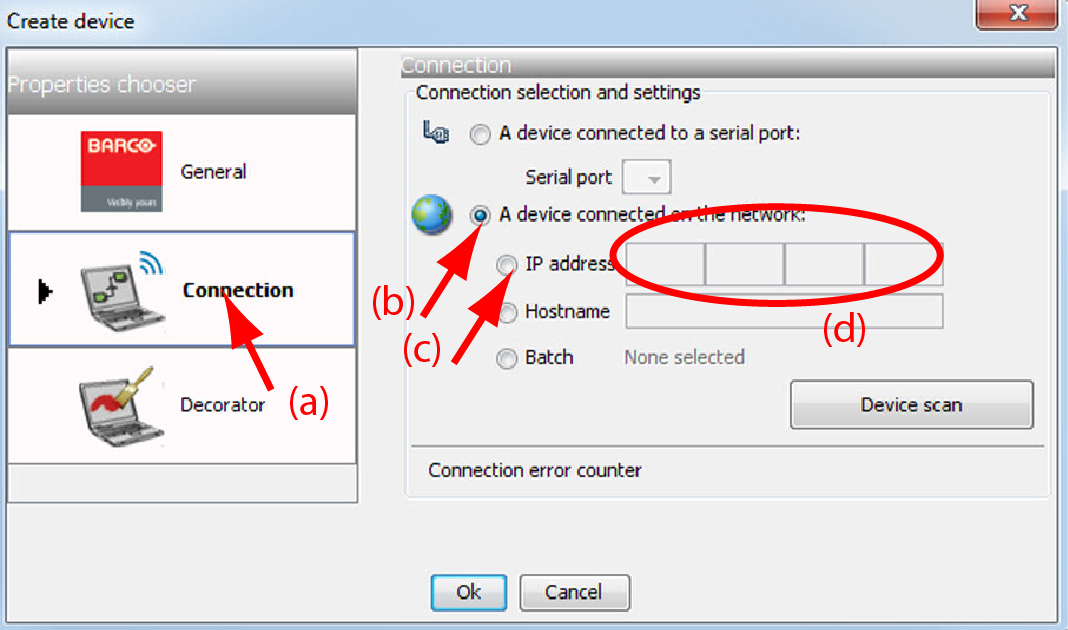
  1. Select the Connection properties tab (a).

    Image 5–9 Make connection via entering IP address

    The right pane changes to the connection setup page.

  2. Click on the radio button next to A projector connected on the network to select the Ethernet connection (b).
  3. Click on the radio button in front of IP address (c).
  4. Enter the IP address (d).

    Note: An address contains 4 octets with a maximum value of 255.
  5. Click OK to make the connection.
Via entering a host name
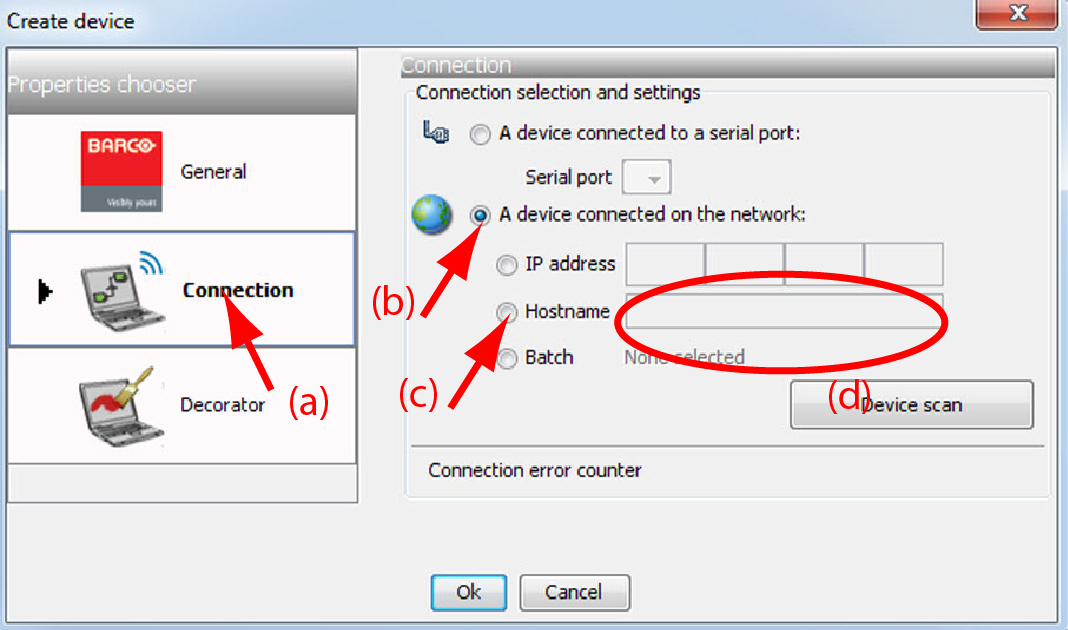
  1. Select the Connection properties tab (a).

    Image 5–10 Create connection via host name

    The right pane changes to the connection setup page.

  2. Click on the radio button next to A projector connected on the network to select the Ethernet connection (b).
  3. Click on the radio button in front of Host name (c).
  4. Click in the input field and enter the host name (d).
  5. Click OK to make the connection.
Note: Making a connection via a host name is only possible when the host name is known by the network DNS server.