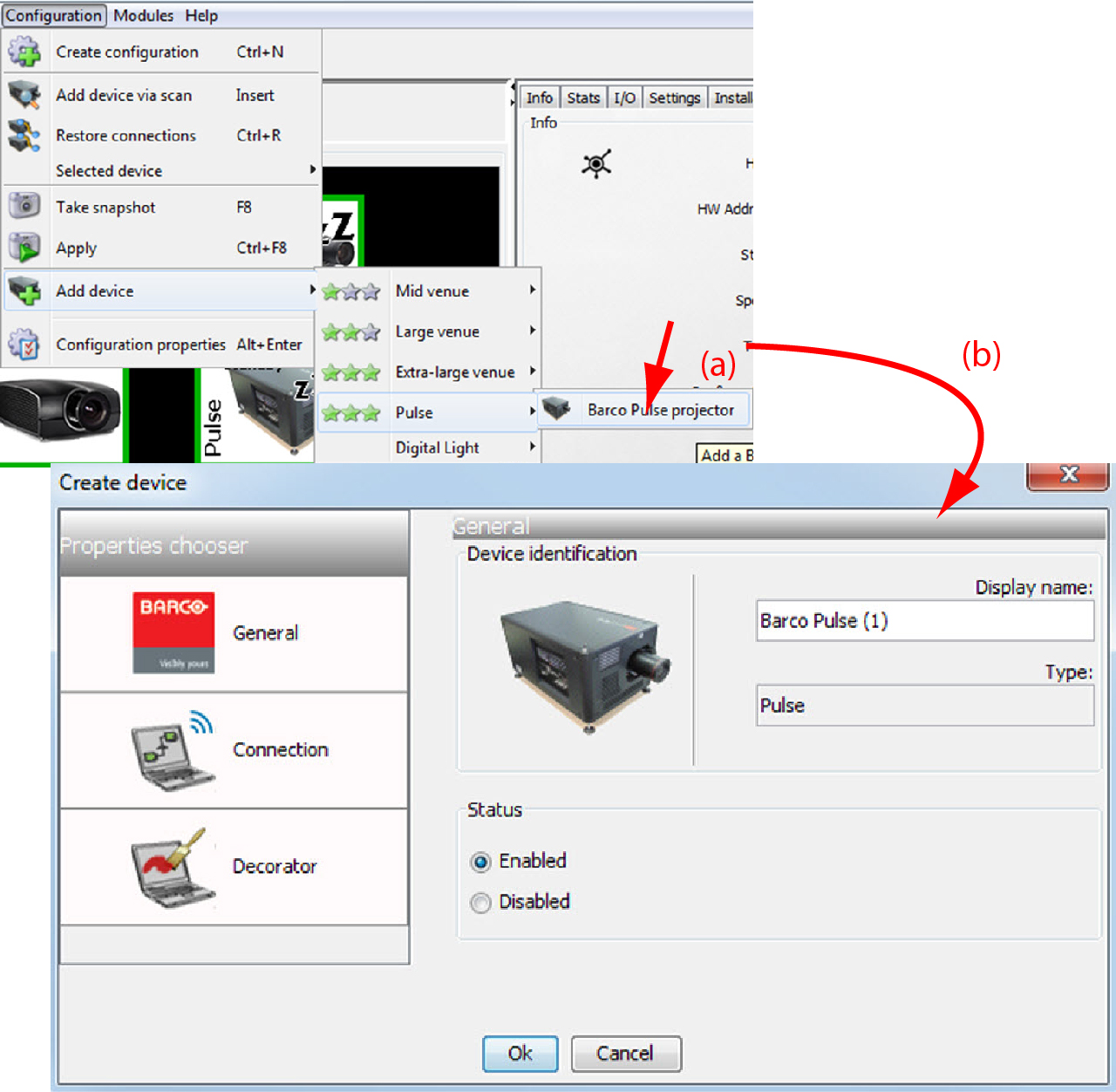
5.5.1 Add device

Note: The possible projectors types depends on the installed plug-ins.
About adding a projector

To make it more easy to find back a projector while adding it to the software, the different projectors are grouped in categories.

Venue typeCurrent projectors includedSupport for older projector families
Mid venueG50, G60, G62, G100HDX-W, CLM, RLM, SLM, Present-P
Large venue FLM and HDF
Extra-large venue HDQ
PulseUDX, UDM, F400, F90, F80, F70, FS40/FL40HDX-4K, XDL
Digital light DML-1200
How to add a projector
  1. Click Configuration on the menu and select Add device.

    Image 5–6 Add device - Pulse - Barco Pulse projector
  2. Within the desired venue category, move the cursor again to right and select the desired projector (a).

    The Create projector window is opened with a default device type icon (b).

  3. Enter the different device properties such as the projector identification, the connection parameters and projector decorator for the configuration preview.
Note: When adding twice the same projector, once via a network connection and once via a serial connection, a message will be displayed to warn the user that there is already an instance with the same projector and that problems with the communication are possible. The projector will be added but Projector Toolset advises to uninstall one of the connections.