23.11 Projector Scheduler

About the scheduler

The projector scheduler allows you to automate the weekly schedule of the projector in the fleet. This includes:

How to add commands to the scheduler
  1. While in the Service module, click Run Scheduler:

    The Scheduler window will be displayed.
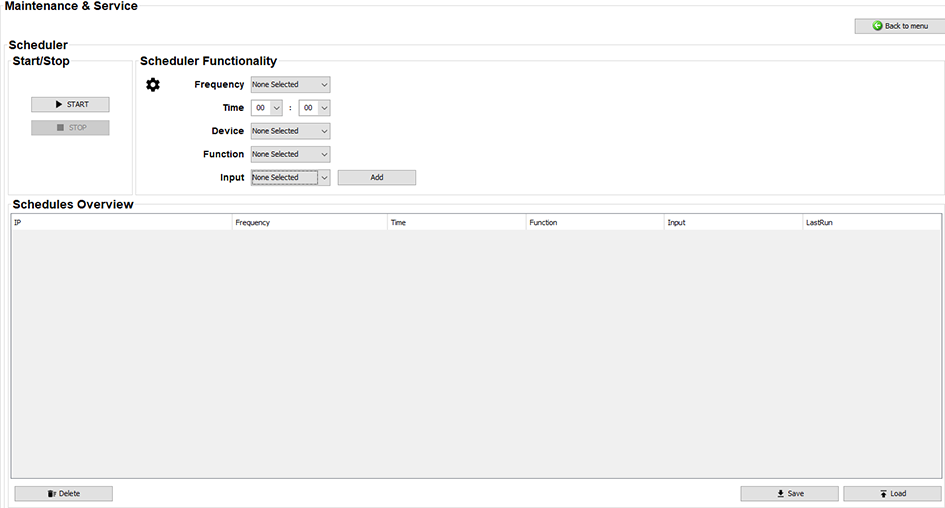
    Image 23–20 Example of the Scheduler window
  2. In the Scheduler Functionality pane, enter the following details:

    • Frequency: Choose a day of the week, or “daily”.
    • Time: Select the desired Time the command will need to activate (in hours and minutes of the day).
    • Device: Select the desired Pulse device in your space this schedule should run on.
    • Function: Select the desired function that should run.
    • Input: If Change Input was selected as function, choose the desired input source.
  3. Click Add to add this schedule to the Schedules Overview.
  4. Repeat this process for every desired action that you want added to the schedule.
  5. Once all desired actions have been added to the Schedules Overview, click Start to enable the Scheduler.

    Tip: Similarly, you can click Stop to disable the Scheduler.
How to delete (a) command(s)

Select the undesired actions in the Schedules Overview list and click Delete.

Tip: You can hold the ctrl button to select multiple commands, or hold Shift to select a range of commands.