15.4 Upload Flex license

About upload license

Within the upload license pane, it is indicated if the projector contains a valid license file or not (1), (2).

A license file can be uploaded or can be overwritten with a new one. When overwriting a valid license file with a new one, the old one remains active until the new file is validated and installed.
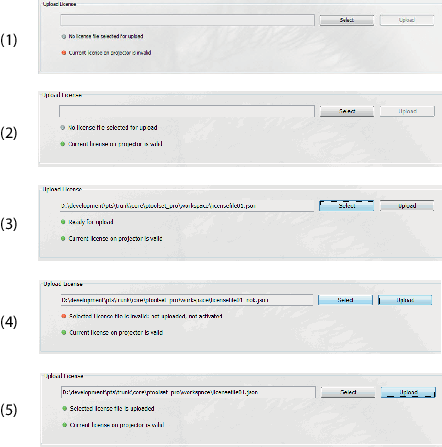
Image 15–4
(1)
Current license on projector is invalid
(2)
Current license on projector is valid
(3)
Current license on projector is valid, Ready for upload
(4)
Current license on projector is valid. Selected license file is invalid
(5)
Current license on projector is valid. Selected license file is uploaded
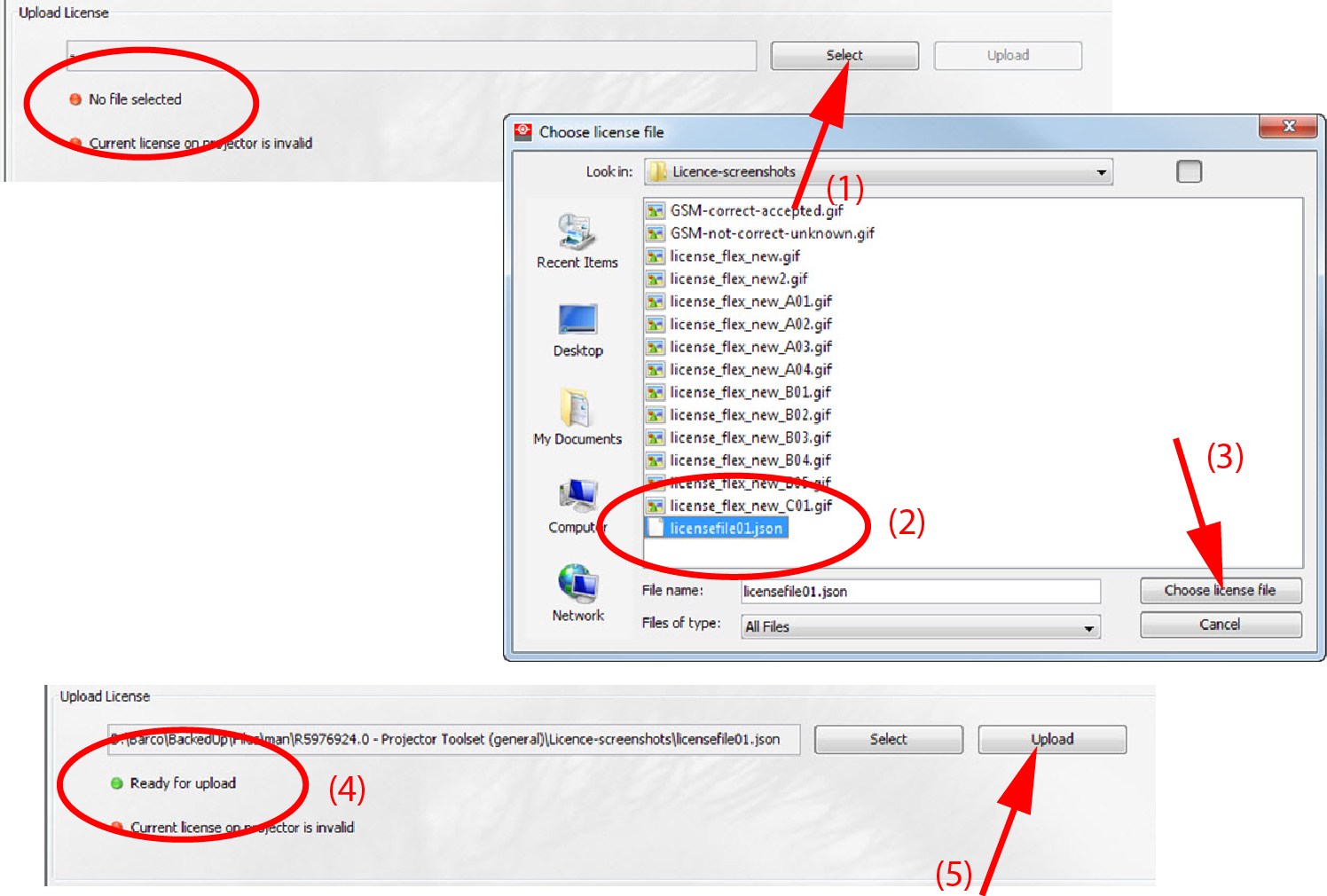
How to upload a new Flex License
  1. Within the License tab, click on Select in the Upload Flex License pain (1).

    Image 15–5

    A browser window opens.

  2. Browse to and select the desired license file (2) (*.json format) and click Choose license file (3).

    The selected file will be displayed in the input field.

    Ready for upload will be displayed when the selected file has the correct format (4).

  3. Click Upload to upload the file (5).

    The file will be validated.

    The following indications will be shown:

    • When the file is invalid: “Selected License file is invalid: not uploaded, not activated” (reference 4 on Image 15–4)
    • When the is valid: “Selected license file is uploaded” (reference 5 on Image 15–4)