5.10.1 Background color

Methods of setting the background color

You can select a background color using one of the following methods in the color chooser:

Tab pageAvailable methods
Swatches (default method)Pick one of the available color presets in the Swatches palette.
HSV (Hue-Saturation-Value)

Pick a color from the color palette.

Type in a value for Hue, Saturation, Value and Transparency.

HSL (Hue-Saturation-Lightness)

Pick a color from the color palette.

Type in a value for Hue, Saturation, Lightness and Transparency.

RGB (Red-Green-Blue)

Pick a color from the color palette.

Type in a value for Red, Green, Blue and Alpha.

Type in an RGB color code (e.g. FFFFFF for white).

CMYK (Cyan-Magenta-Yellow-Key)

Pick a color from the color palette..

Type in a value for Cyan, Magenta, Yellow, Black (Key) and Alpha.

How to set background color
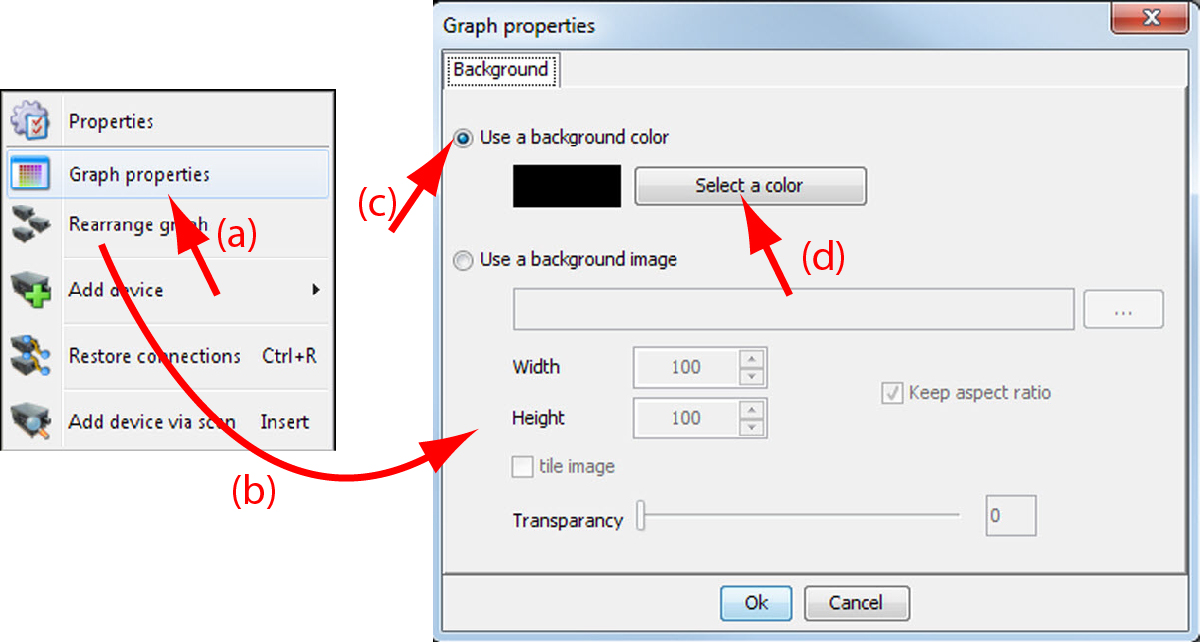
  1. Right click in the preview pane.

    Tip: Only click in an area without pictograph. If you click a pictograph, the projector properties will be prompted.
    Image 5–21 Set background color

    A context menu is prompted (a).

  2. Select Graph properties.

    The Graph properties window is displayed (b).

  3. If not yet selected, select Use a background color (c).
  4. Click on Select a color(d).

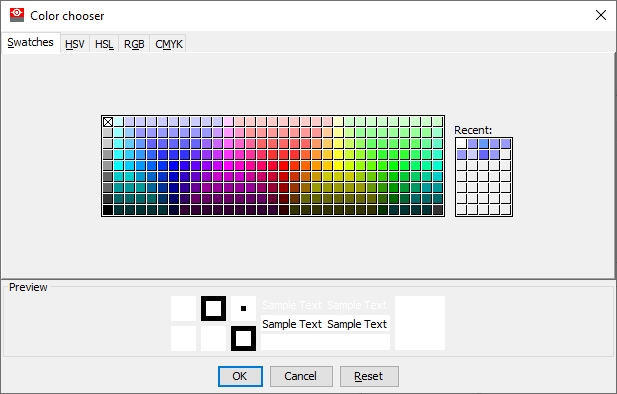
    The Color chooser window is opened.

  5. Select the tab page of the desired color choosing method.
  6. Select the desired color, using the chosen color picking method

    Image 5–22 Example of the Color Chooser, using the Swatches method

    Each time a color is clicked, a preview is displayed in the preview pane.

  7. Click on OK to apply the selected background color.