21.3 Notifications

About notifications

Code based notifications can be selected and a corresponding solution can be shown.

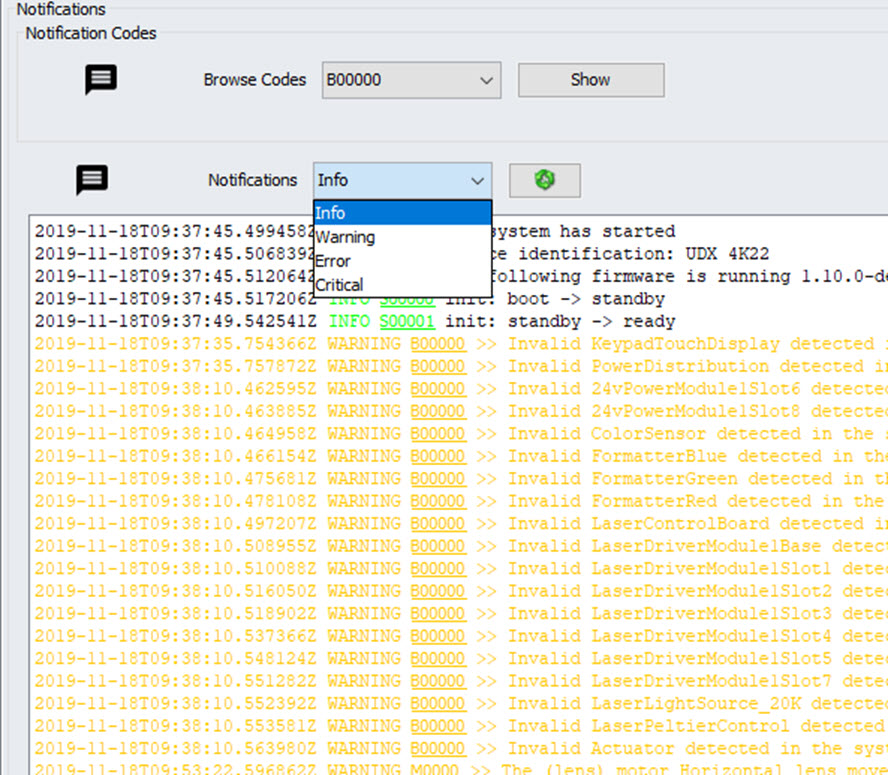
List based notifications can be given for different classifications:

For more in-depth logging, go to the Service module and select notifications log.

Note: The notifications given in the list are only since the last start up of the projector.
How to use code based notifications
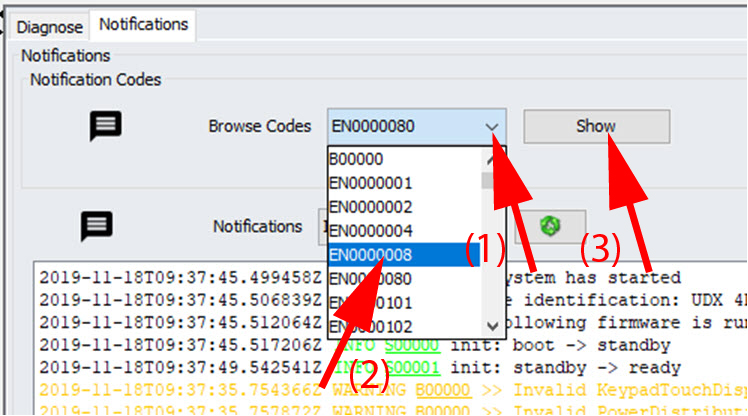
  1. When the projector shows a code, look up the corresponding code by clicking on the drop down next to Browse Codes (1).

    Image 21–3 Notification codes
  2. Select the desired code (2).
  3. Click on Show (3) to display an HTML page that provides an overview of possible situations and solutions for the selected code.
How to display notifications
  1. Click on the Notifications tab.

    Image 21–4 Notifications

    The current info level notifications are displayed.

  2. To select another level of classification, click on the drop-down list next to Notifications and select the desired classification.

    The notifications for the selected classification are retrieved and displayed.

  3. To refresh the current list, click on the refresh icon next to the classification name.
  4. To get more information about a warning, error or critical, click on the link in the corresponding line.

    A pop-up message will be prompted, providing more details.