23.3 Log functionality

Logging types

The service module contains 3 different logging:

About Standard log

This logging gives a logging overview of the last 5 days the projector was used (not necessary the last 5 calender days). This logging file can be zipped and downloaded on your computer.

Or, the logging can be view in a logging screen.

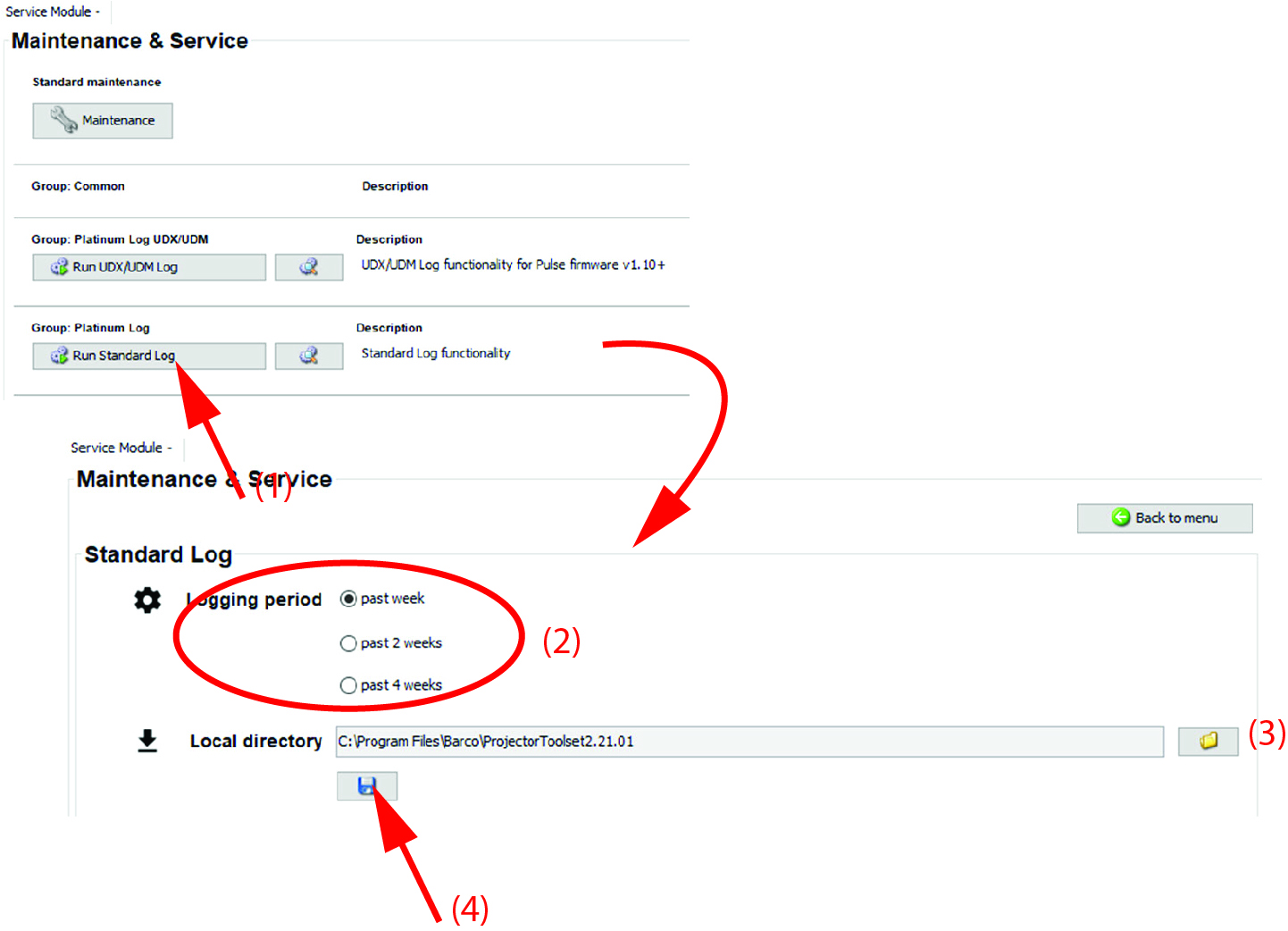
Standard log, logging period

The logging period can be set as follow:

See reference 2 on Image 23–4.

Standard log
  1. To download the log file, click on Run Standard Log (1).

    Image 23–4 Standard log download

    A storage location is proposed.

  2. When necessary to change the storage location, click on the browse icon and select a new location (3).
  3. Click on Download logs (4).

    The log file is zipped and stored on your PC.

Diagnostic package
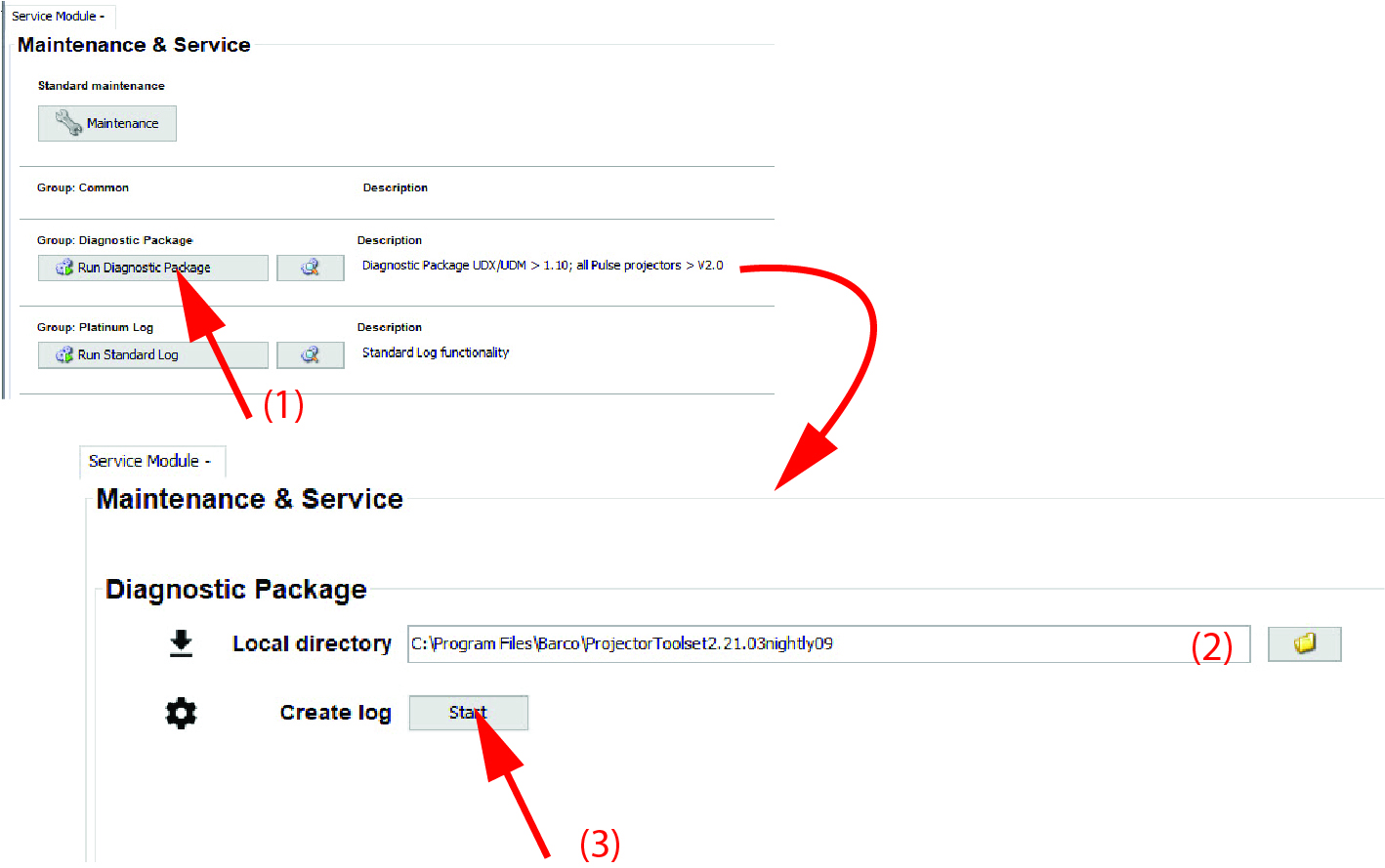
  1. To create and download diagnostic package file, click on Run Diagnostic package (1).

    Diagnostic packages for UDM/UDX are available from firmware version > 1.10 and for all other Pulse projectors from firmware version > 2.0.

    Image 23–5
  2. Select a local directory (2).
  3. Click Start to start the creation of the diagnostic package (3).
Full log

A full log is available for Barco service technician using a validation code.

Notification log

Notification logging is done in files of maximum 1MB. Only the 10 latest files are available for downloading.

When all 10 files are occupied, the oldest one (notification.0) will be removed and the others will be rename. Notification1 becomes Notification0, etc. The most recent file will always be notification.9.

View notification logging
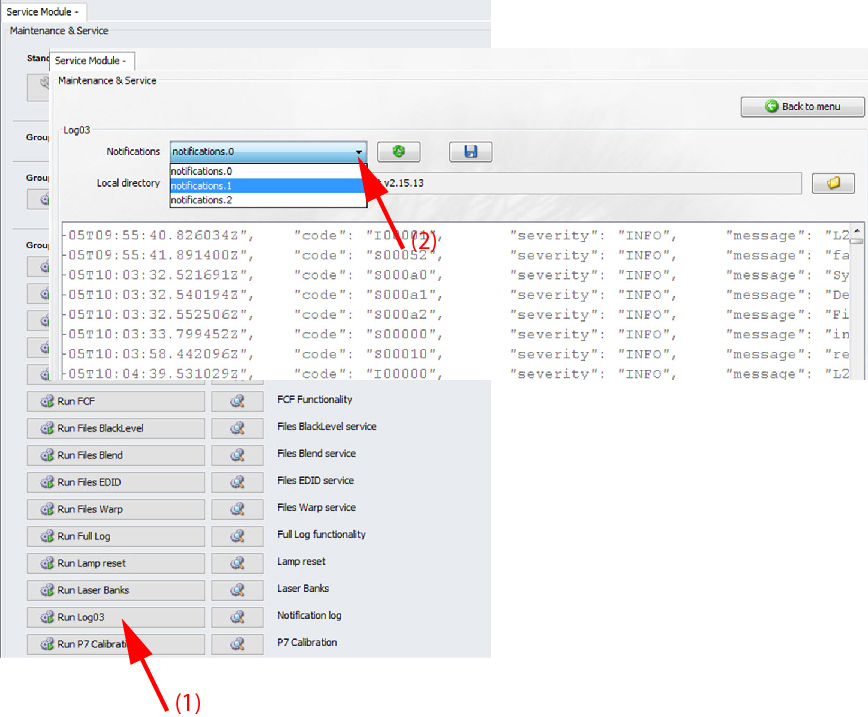
  1. Click on Run Notifications (1).

    Image 23–6 View notification log
  2. Click on the drop down box (2) and select the desired log file (notification.0 is the oldest one, notification.9 is the most recent one).