General
This area is specifically for window adjustments on Multiviewer outputs.

This area is specifically for window adjustments on Multiviewer outputs.
The area is broken up into several sub areas. The left side is for alignment and position of the window. The right is for misc. controls.
The Multiviewer alignment icons are similar to the icons in the Programming alignment panel. Multiviewer Menu, however, does not allow overlapping windows.
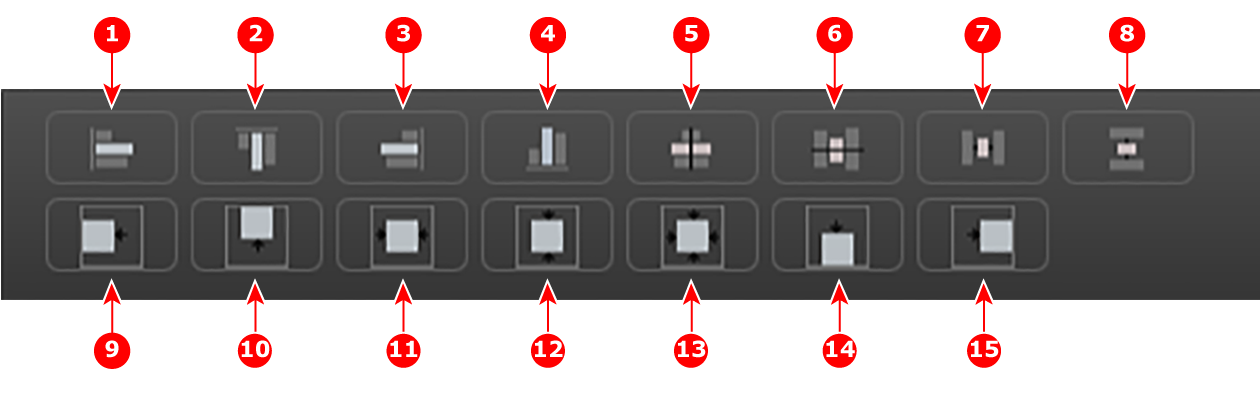
| 1 | Align Left to align the left edges of all selected PIPs. |
| 2 | Align Top to align the top edges of all selected PIPs. |
| 3 | Align Right to align the right edges of all selected PIPs. |
| 4 | Align Bottom to align the bottom edges of all selected PIPs. |
| 5 | Align Centers Horizontally to align the horizontal axes of all selected PIPs. |
| 6 | Align Centers Vertically to align the vertical axes of all selected PIPs. |
| 7 | Space horizontally & uniformly -reference is the horizontal size of the screen. |
| 8 | Space vertically & uniformly - reference is the vertical size of the screen. |
| 9 | Align all selected PIPs along the destination’s left edge. |
| 10 | Align all selected PIPs along the destination’s top edge. |
| 11 | Center Horizontally to center all selected PIPs horizontally, along the destination’s vertical axis. PIPs do not change vertical position. |
| 12 | Center Vertically to center all selected PIPs vertically, along the destination’s horizontal axis. PIPs do not change horizontal position. |
| 13 | Center to center all selected PIPs vertically and horizontally, along the destination’s horizontal and vertical axes. |
| 14 | Align all selected PIPs along the destination’s bottom edge. |
| 15 | Align all selected PIPs along the destination’s right edge. |
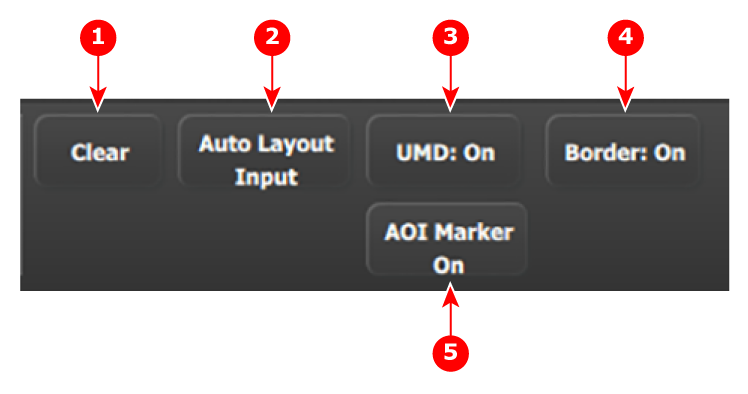
| 1 | Clear removes the selected window from the multiviewer window. |
| 2 | Auto Layout Input clears the multiviewer display and places all selected sources and the background from the list in the multiviewer display in the arrangement shown in Image 6–70. |
| 3 | UMD: On/Off toggles the UMD (under-screen-display) of selected windows on and off. |
| 4 | Border: On/Off toggles the window border of selected windows on and off. |
| 5 | AOI Marker On/Off toggles the AOI marker of selected windows on and off. |
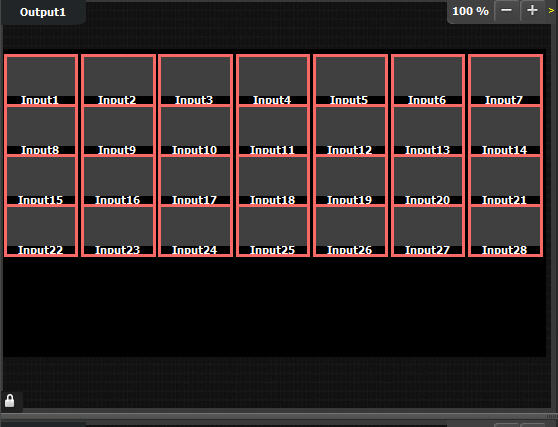
Select All / Unselect All
Selects or unselects all the windows from the multiviewer display while Multiple Select is On
Multiple select
Button used to enable or disable multiple selection.
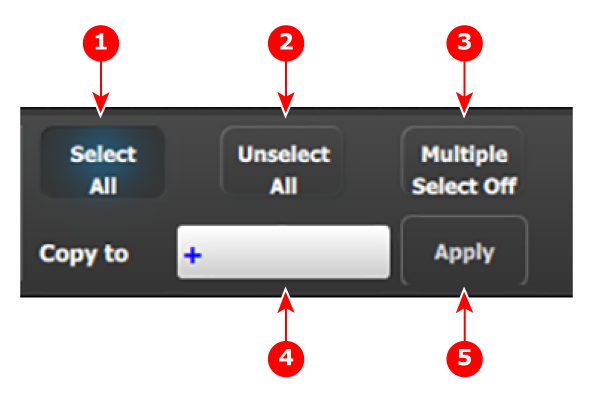
| 1 | Select All selects all the windows in the multiviewer. It is equivalent to left clicking on all of the unselected windows one at a time while Multiple Select is On. |
| 2 | Unselect All unselects all the windows in the multiviewer. It is equivalent left clicking on all of the selected windows one at a time while Multiple Select is On. |
| 3 | Multiple Select Off/On enables or disables the selection of more than one window in the multiviewer. |
| 4 | Copy to allows you to select another layout to which you may copy the current layout. The choices from the drop-down field are "Layout 1" and "Layout 2." |
| 5 | Apply copies the current layout to the layout selected in the “Copy to” field. |