6.15 Configuration Menu > Adjustment > Output Configuration
General
In the Output menu users can assign output connectors to configurations and adjust signal parameters to match the display devices connected to the unit.
Output Card arrangement
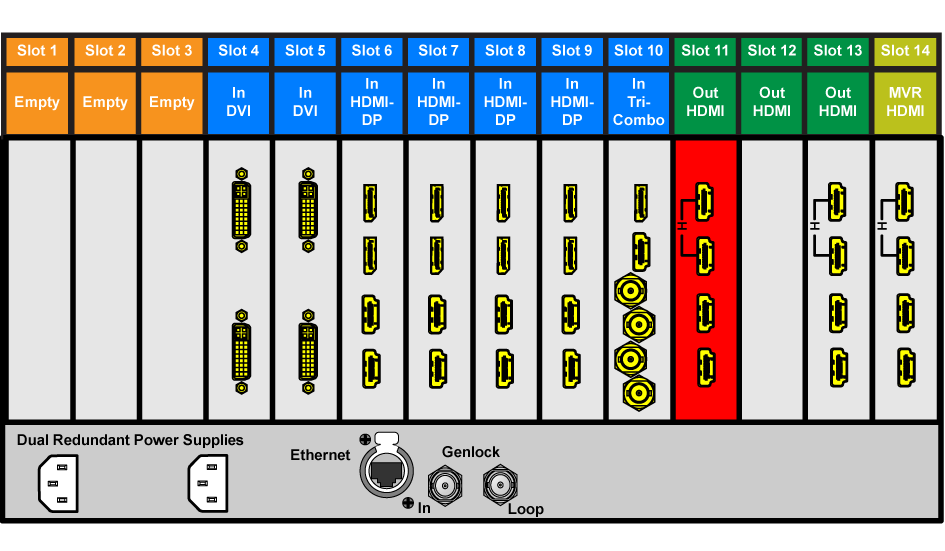
On the E2 Lite model, the output cards occupy slots 11 through 13 and right justified to slot 13.
If there is an empty output slot, all output cards to the left of that empty slot will be red. Red indicates that although the cards will operate properly, outputs from these cards will not be available at the Multiviewer.
Image 6–18E2 Lite with an empty output-card slot
If the card with the connectors that are part of an output configuration is missing, the card in the unit graphic and the output configuration in the configuration list will be grayed out.
Also, if there is an existing output configuration but the card in the slot is of different type, then again the configuration will be greyed out.
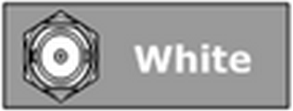
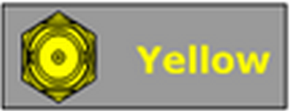
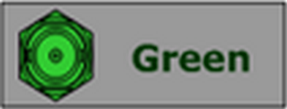
Output connector colors
Not added to system as grouped connector or single connector
Not assigned to any output configuration
Assigned to an output configuration
Output configuration menu description
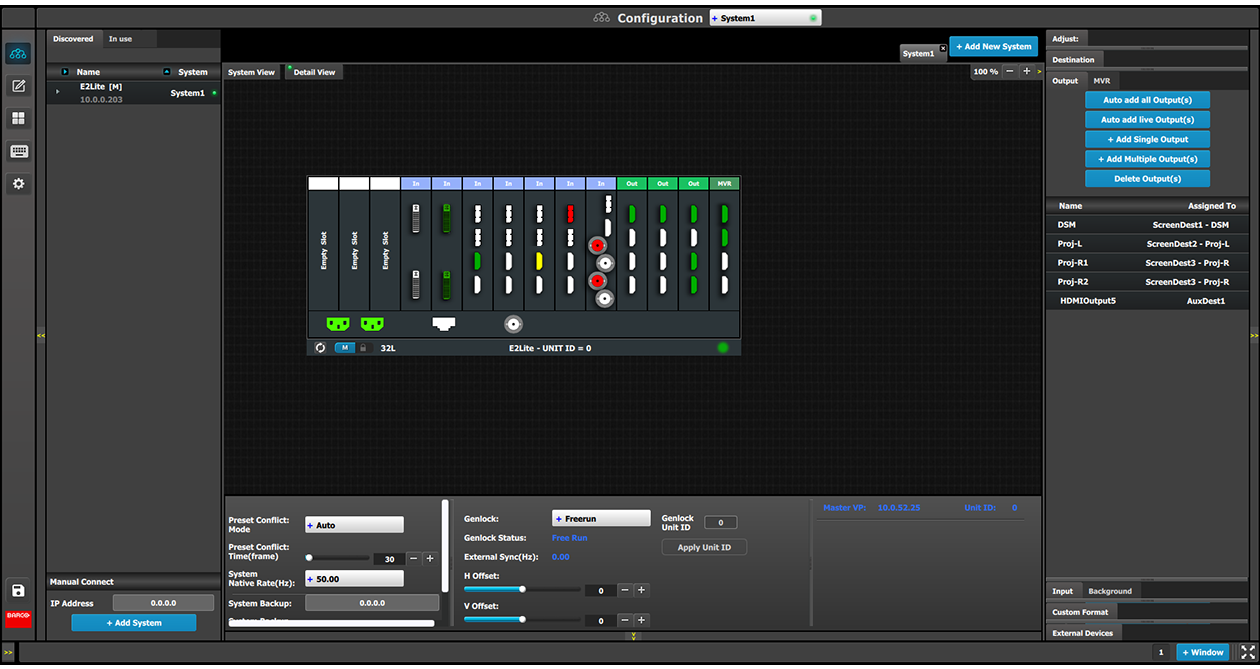
Output configuration menu is accessed by clicking on the Output tab.
This menu provides:
Auto add all Output(s): A button to automatically allocate all unassigned output connectors to an Output configuration.
Auto add live Output(s)
A button to automatically allocate all LIVE output connectors (GREEN) to an output.
+ Add Single Output: A button to manually allocate output connector(s) to an Output configuration.
+ Add Multiple Output(s):A button to manually allocate more than one connector to an Output configuration.
Delete Outputs: A button to delete unused or obsolete Output(s).
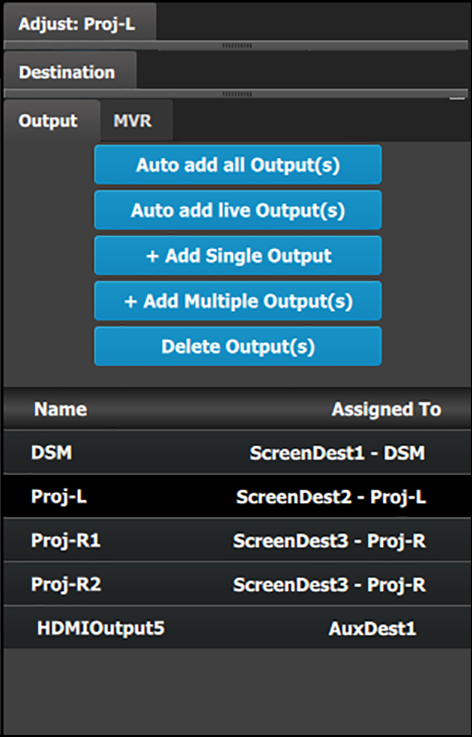
A list of all the Outputs already created on the system (e.g. Output1 and Output2).
How to Auto add Outputs
The “Auto add all Output(s)” button allows all 2K outputs that are not assigned to an output configuration to automatically assign to an output configurations. Output connectors that are already assigned to output configurations will not be affected. The picture below shows what occurs when the button is pressed. Since there are 12 output connectors not assigned, all 12 Output configurations are automatically assigned.
The unit will query the connected device on its output for a preferred EDID and try to assign that as the output resolution and frame rate. If no devices are connected, a standard HD resolution with the native rate of the EMP is assigned as frame rate.
Next to the configuration name is the name of the Destination where the output is assigned. If the Output is not assigned to any Destination, then the name will be “N/A”.
Note: The software by default names outputs as “Output 1, 2, 3...” The user can rename each output by double clicking on the name and type in the new name in the blue box.
How to add Output
Outputs configurations can be added manually to unassigned connectors.
Click on the Add Output button.
The Add Output button is replaced by the Done Adding button (highlighted in blue).
In the System diagram area, click on the connector(s) that need to be assigned.
Connector(s) is immediately highlighted in blue.
The selection is completed by clicking the Done Adding button that is highlighted in blue.
A new Output is added in the output list.
How to delete Output
Click on the Delete Output(s) button
The Delete Output(s) button is replaced by the Delete Selected button (highlighted in red).
Click on the corresponding connector in the graphical area.
or
click in the “x” on the right hand side in the output configuration list.
Connector(s) is immediately highlighted in blue.
The deletion is completed by clicking the Delete Selected button.
Note: Multiple connector configurations can be selected to be deleted together.
Note: You can only delete Output Configurations that are not assigned in Destinations.
How to access to the output configuration adjustments
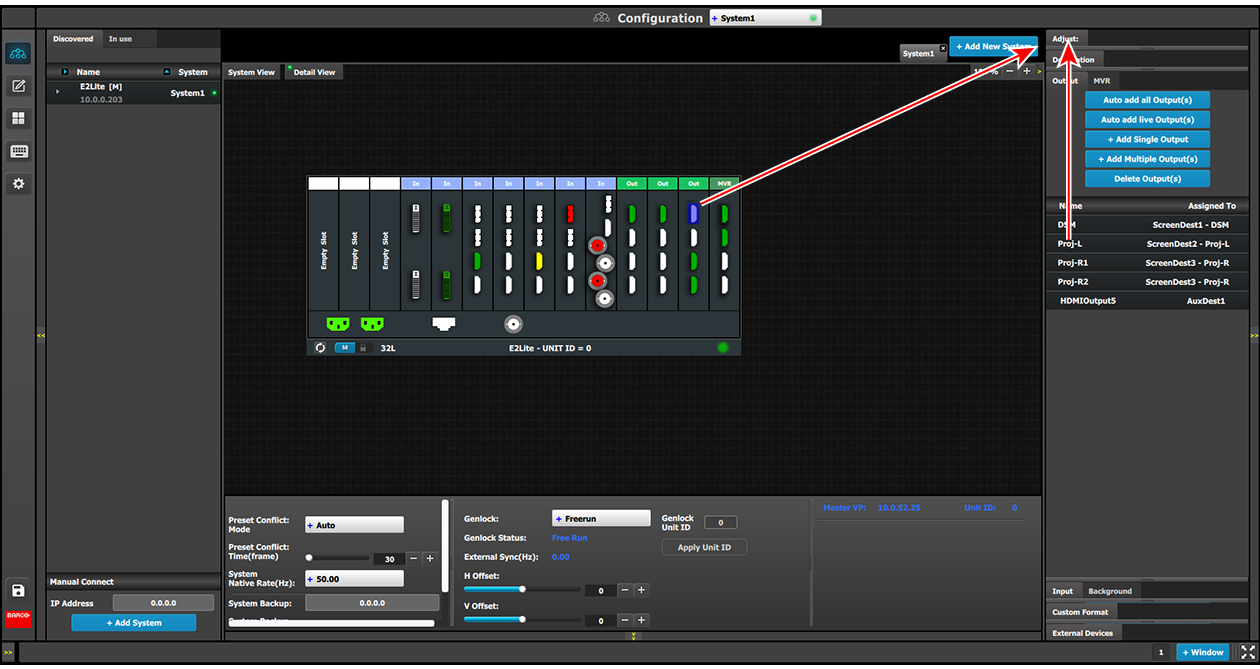
Adjustments to outputs are performed in the “Adjust” panel:
Select the output from the configuration list
or
clicking on the connector graphic.
An output is selected.
Click on the Adjust tab that is on the top of the Adjustment area.
Image 6–20Accessing the Output Adjust Panel
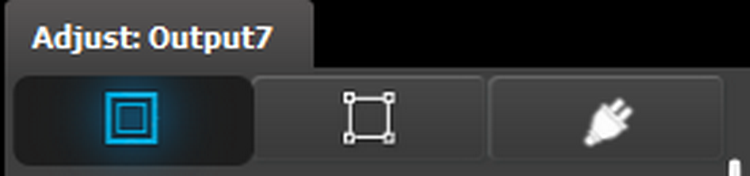
The output adjustment panel is displayed.
Output adjustment panel description
The output adjustment panel is divided in three sections
Main page
Format & Timing
Connector
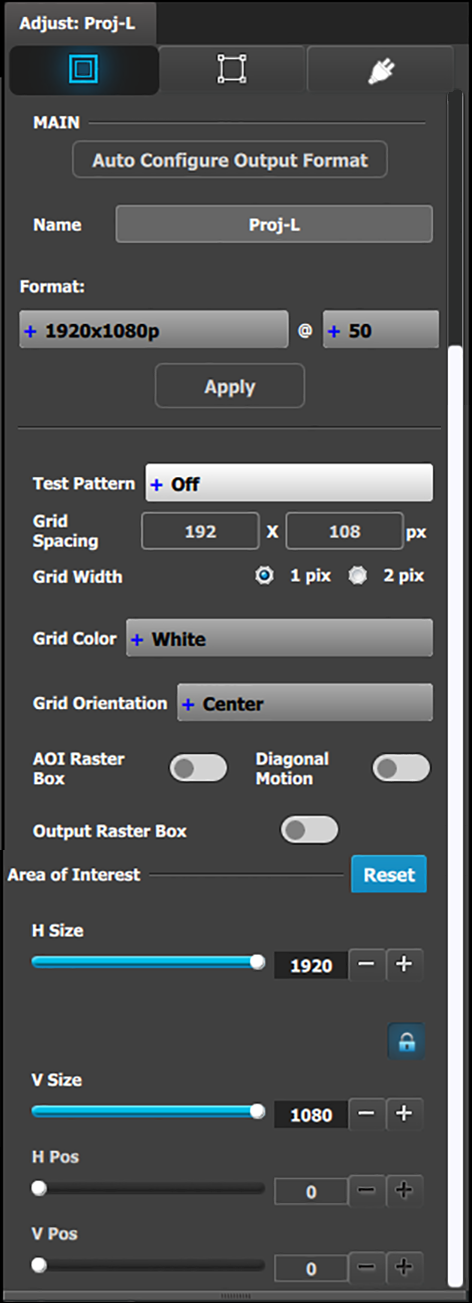
Output adjustment panel > Main page
Auto Configure Output format: Selects the output format will be set to match the format contained in the EDID of the display device connected to the corresponding output(s).
Name: The name of the output configuration can be edited in this field.
Format: Selects the video format of the output configuration from the drop-down menu. The available formats are in compliance with the output configuration type.
Test pattern: Turns the Test Patterns ON and select the desired type. The default setting is OFF. Test pattern types :
Horizontal Ramp
Vertical Ramp
100% Color Bars
16x16 Grid
32x32 Grid
Burst
75% Colorbars
50% Gray
Horizontal steps
Vertical steps
White
Black
SMPTE Bars
H Alignment
V Alignment
H V Alignment
Circle Alignment
Raster box: Turns ON or OFF on a raster around the default active area. This raster box is a white, single-pixel-wide broken line.
Diagonal Motion: Turns the Diagonal Motion ON or OFF for select patterns
The motion is a bottom-right to top-left diagonal for 16x16, 32x32 grid
The motion is right to left for 100% Color Bars.
There is no motion in Horizontal and vertical Ramps and other patterns
Area of Interest (AOI): A raster box that can be positioned and sized within the outputs active area, it effectively makes the AOI the new active area.
This raster box is a green, single-pixel-wide broken line that helps you adjust the AOI within the output’s active area
The handles for the AOI menu are:
H Size and V size : Adjusts the horizontal and vertical positions respectively
H Pos and V pos: Adjusts the horizontal and vertical positions respectively
Note a lock button to allow user to lock the aspect ratio of the size.
Reset button: resets the AOI to default which is the full output area.
Note: The AOI of AUX outputs works as above while Program outputs will be implemented during 2015.
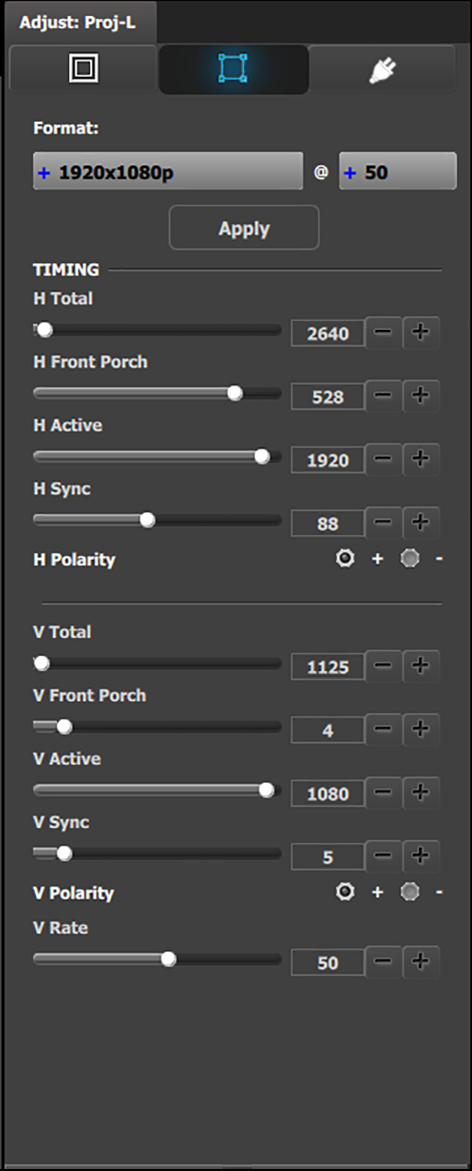
Output adjustment panel > Timing Menu
Format: Selects the video format of the output configuration from the drop menu. This is the same adjustment as in the previous menu.
H Total: Adjusts (in pixels) the total pixel count per line for the selected output.
H Front Porch: Adjusts (in pixels) the offset between the end of the output active area and the beginning of H sync.
H Active: Adjusts (in pixels) the horizontal size of the output active area.
H Sync: Adjusts (in pixels) the H sync width.
H Polarity: Adjusts the polarity (active High or Low) of the horizontal sync pulse (N/A in SDI).
V Total: Adjusts (in lines) the total line count per frame.
V Front Porch: Adjusts (in lines) the offset between the end of the output active area and the beginning of V sync.
V Active: Adjusts (in lines) the vertical size of the output active area.
V Sync: Adjusts (in lines) the V sync width.
V Polarity: Adjusts the polarity (active High or Low) of the vertical sync pulse (N/A in SDI).
V Rate: Adjusts the frame rate in seconds polarity (active High or Low) of the vertical sync pulse (N/A in SDI).
Note: Changing these values can make the video signal undetectable for other devices. Always use a VESA timing calculator for best results.
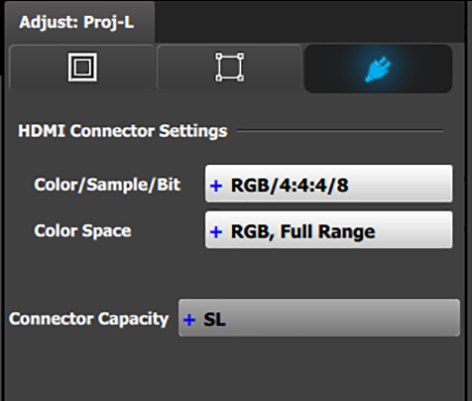
Output adjustment panel > Connector Menu
Connector Menu: Output Adjustment—HDMI
Color/Sample/Bit: Adjusts the color space (RGB or YCbCr), sampling rate (4:4:4 or 4:2:2) and bit depth (8, 10, or 12) of the output signal. Depending on the EDID of the connected device the drop-down list would populate with compatible settings.
Color Range: Adjusts the color range (RGB or SMPTE, Full or Reduced).
Connector Capacity: If the connector is not assigned to a Destination as above, the capacity can be changed. Once included in a Destination configuration this needs to be managed through the Adjust pane of the Destination.
HDCP Mode: HDCP Mode enables the HDCP setting for the selected output. The default for HDMI outputs is Off. To turn On the HDCP Mode, click on the empty checkbox. When the checkbox displays a check mark, HDCP Mode is On. HDCP Mode is not applicable to SDI outputs.
Note: The selection of HD (1080i) or 3G SDI (1080p) actually happens when the format type is selected in the main tab.