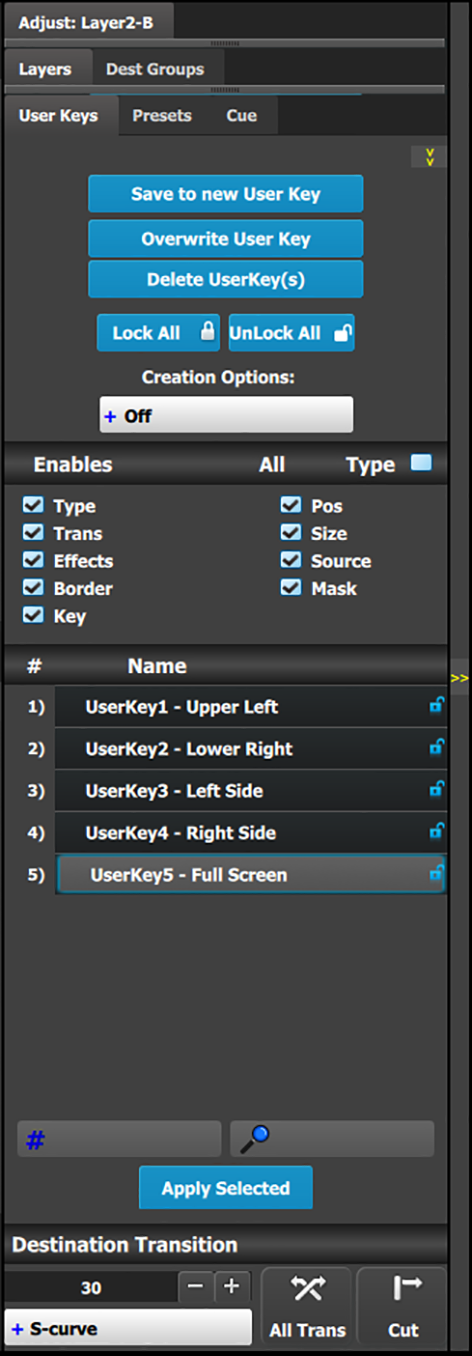
6.26 Programming Menu > Adjustment area > User Keys configuration
General
The User Key feature enables you to select all (or a portion) of the current layer’s attributes (such as border color, size, etc.), and store them on a User Key.
These attributes can then be applied to any active layer on Preview via the Apply Selected button or via Drag and Drop.
User Keys configuration menu description
This menu provides:
A numbered list of the available User Keys.
A button to Save the attributes of a Layer as a new User Key.
A button to Overwrite the Layer data in the selected User Key.
A button to Delete one or more User keys.
A button to Lock All the User Keys in the list.
A button to Unlock All the User Keys in the list.
Several attributes that can be enabled for use during Save operation.
Type: type of Layer—PIP or Key
Trans: type of transition
Effects: color and effects
Border: On / Off and its parameters
Key: Key parameters separated from Layer type
Pos: Position of Layer
Size: Size of Layer
Source: actual size of the Source inside the PIP, as opposed to the Source file
Mask: Masking parameters
A search edit box for searching User Keys by number and a search edit box for searching User Keys by name.
Save to new User key
Select the layer whose parameters you want to store.
Using the menu, enable or disable the specific parameters that you wish to store (e.g., Type, Trans, Effects, Key etc.). You can also enable all parameters using the ALL button.
Select the “Save to new User Key” button.
The User Key appears in the list.
Repeat from step 1 to store additional User Keys.
Overwrite User key
This button is enabled if a layer and a user key is selected. Pressing this button overwrites the layer data in the selected user key but the name of the user key is not updated. The attributes saved are based on the selection of the Enables boxes. If no boxes are checked, no user key is created.
Delete User Key(s)
Allows for multiple deletes of User keys.
Click the Delete UserKey(s) button.
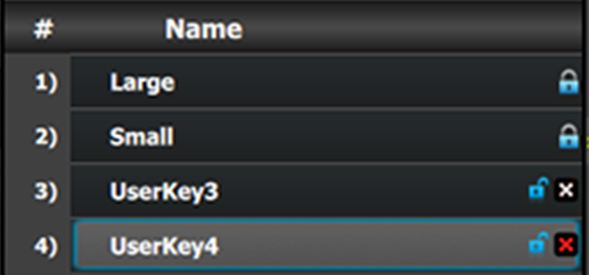
Select the User Key to be deleted by clicking the X next to the lock for that User Key.
Image 6–56Select a User Key
Note: If a User Key is locked, it cannot be deleted.
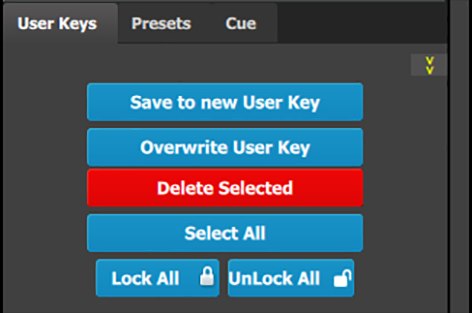
Select Delete Selected to delete only the selected User Key(s), or select Select All then select Delete Selected to delete all User Keys.
Image 6–57Delete Selected User Keys
User key list
Lists alphabetically all User Keys.
Search edit box
Search User keys by name. A list of User Keys including the selection appears instead of the full list.
Search Number (# icon)
Entering a number between 1 and 999 will searches for, selects, and shows that number User Key.
Apply Selected
The selected User Key is applied to the selected layer(s) on Preview and on Program if “Modify on Program is enabled”.
Renaming User Keys
Change the name of a User Key by double-left-clicking on the name itself. The list is not reordered based on the new name.
Renumbering User Keys
Edit the number of a User Key by double-left-clicking on the number. The list is reordered based on the new number.