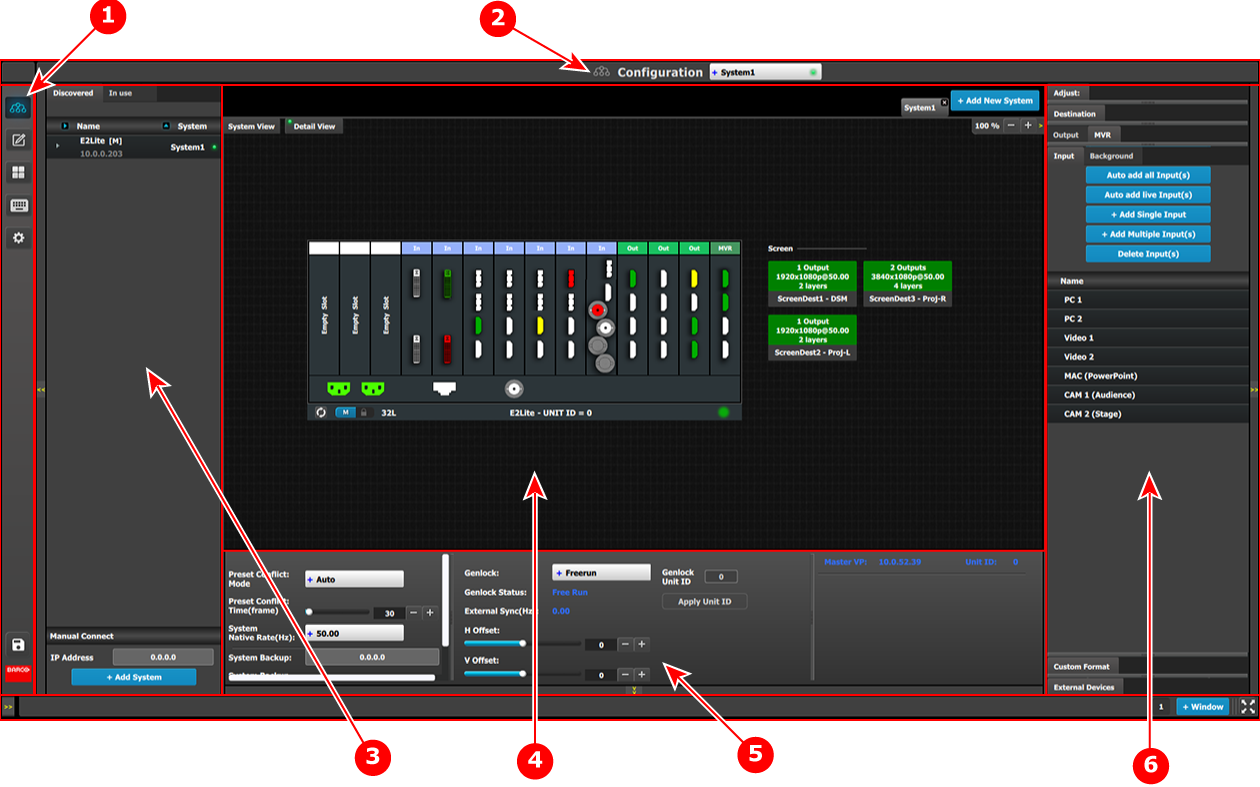
The user interface is organized around a Menu Navigation bar at the left of the screen and a Working area in the rest of the screen. The layout of the screens is similar throughout the GUI.
In order to explain the layout, we will examine the start-up screen of the Configuration Menu and describe the different components. The screens for the other menus follow the same structure and flow.
Image 6–1GUI orientation
1
Menu navigation bar
2
Title bar
3
Selection area
4
Diagram area
5
Modifier area
6
Configuration area
Menu navigation bar
On the far left hand side of the screen is the Menu Navigation bar that allows users to navigate between the different screens and save or restore system configurations. This area of the screen is always visible and remains unchanged. The available buttons on the Menu Navigation bar are:
System Configuration: allows access to System Configuration Menu.
Programming: allows access to Programming Menu.
Multiviewer: allows access to Multiviewer Menu.
Controller: allows access to Event Controllers setting.
E2 built-in web page.
System Save and Restore.
Title bar
On the top of the working area a title bar indicates the name of the selected page (e.g. System configuration).
Selection area
The selection area allows the users to select the System, Device or inputs that will be used.
Diagram area
In the middle, is the Diagram area where the system, Screens and Multiviewer are represented graphically.
Configuration area
On the right hand side, is the configuration area where users perform all needed adjustments.