General
This part of the System configuration page allows listing devices available on the local network and identifying them.

This part of the System configuration page allows listing devices available on the local network and identifying them.
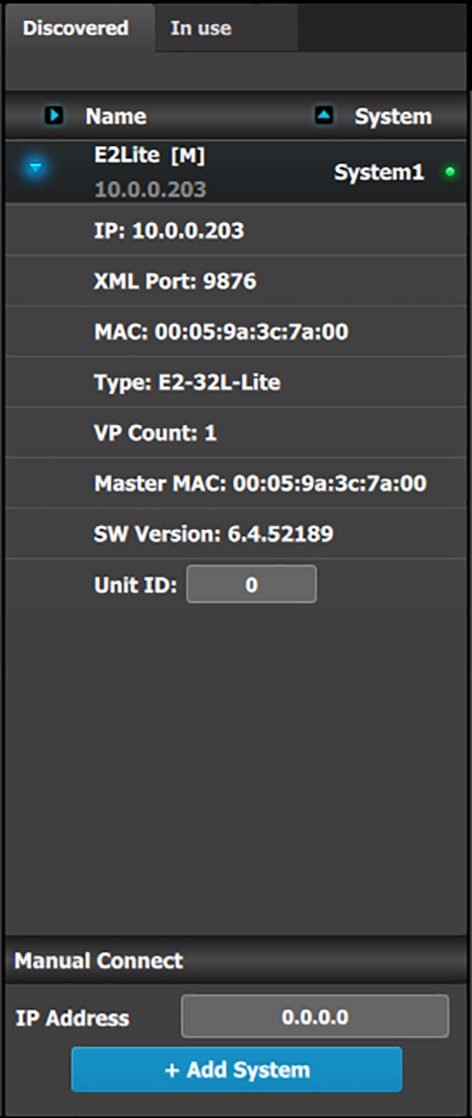 | The panel in this area has three tabs:
Note: When the Discovered tab is selected, the Event Master ToolSet Software will continuously send a UDP broadcast over the network to locate devices (every 5 seconds). Next to the device name an LED indicates the status of the unit:
The small arrow in each device opens a detail menu for the device, stating most notably the ID of the unit who is used when units are linked. |
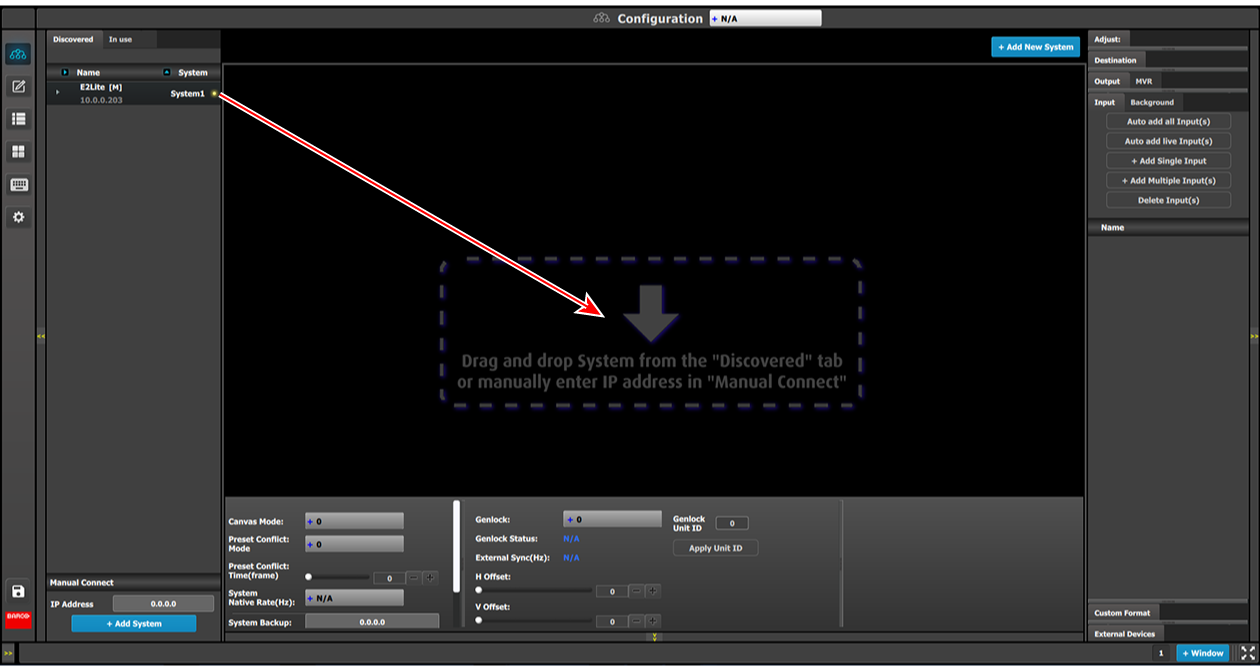
In the most of the case, devices are automatically detected and the user just need to add the new device via drag and drop into the system diagram (see How to add a device into the selected system below). But, under certain circumstances in Network communication the normal UDP based auto detection of Event Master Compatible Devices might not work. A firewall or a tightly configured switch are examples. In that case a Manual direct TCP/IP request can be sent to a specific IP Address (see How to manually add a device into the selected system below).
Drag it to the System diagram area.
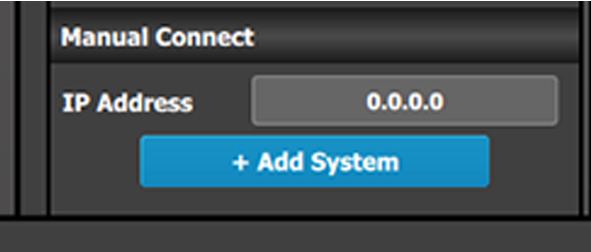
To manually add a device, use the “Manual Add” section.
Press the “Add” button.
Unit is added and retrieves the available configuration in the Device.