7.15 Configuration Menu > Add Aux Destinations

General

In this procedure, you will Add Aux Destinations from the defined outputs.

Prerequisite
Note: If more than one Aux Destination is utilized, repeat the below steps until all Destinations are added.
Add Aux Destinations
  1. Click on the Destination tab to define destinations for the defined outputs.
  2. From the diagram area click on the output that you want to be part of the destination.
  3. Click on the +Add Aux Destination blue button to assign the output to the Aux destination.
  4. When the destination is created a box appears next to the E2 diagram.
(Optional) Edit the Name
  1. Double click on “Destination1” in the Name list to edit the name.
  2. When the area turns blue, click the eraser icon to clear the field.
  3. Type a new name and hit enter when done.
(Optional) Adjust Destination Parameters

Click on the “Adjust” tab that is located on the top. In this Tab there are three sub tabs: Assign, Output and Wide (See below).

(Optional) Adjust Destination Parameters part 1 > Assign Tab

From this menu you can:

  1. Edit the name.
  2. Change the Destination from Screen to Aux.
  3. Set the dimensions if more than one connector.
  4. Delete outputs.
  5. Select the Auxiliary Scaling Capacity:
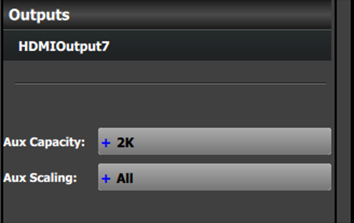
    Aux Capacity defines how much resolution, or actually LINKs of data can be inserted into the scaler. Standard setting is DL and refer to Dual Link as in connector capacity while 4K is the same as 4Links it also refer to the total of the 4K resolution that can be entered. 8L refer to 8 Links of 2K data.

    Each of the settings will allow for different size input / still and destination sources from the Input Resource tab covered in the Programming Section below.

    DL = Max 2560 x 1600 or 4095 x 1200

    4K = Max 4096 x 2400 or 8192 x 1200

    8L = Max 8192 x 2400 or 16384 x 1200

(Optional) Adjust Destination Parameters part 2 > Output Tab

From this menu you can:

  1. See the output canvas (raster) size if more than one connector in the connector group used for the Aux
  2. Choose more actions in sub tabs:

    • Position:

      • Enable Test Patterns with raster box and enable diagonal motion
      • Define the Area of interest (AOI).
    • Color:

      • Perform color adjustments.
    • Timing:

      • Read the timing parameters associated with the selected format. Once a connector is in a connector group, its Timing Parameters cannot be changed in the Destination
    • Connector Settings:

      • Select SDI type and SMPTE standards.
      • Adjust the Connector Mapping from Horizontal to Vertical or Grid.
(Optional) Adjust Destination Parameters part 3 > Wide Tab

From this menu you choose between the two sub tabs:

(Optional) Delete Destinations
  1. Click on the blue button Delete Destination(s).
  2. From the Name list click on the “x” space next to the output(s) you wish to delete. Or select the box to the right of the EMP representation in the workspace.
  3. Hit the red button Delete Destination(s) button. All of the selected Destination(s) will be removed from the list.