General
This area is specifically for layer adjustments.

This area is specifically for layer adjustments.
The area is broken up into several sub areas. The left side is for alignment, priority, size and position of the layer. Middle is for layer transition. The right is for misc. operations.

Buttons in this area operate on selected layers in the preview destinations. If no layers are selected, all buttons in this panel is disabled, except for the “Select All” button. “Select All” selects all the layers in preview for the Destinations in the current view, regardless whether the Destination is armed or not. The area is divided into several sections. Detail description of each section is provided below.
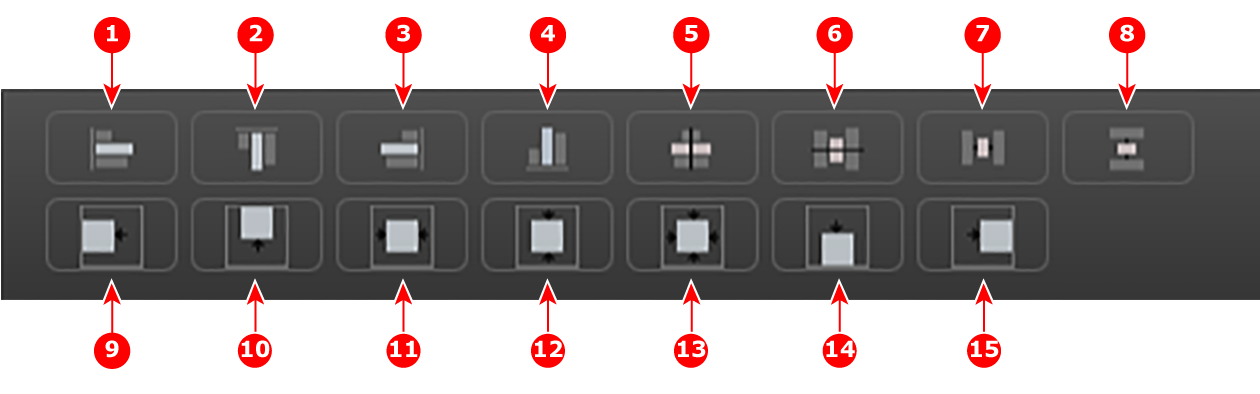
| 1 | Align Left to align the left edges of all selected PIPs. |
| 2 | Align Top to align the top edges of all selected PIPs. |
| 3 | Align Right to align the right edges of all selected PIPs. |
| 4 | Align Bottom to align the bottom edges of all selected PIPs. |
| 5 | Align Centers Horizontally to align the horizontal axes of all selected PIPs. |
| 6 | Align Centers Vertically to align the vertical axes of all selected PIPs. |
| 7 | Space horizontally & uniformly -reference is the horizontal size of the screen. |
| 8 | Space vertically & uniformly - reference is the vertical size of the screen. |
| 9 | Align all selected PIPs along the destination’s left edge. |
| 10 | Align all selected PIPs along the destination’s top edge. |
| 11 | Center Horizontally to center all selected PIPs horizontally, along the destination’s vertical axis. PIPs do not change vertical position. |
| 12 | Center Vertically to center all selected PIPs vertically, along the destination’s horizontal axis. PIPs do not change horizontal position. |
| 13 | Center to center all selected PIPs vertically and horizontally, along the destination’s horizontal and vertical axes. |
| 14 | Align all selected PIPs along the destination’s bottom edge. |
| 15 | Align all selected PIPs along the destination’s right edge. |
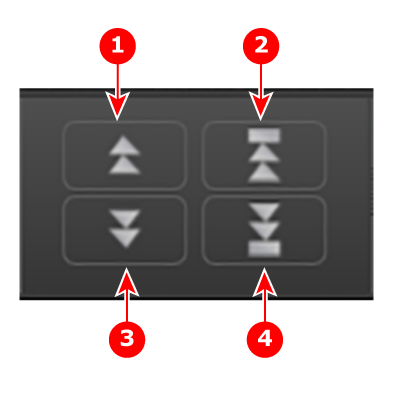
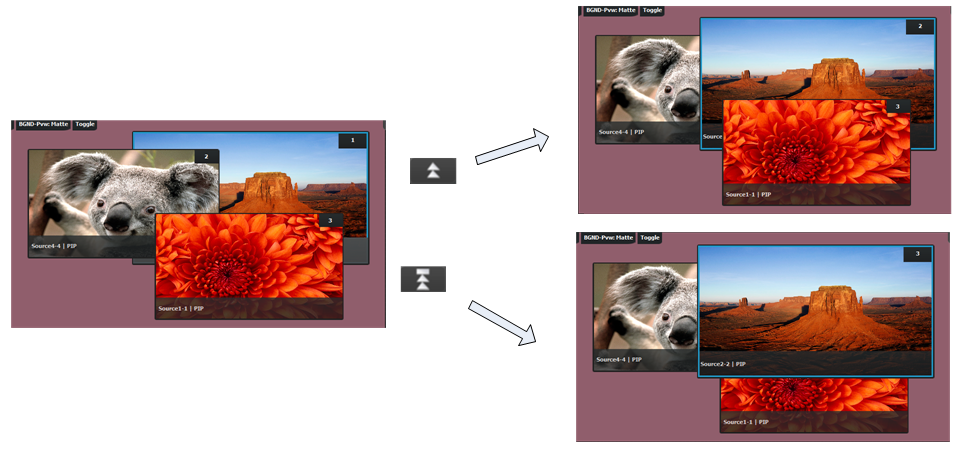
| 1 | Moves the selected layer up in priority and swaps with the layer previously above. |
| 2 | Moves the selected layer to the top of the priority and swaps it with the layer previously on top. |
| 3 | Moves down in priority and swaps the z-order of the selected layer with the layer previously below. |
| 4 | Moves the selected layer to the bottom of the priority and swaps it with the layer previously at the bottom. |
Example:

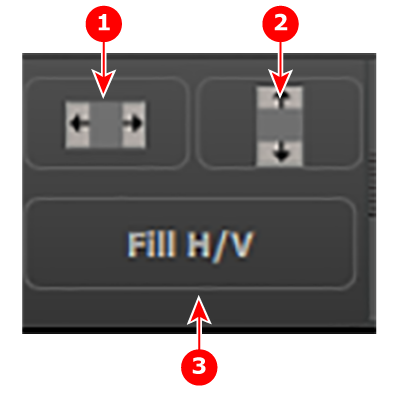
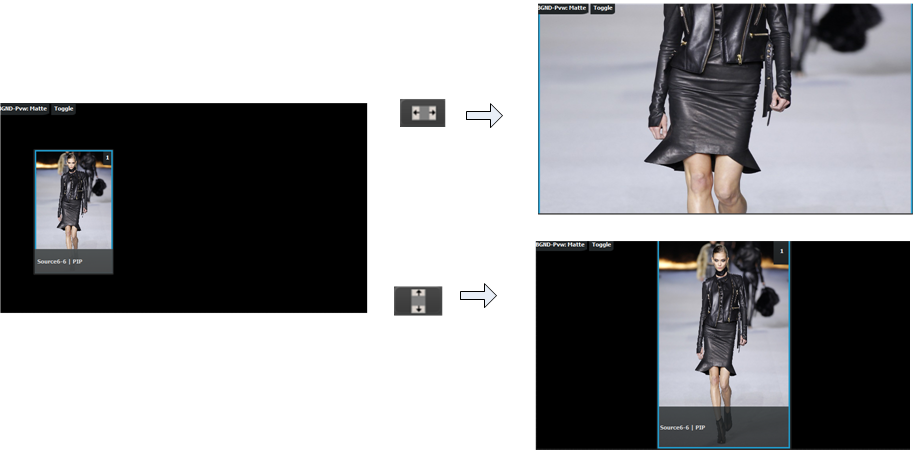
| 1 | Full Screen Vertical takes the selected PIP(s) to full screen, using the source’s height as the guide. If borders are on, they will be taken into account so that they are visible. |
| 2 | Full Screen Horizontal takes the selected PIP(s) to full screen, using the source’s width as the guide. If borders are on, they will be taken into account. |
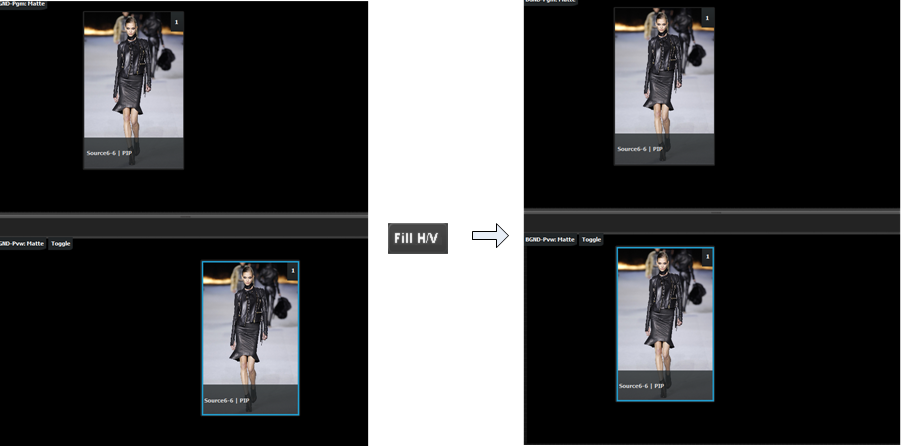
| 3 | Fill H/V will stretch the selected layer over the whole destination size not respecting the aspect of the source. |
Resize example:
Match example:
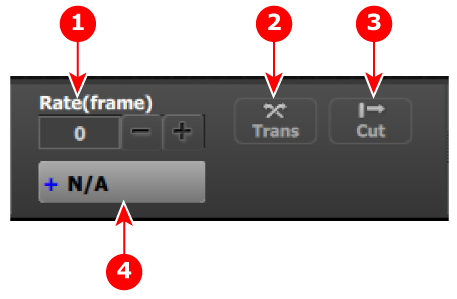
| 1 | Rate(frame) is the rate in frames at which transitions from Preview to Program take place. |
| 2 | Trans transitions Preview to Program according at the rate indicated in the rate box following the s-curve pattern. The layer on Program does NOT fade in Preview at the same time. The layer on Program appears in Preview when the transition is completed. |
| 3 | Cut transitions instantly the Preview to Program. |
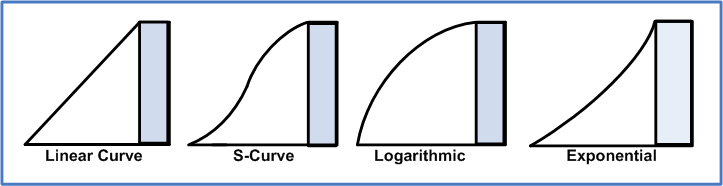
| 4 | Transition type is a drop-down box that allows a choice of transition types. The available types are: Linear, S-Curve, Logarithmic, and Exponential. |
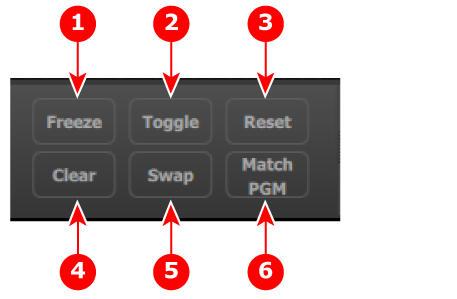
| 1 | Freeze freezes the image that is displayed in the layer. The layer can still be positioned and sized within the destination. The text of a frozen layer turns blue and a “freeze” icon (snowflake) appears on the bottom right corner. |
| 2 | Toggle enables the sources to toggle back and forth with each transition.
|
| 3 | Reset positions the layer in the center of the destination. Vertical size is set to 500 pixels and horizontal size is set to maintain the layer’s aspect ratio. |
| 4 | Clear removes the selected layer from preview. If the selected layer is on program, this button is disabled unless the Program is unlocked. |
| 5 | Swap enables a layer in Preview and Program to alternate back and forth with each transition.
|
| 6 | Match PGM forces the selected layer on Preview to be in the same location as the layer in Program. |
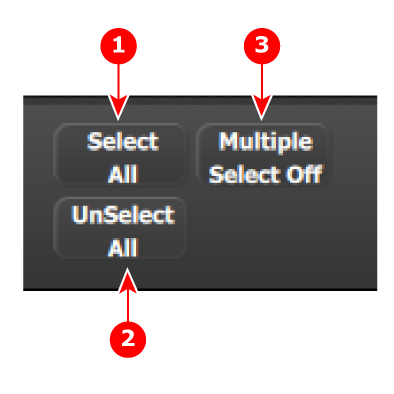
| 1 | Select All selects all Layers in Preview. It is equivalent to left clicking on all unselected layers on Preview one at a time while Multiple Select is On. |
| 2 | Unselect All unselects all Layers in Preview. It is equivalent left clicking on all selected layers on Preview one at a time while Multiple Select is On. Selection of anything allows the selected objects on Destinations to be armed. |
| 3 | Multiple Select Off/On enables or disables the selection of more than one layer. |