General
This part of the Programming page allows users to manage the available input resources. Sources are created and defined from the available Inputs that were defined on the System Configuration page.

This part of the Programming page allows users to manage the available input resources. Sources are created and defined from the available Inputs that were defined on the System Configuration page.
Source are defined from input signals. Multiple sources can be defined from the same input. After a source is defined, then several attributes can be modified. These attributes are: color adjustments, crop, sharpness and mask. By default, a source is automatically created for each Input. Up to 256 sources can be created form the same input. As with inputs, sources can be defined from multiple connectors, ex: 4K or DL DVI and as a single link or dual link.

Input
Features:
Depending on the resolution and type of the input signal, multiple connectors may be required to connect an input signal to the Event Master series processor. The number of connectors required is listed in the table below.
2K Resolutions up to 2048x1200@60 | Dual Link Resolutions up to 3840x1200@60 | 4K (Ultra HD) Resolutions up to 4096x2160@60 | |
| SDI | 1 | 2 | 4 |
| DVI | 1 | 1 | 2 |
| HDMI 1.4a | 1 | 1 | 2 |
| DisplayPort 1.1a | 1 | 1 | 2 |
Adjustments:
Source
Features:
Adjustments:
Layer
Features:
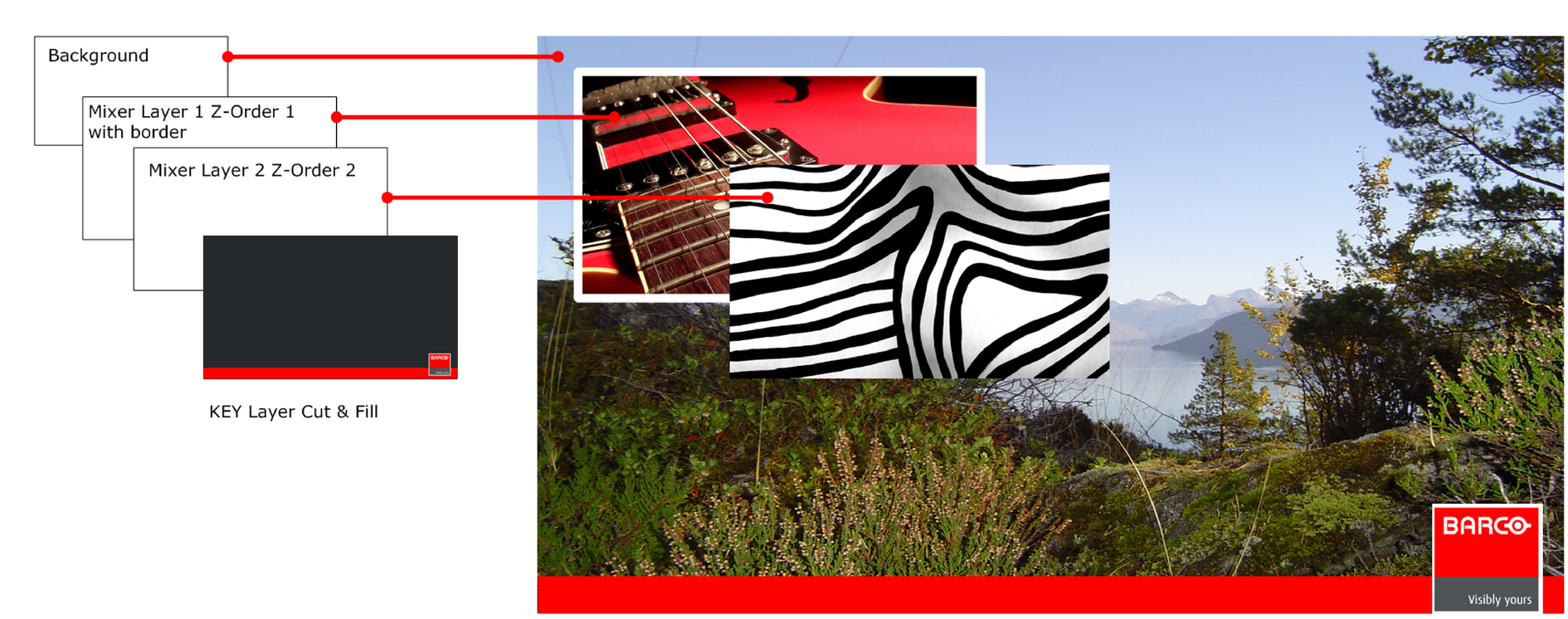
Each mixer layer has two layers, Preview and Program. For complete flexibility, each layer can be assigned to either PIP or Key functionality.
Adjustments:
Layer Effects
In this menu, Sources defined in the Configuration menu are assigned to destinations via drag and drop procedure. Each input has minimum one Source file, several can be created via copy original (Plus Icon) or copy file (Double Page Icon).
There are 2 tabs in this section:
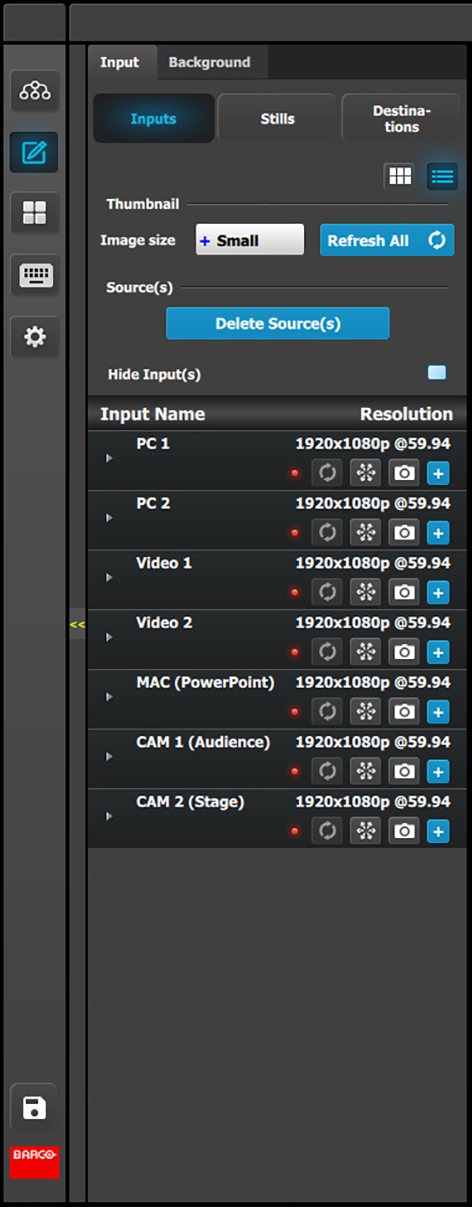
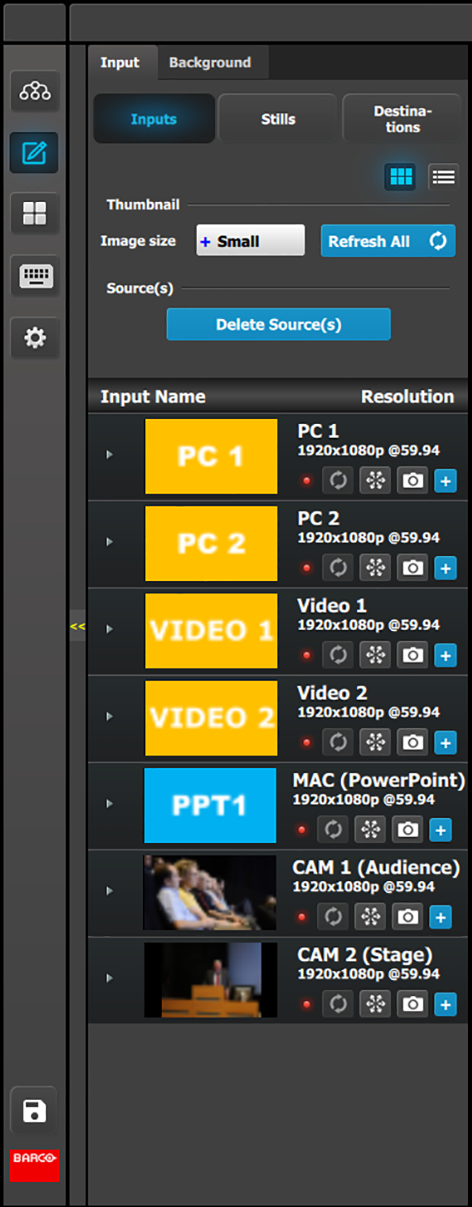
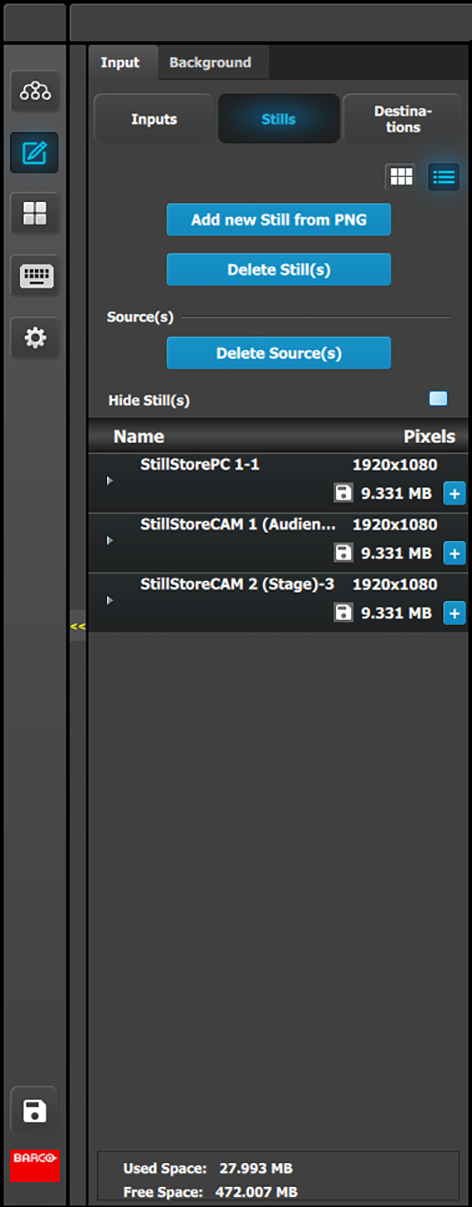
For each of these lists two display modes are available. Toggle the view by clicking on appropriate icon:
 | List View |
 | Thumbnail View |
| Inputs (List view) | |
 |
|
Thumbnails are added manually and in the future added from the Event Master series processor to the GUI. From Release 1.5 this works for Stillstores.
| Inputs (Thumbnail view) | |
 |
|
By clicking in thumbnail area images can be imported using the file picker menu. The picker can select pictures with the BMP, JPG or PNG format.
| Stills (List view) | |
 |
|
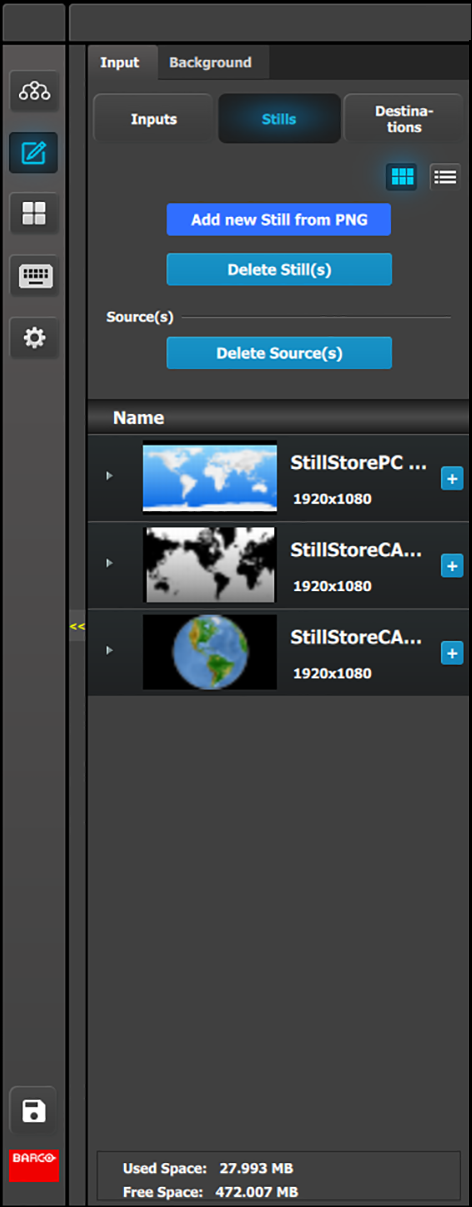
The system automatically adds thumbnails once the live capture or file import has been processed.
| Stills (Thumbnail view) | |
 |
|
By clicking in thumbnail area images can be imported using the file picker menu. The picker can select pictures with the BMP, JPG or PNG format.
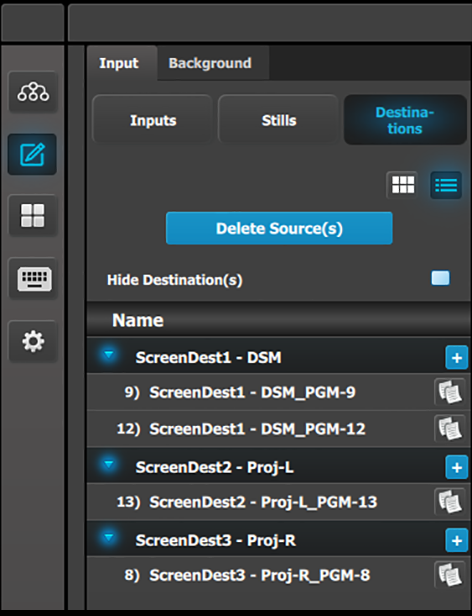
| Destination (List view) | |
 | |
| Destination (Thumbnail view) | |
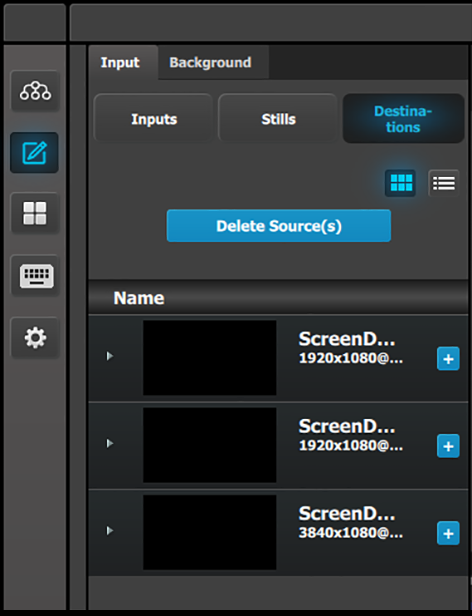 | |
The Destinations can be used as a source in Layers provided they have the capacity to fit. Up to 2K resolutions on SL, up to 4096 x 1200 / 2560 x 1600 for DL and 4K / 8192 x 1200 for 4K Scaler Mode.
The delete process is similar for all lists with more than one entry. To delete Sources the user need:
Click on the Delete Source(s) button.
The Delete Source(s) button turns in red and the delete icon (“x”) appears next to the copy icon on each element of the source list.
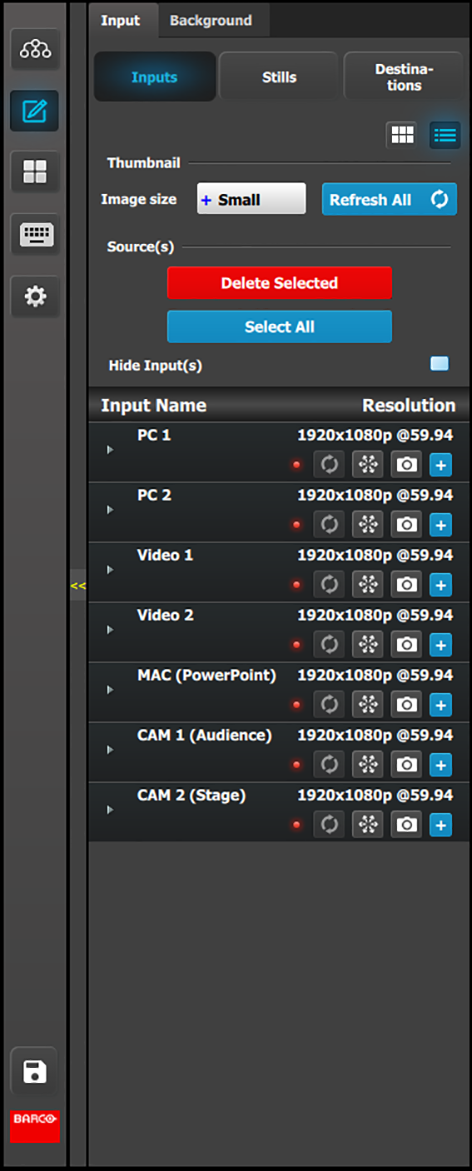
Select the sources that you desire to delete and click the Delete Source(s) button.
The selected sources are removed.
As the inputs are usually named after its physical names while the sources are named after the Show Usage we allow to hide the inputs from the list:
Check the Hide Inputs box.
Sources are displayed without their associated Inputs.
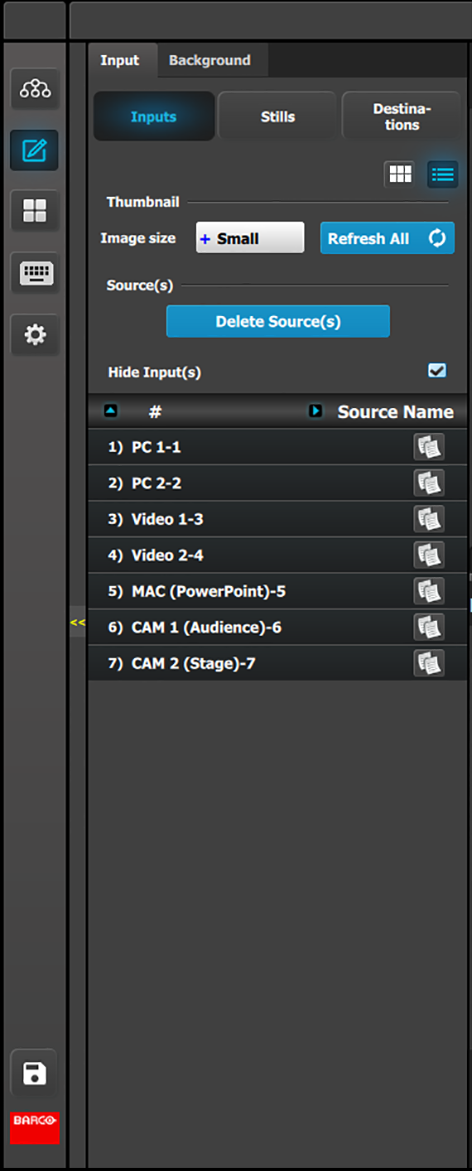
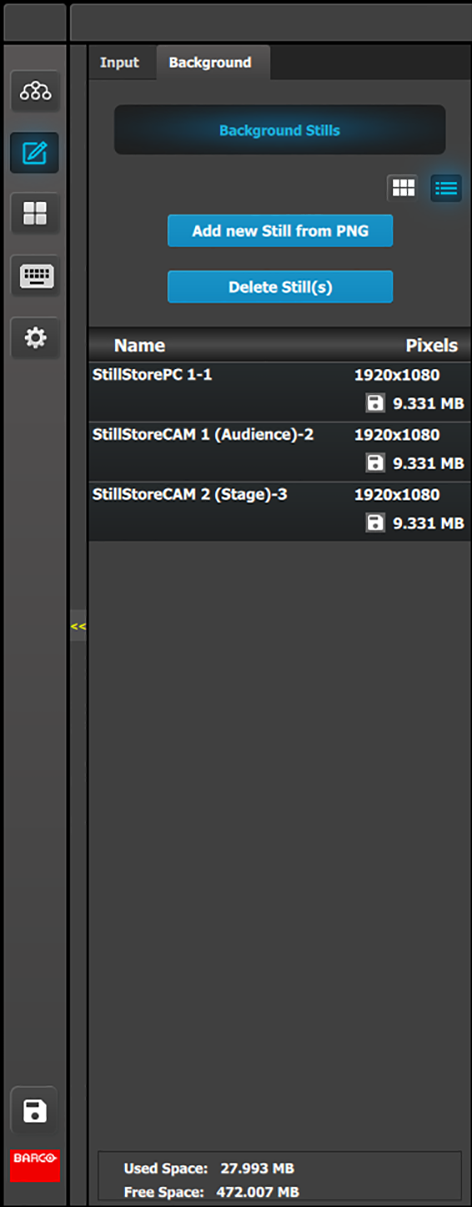
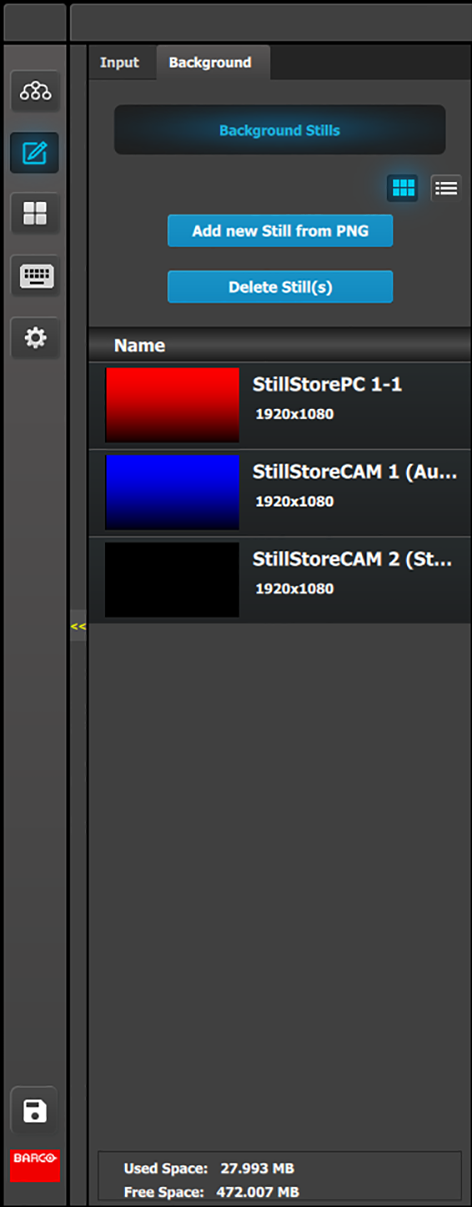
In this menu, Background Stills captured in the Background Source menu are assigned to destinations via drag and drop procedure.
Background Stills and Destinations need to have the same resolution including the Destinations eventual blend overlap. For example, if a background Stillstore is captured as 3500 x 1080, then the destination must also have the blend resolution of 3500 x 1080.
| Background Stills (List view) | |
 |
|
Thumbnails are added manually and in the future added from the Event Master series processor to the GUI. From Release 1.5 this works for Stillstores.
| Background Stills (Thumbnail view) | |
 |
|
By clicking in thumbnail area images can be imported using the file picker menu. The picker can select pictures with the BMP, JPG or PNG format.
 Refreshes the Input thumbnail (in Thumbnail View) from the Input source.
 Freezes the Input.
 Allows a snapshot to be taken and stored as a Still.
 Adds Sources based on the inputs. A total of 256 are allowed per input.
 Copies the Source into a new Source and adds it in the list.