6.35 Multiviewer Menu > Adjustment area > Output Color

General

In this section, the user can modify the color attributes (window borders, window UMD, output background) of each multiviewer output.

Description

Each output has its own color adjustments. There are 2 buttons to select the output window that the color adjustments are applied.

There are 3 tabs inside the color panel:

The color controls under the 3 tabs are identical and operate similar as the color adjustments in other menus.
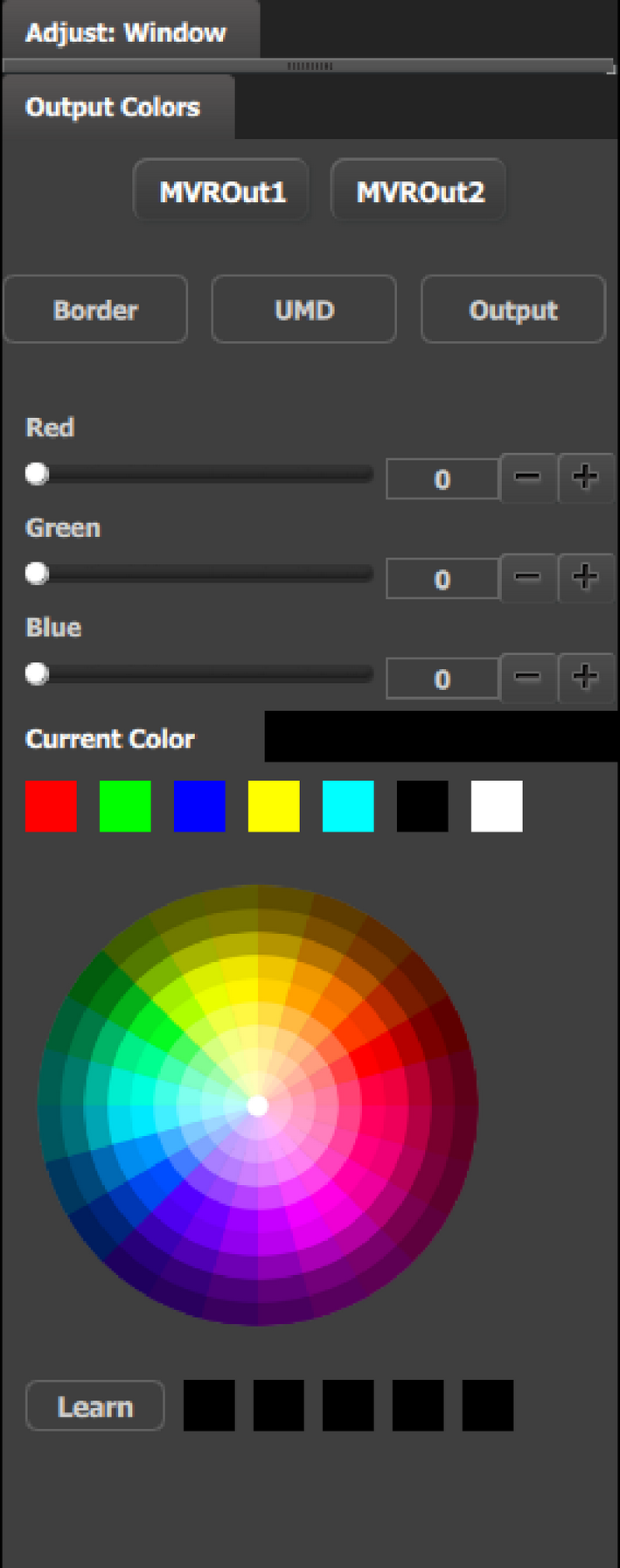
  • The selected color is shown in the Current Color bar. The color can also be stored by clicking in one of the square boxes at the bottom of the menu next to the Learn button. These boxes are quick shortcuts to select that color.
  • Another way to specify a color is to click on the Color wheel. The slider values will change accordingly as the mouse moves around the color wheel.
  • Learn: Provides a method to store custom colors. To learn a new color:

    1. Pick a color to save by using color wheel or by adjusting the R/G/B.
    2. Click Learn button.
    3. Click any one of the five boxes on the right.
    4. The color that was picked is now stored in selected box.