6.13 Configuration Menu > Adjustment > Input Configuration
General
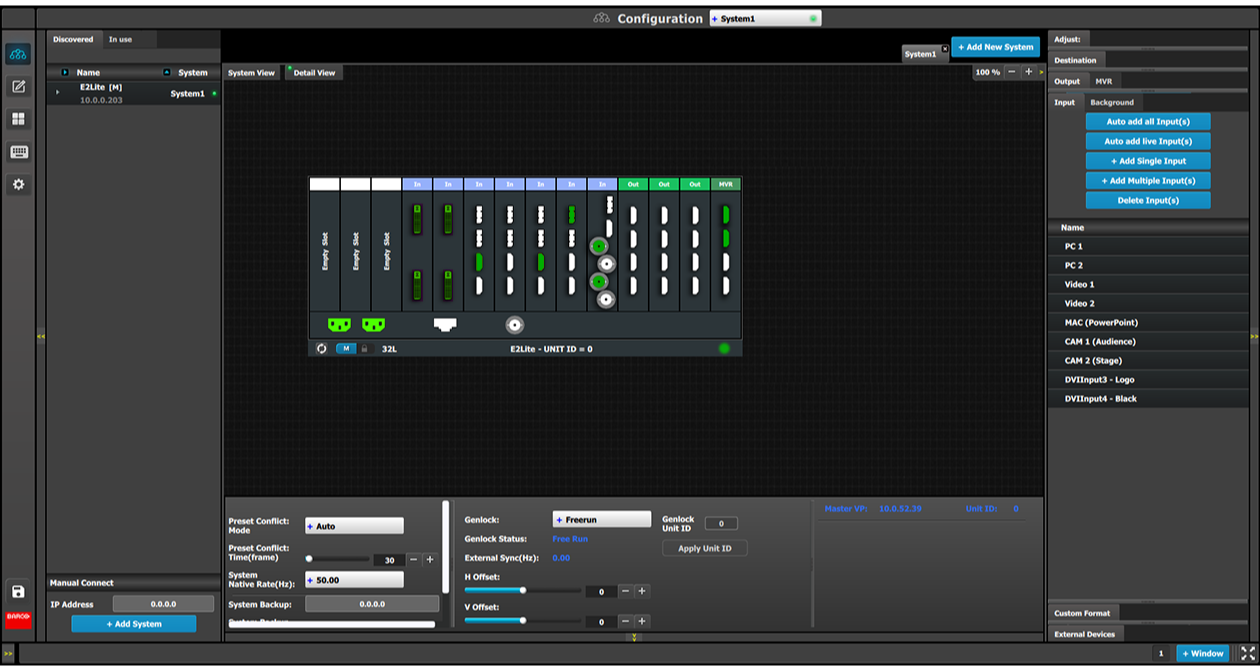
In the Input configuration menu users can assign input connectors to inputs and adjust parameters to match the incoming signal format and timing parameters.
Input Card arrangement
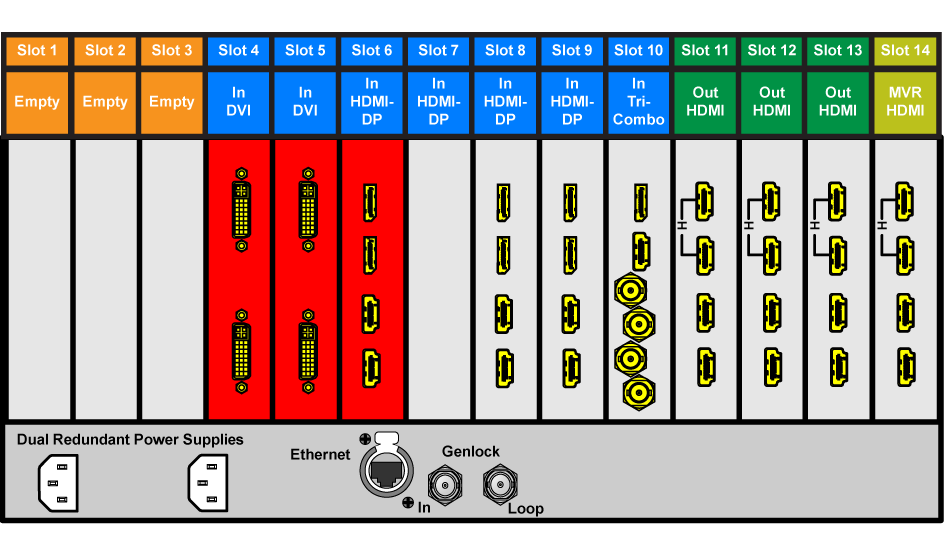
On the E2 Lite model, the input cards occupy slots 3 through 10 and are right justified to slot 10.
If there is an empty input slot between two input slots, all input cards to the left of the empty slot are marked with red. Red indicates that although the cards will operate properly, inputs from these cards will not be available at the Multiviewer.
Image 6–14E2 Lite with an empty input-card slot
If the card in the slot is wrong type (e.g. output card in input slot, or vice versa) then the slot in the diagram will be greyed out.
Input Connector Grouping
The reason for connector grouping is that in order to accommodate higher resolutions with no loss of quality bandwidth has to be added to the signalpath. By combining connectors a higher resolution all the way up to 4K@60Hz with progressive scan can be added with its full color space 4:4:4.
There several rules that applies when defining an input configuration:
Every Input connector can only be assigned to one input.
Input types in the same configuration must be of the same type and in the same slot or in adjacent slots. For example, cannot have a HDMI connector and an SDI connector in the same input configuration. Exception to this is the HDMI and DVI connectors.
An input can be defined from one, two or four connectors.
A grouped connector is still ONE input.
Once an input connector is assigned to an input that already contains another one.
Maximum of 4 connectors can be assigned to a layer, Input.
Maximum of 128 input configurations can be assigned.
Input connector colors
Not assigned and no input signal is detected
Not assigned to any Source or an input, but a signal has been detected
Assigned to a source or an input and an input signal is detected
Assigned to a source or an input, but an input signal is not detected
Input configuration menu description
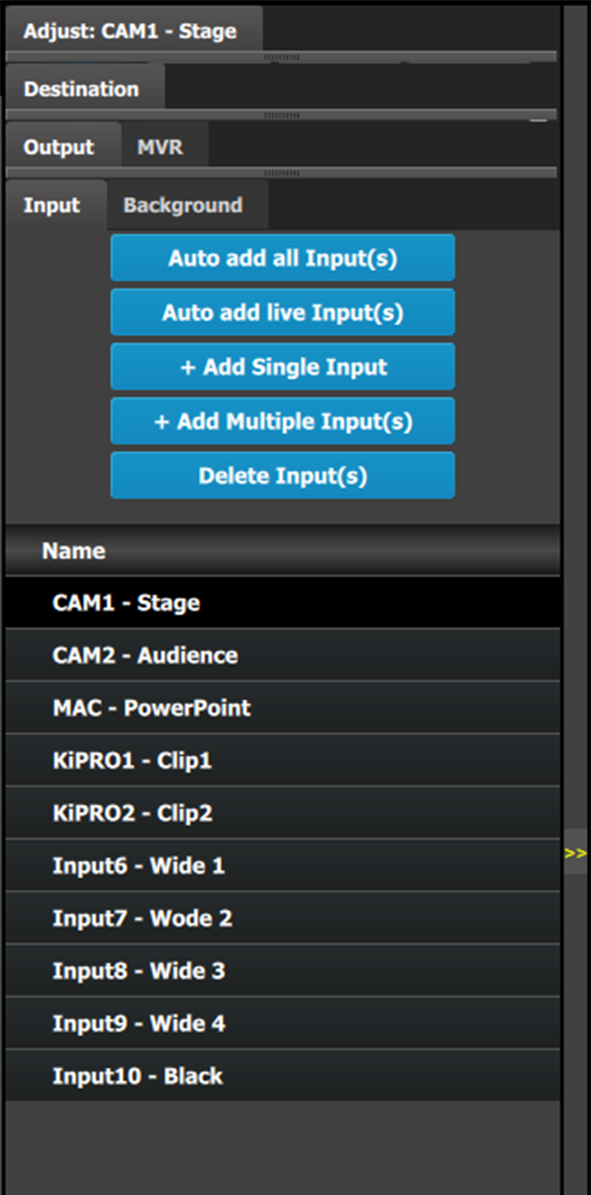
Input configuration menu is accessed by clicking on the Input tab.
This menu provides:
Auto Add all Input(s): A button to automatically allocate all unassigned input connectors to an input.
Auto add live Input(s): A button to automatically allocate all LIVE input connectors (GREEN) to an input.
+ Add Single Input: A button to manually allocate connectors to an Input configuration.
+ Add Multiple Input(s): A button to manually allocate more than one connector to an Input configuration.
Delete Inputs: A button to delete unused or obsolete inputs.
A list of all the Inputs already created on the system (e.g. Cam 1, Input2).
How to Auto add all Inputs
The “Auto add all Inputs” button automatically allocates all unassigned input connectors to an input. At this moment the incoming signal is acquired and a source file is saved. Input connectors that are already assigned to an input will not be affected. If the button is pressed, 28 input configurations will be automatically assigned. The software by default names inputs as “Input 1, 2, 3….”. Input configuration names can be renamed by double-clicking on the name and turning the box blue.
How to Auto add live Inputs
The “Auto add live Inputs” button automatically allocates all live input connectors to an input. Input connectors that are already assigned to an input will not be affected. If the button is pressed in the beginning, before any sources has been connected, no inputs will be automatically assigned. The software by default names inputs as “Input 1, 2, 3….”. Input configuration names can be renamed by double-clicking on the name and turning the box blue.
The auto add feature adds only up to 2K resolution inputs. 4K Inputs need to be assigned manually. See How to add Input section below.
How to add Input
Inputs configurations can be added manually to unassigned connectors.
Click on the Add Input button.
The Add Input button is replaced by the Done Adding button (highlighted in blue).
In the System diagram area, click on the connector(s) that need to be assigned.
Note: If the input signal is 4K provided by the 4 SDI connectors, 4 SDI connectors need to be selected.
Connector(s) is immediately highlighted in blue.
The selection is completed by clicking the Done Adding button that is highlighted in blue.
A new Input is added in the input list.
Note: To stop the add procedure without add new input, just click on the Done Adding button without selecting an input.
How to delete Input
Click on the Delete Input(s) button
The Delete Input(s) button is replaced by the Delete Selected button (highlighted in red).
Click on the corresponding connector in the graphical area.
or
click in the “x” on the right hand side in the input configuration list.
Connector(s) is immediately highlighted in blue.
The deletion is completed by clicking the Delete Selected button.
Note: Multiple connector configurations can be selected to be deleted together.
How to access to the Input configuration adjustments
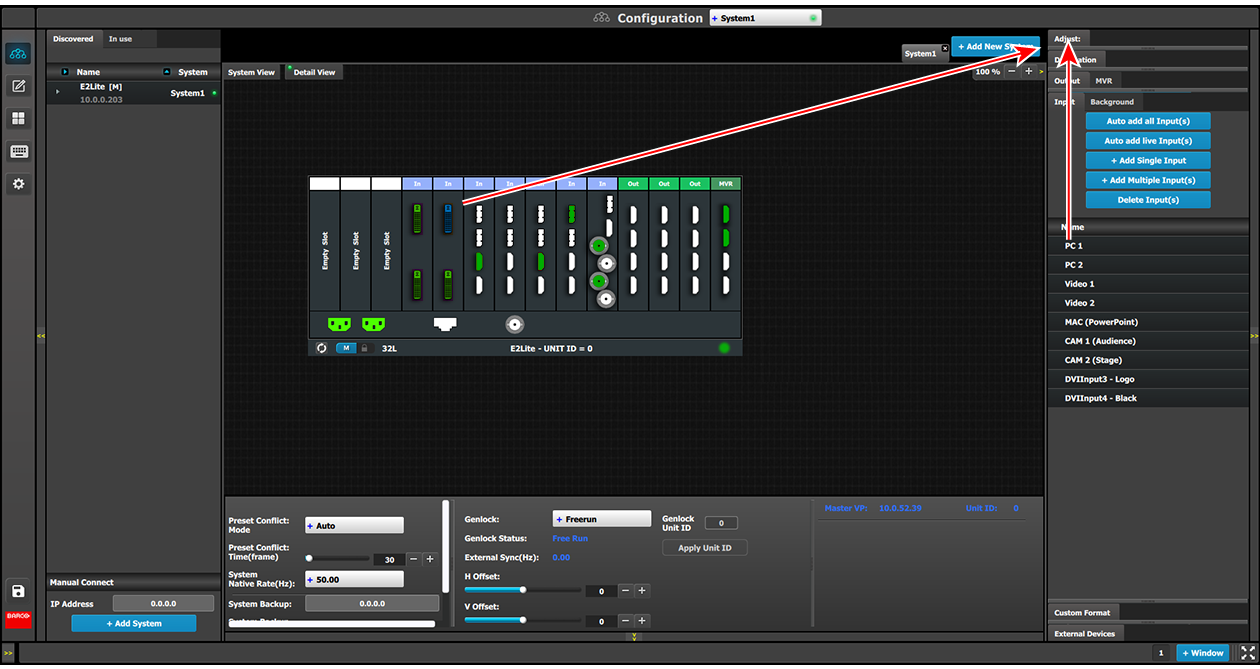
Adjustments to inputs are performed in the “Adjust” panel:
Select the input from the configuration list
or
clicking on the connector graphic.
An input is selected.
Click on the Adjust tab that is on the top of the Adjustment area.
Image 6–16Accessing the Input Adjust Panel
The input adjustment panel is displayed.
Input adjustment panel description
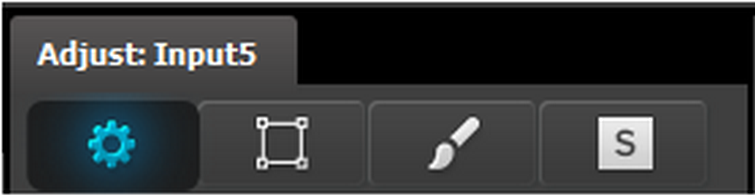
The input adjustment panel is divided in four sections.
Main page
Format & Timing
Color Adjustment
Contact Information
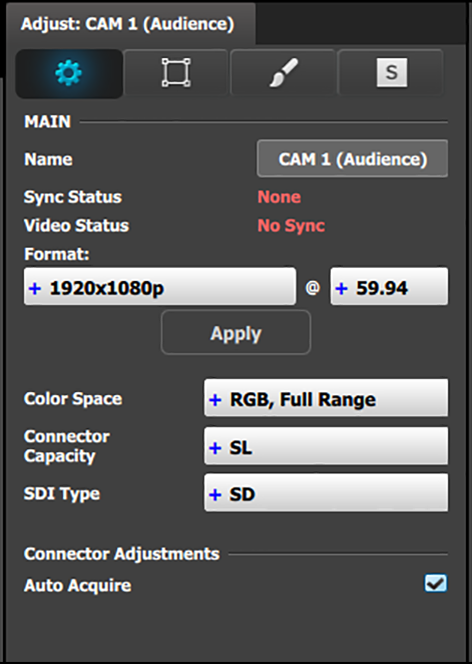
Input adjustment panel > Main page
This menu is available in two versions according to the input type:
• DVI, HDMI and DisplayPort input types
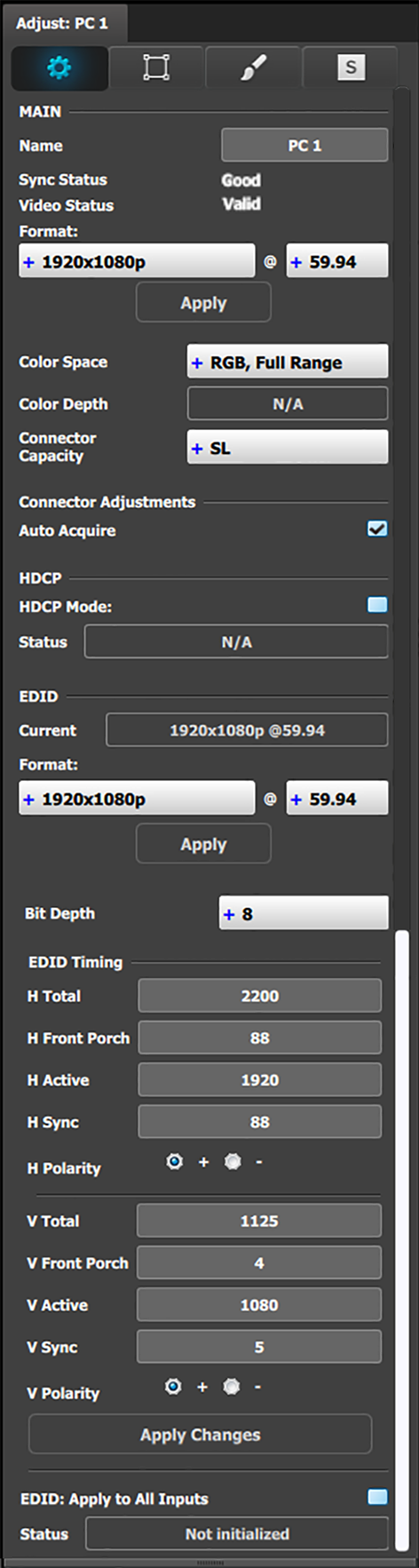
Name: Edits the name of the input configuration.
Sync Status: Detects a good video sync.
Video Status: Indicates if the Layer capacity is in par with the input resolution.
Format: The detected video format is shown here. If Auto Acquire is unchecked below, the Wanted video format is selected here from the drop-down menu.
Auto Acquire: Enables the auto acquire mode. During acquisition, the system detects and acquires the input type and resolution. Refer below for details regarding this feature. Default is On
Colorspace: The detected colorspace is shown here. In the event of a non-VESA standard source the colorspace can be unmatched to the processing. In this case a different colorspace can be selected to accommodate the signal. Available are:
RGB, Full Range
RGB, Reduced Range
SMPTE, Full Range
SMPTE, Reduced Range
Connector Capacity: Each connector has the option to accommodate different bandwidth standards over its interface. This is referred to as:
NONE The connector is turned off and cannot accept any video, bandwidth of this connector is freed up to be used by another connector. Connector is grayed out in the graphic representation. Connectors need to be selected to NONE before DL or 4K can be selected on others.
SLSingle Link The connector can accommodate a resolution up to 2048 x 1200@60Hz.
DLDual Link The connector can accommodate a resolution up to 2560 x 1600@60Hz.
Note: A dual link connector can also accommodate a 3840 x 1080 or 2048 x 2160 signal, that is also available in the EDID list once DL is selected for that input.
4K The connector can accommodate a resolution up to 4K@30P.
Note: In order to accommodate a 4K@60 signal 2 or 4 connectors need to be used.
Auto Acquire: Inputs auto acquire incoming video as standard. If the setting is unchecked, only the set or previously acquired signal will be valid video.
EDID
All inputs can have an EDID (Extended Display Identification Data) set according to its connector capacity. The currently set EDID is visible in the Current box.
Format: The drop-down menu with its search function provide a way to select any of the available VESA or SMPTE standard EDIDs as well as a frame rate. Once selected the Apply Button needs to be pressed in order to program the inputs.
EDID Timing
The EDID timing can be edited into a non standard, or Custom EDID by double clicking on each timing box and inserting a value. A EDID timing needs to follow the VESA rules, and typically a VESA calculator needs to be used.
Once a value is inserted ENTER needs to be pressed.
Selected EDID or Custom EDID can be applied to all inputs of the same type at once by selecting the checkbox towards the end of the panel.
HDCP
Enables the HDCP setting for the selected input.
The default for DisplayPort, DVI, and HDMI inputs is Off. To turn On the HDCP Mode, click on the empty checkbox. When the checkbox displays a check mark, HDCP Mode is On. HDCP Mode is not applicable to SDI inputs.
• SDI input type
The SDI input configuration menu is similar to the DVI/HMDI/DP menu but without the EDID and HDCP sections. In addition the SDI menu includes an addition selection regarding the SDI type.
Colorspace: The detected colorspace is shown here. In the event of a non-VESA standard source the colorspace can be unmatched to the processing. In this case a different colorspace can be selected to accommodate the signal. Available are:
RGB, Full Range
RGB, Reduced Range
SMPTE, Full Range
SMPTE, Reduced Range
SDI type (available with SDI connector type) : allows a choice between HD (1.5Gb), 3G (3Gb) Level A, Level B, Level A 2SI, or Level B 2SI.
The SDI Type options vary, depending on the format of the Outputs. For example, for:
NTSC/PAL—the SDI Type can be only SD.
1080i or 1080p, with a refresh rate less than or equal to 30 Hz—the SDI Type can be only HD.
1080p, with a refresh rate greater than 30 Hz—the SDI Type can be:
Level A (default)
Level B
Level A 2SI
Level B 2SI
The 2SI options are available only if the Input/Output configuration has 4 SDI connectors from the same card, and the Output format is either 1920 x 1080 or 2048 x 1080.
Auto Acquire Feature discussion:
When the Auto Acquire is On, the system performs a full sync acquisition on the input signal whenever:
You select an input
The input type changes
The sync rate of the input signal changes
During acquisition, the system detects and acquires the input type and resolution When In Auto Acquire is off, the system uses the last known configuration, when possible. If the input signal is incompatible with the saved configuration, a good input lock may not be possible. In this case, the format name field in the Status Menu displays the Invalid Signal message.
Please note the following important points regarding In Auto Acquire:
It is recommended that you turn Off Auto Acquire in applications where you have already configured and saved the system’s input setup.
If Auto Acquire is On and a valid input is selected that does not have a saved input associated with it, the system attempts to detect and acquire the source. This process may take a few moments.
If Auto Acquire is Off, the system uses the last-known configuration for each input, to the extent possible, comparing the input’s timing to the configurations in the system’s library. These configurations can be custom files or system default configurations.
Most users can leave In Auto Acquire on. Advanced users who know the input video timing parameters may choose to turn In Auto Acquire off and select the parameters manually.
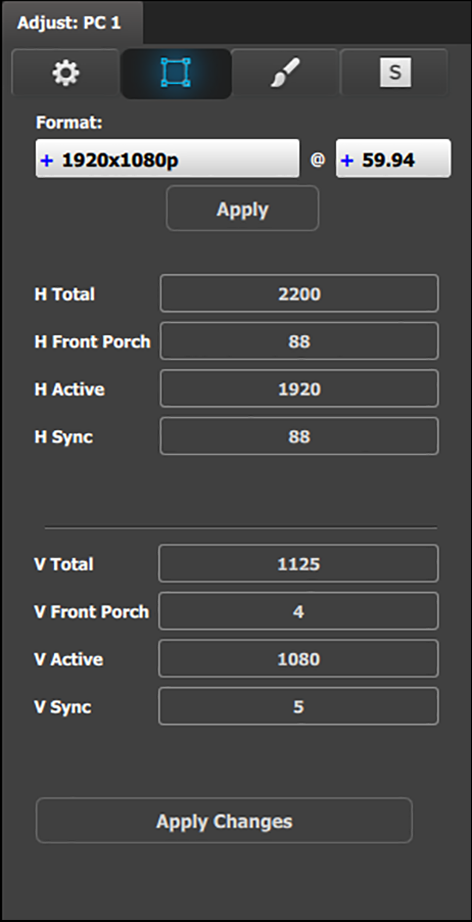
Input adjustment panel > Format & Timing
This is a status and informational menus. No adjustments can be done on this Format and Timing panel.
Format: Video format of the input
H Total: Total pixel count per line
H Front Porch: The offset between the end of the active area and the beginning of H sync
H Active: The horizontal size in pixels of the active area
H Sync: H sync width in pixels
H Polarity: Polarity (active High or Low) of the horizontal sync pulse (N/A in SDI)
V Total: Total line count per frame
V Front Porch: The offset in lines between the end of the output active area and the beginning of V sync
V Active: The vertical size of the output active area
V Sync: V sync width in lines
V Polarity: Polarity (active High or Low) of the vertical sync pulse (N/A in SDI)
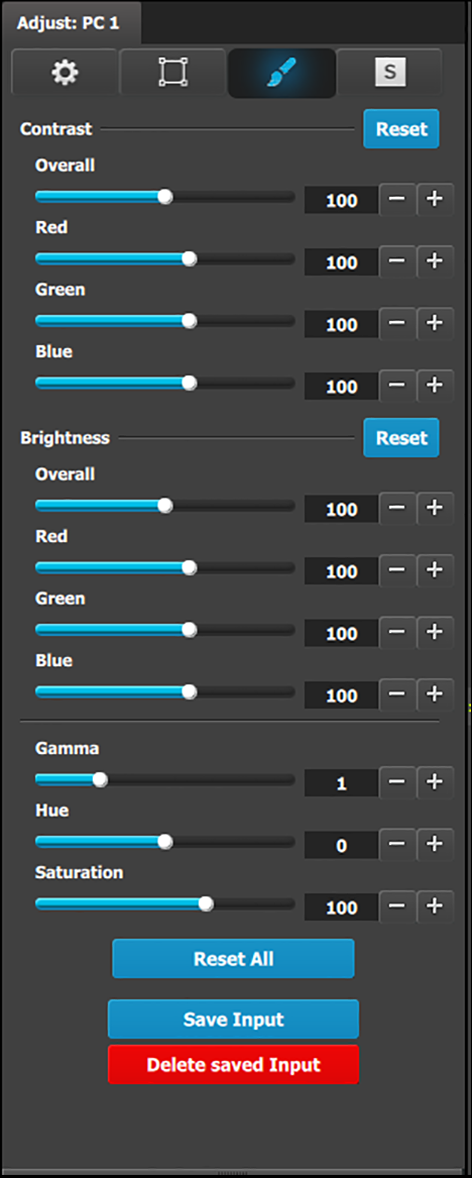
Input adjustment panel > Color Adjustment
This menu allows for color adjustments for each input.
The RGB Contrast and Brightness settings are adjustable.
The Overall adjustment has a range of 50 to 150.
The individual Red/Green/Blue adjustments have a range of 25 to 150.
The default setting for all of these properties is 100.
Gamma is adjustable within a range of 0.31 to 3.29. The default setting is 1.0.
Hue is adjustable within a range of –90 to +90 degrees. The default setting is 0 degrees.
Saturation is adjustable within a range of 0 to 150. The default setting is 100.
Reset All changes all values to their default settings.
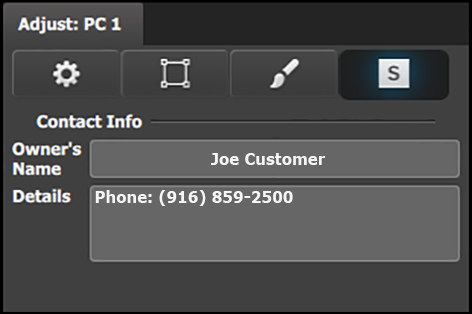
Input adjustment panel > Contact Information
This menu allows for the user to enter contact information for easy identification.