About
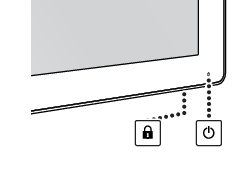
In order to avoid unwanted or accidental activation of the keyboard, a lock/unlock mechanism has been implemented. This means that the keyboard needs to be unlocked before it can be used to change any of the display settings. By default, all keys except the  key will be dimmed to indicate that the keyboard is locked.
After unlocking the keyboard, all keys will light up. Touching any of these keys while the backlight is on will execute the function of the key. However, if no further action is taken within the time-out (10 seconds), the keys will dim again and the keyboard will re-lock.
 ) at the bottom of the display until the entire keyboard starts blinking slowly. Afterwards, release the