
General
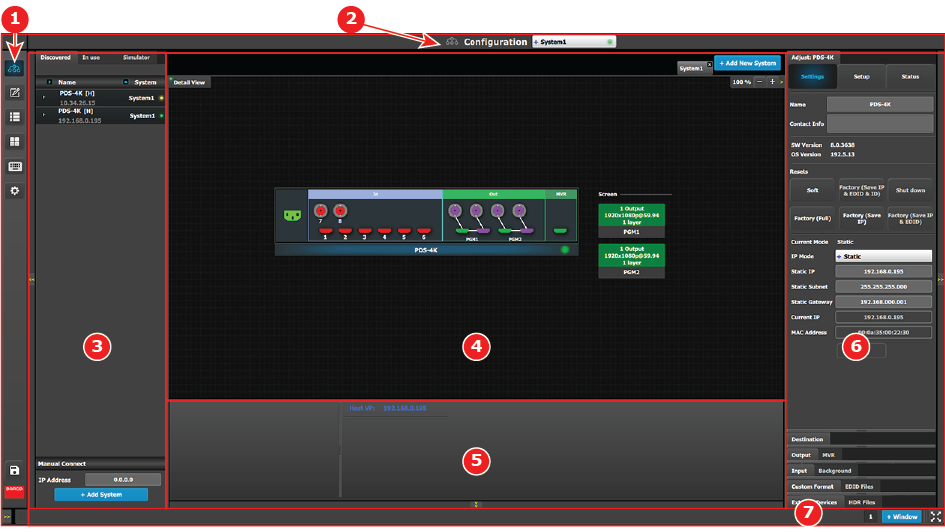
The user interface is organized around a menu navigation bar at the left of the screen and a working area in the rest of the screen. The layout of the screens is similar throughout the GUI.
Image 6–1 shows the start-up screen of the Configuration Menu and describes the different components. The screens for the other menus follow the same structure and flow.
- 1
- Menu navigation bar – The menu navigation bar allows the user to choose from among the available menus: Configuration, Programming, Cue, Multiviewer, Controller, or Settings.
- 2
- Title bar – The title bar shows the current menu and the currently selected system.
- 3
- Selection area – The selection area contains tabs for “Discovered” systems and systems “In use.” It also contains a field for entering IP addresses and a button for adding systems.
- 4
- Diagram area – The diagram area contains graphic representations of the system in use.
- 5
- Modifier area – The modifier area contains system controls, such as Preset Conflict Mode.
- 6
- Configuration area – The Configuration area contains tabs and panels on which users perform all needed adjustments. This area is largely empty until the user selects an item from the Diagram area.
- 7
- Bottom bar – The right side of the bottom bar has control for windows and maximizing the screen. The number indicates if this is window 1 or 2; two is the maximum.