
Description
Use the Cue menu to create Cues, and to add Presets, External Device commands, and UI functions such as All Trans and Cut to those Cues. The Cue menu also allows the user to play, pause, or stop a Cue.
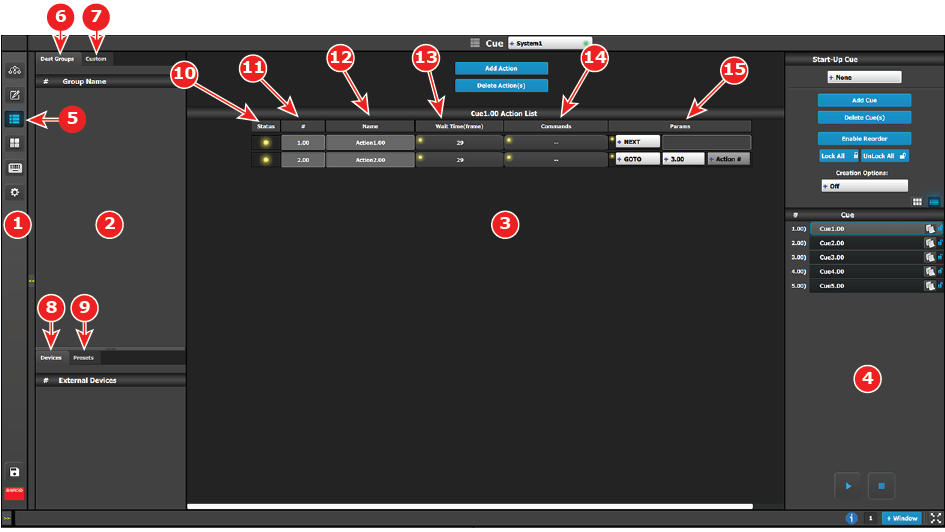
| 1 | Menu navigation bar | The menu navigation bar allows the user to choose from among the available menus: Configuration, Programming, Cue, Multiviewer, Controller, or Settings. |
| 2 | Command resource area | The command resource area contains tabs for the Dest Groups, Custom (UI functions), Devices, and Presets available for Cues. |
| 3 | Cue Workspace area | The Cue Workspace area allows the user to add a limited list of Actions and to assign names wait times commands, and parameters to the Actions in each Cue. |
| 4 | Adjustment area | The adjustment area allows the user to add, delete, lock, unlock, and rename Cues. The adjustment area also allows the user to play, pause, or stop a Cue.
|
| 5 | Cue icon | Selecting the Cue icon in the menu navigation bar selects the Cue Menu. |
| 6 | Dest Groups tab | The Dest Groups tab lists the Destination Groups available to the Cue Menu. |
| 7 | Custom tab | The Custom tab lists the UI functions (All Trans, Cut, and Pause) that are available to the Cue Menu. |
| 8 | Devices tab | The Devices tab lists the Devices and their commands that are available to the Cue Menu. |
| 9 | Presets tab | The Presets tab lists the Presets available to the Cue Menu. |
| 10 | Status | The Status LED indicates the status of the cues in a cue list.
|
| 11 | # (Syntax number) | Actions can be added, deleted, re-ordered, and re-numbered. |
| 12 | Name | Actions can be given meaningful names. |
| 13 | Wait Time | The wait time before an Action in a Cue takes place can be adjusted; the default wait time is half of the system’s native rate (29 frames in this example). |
| 14 | Commands | Commands can be Presets or Custom (UI Functions). |
| 15 | Params | The parameters are Next, Pause, Delay, and Goto. |
 Play button (Play/Pause)
 Pause button (Play/Pause)
 Stop button