
Description
Use the Configuration Menu to add or remove devices to the selected system and to modify the parameters (backgrounds, destinations, inputs, outputs, etc.) of these devices. This page is the first page that appears when you launch the EM GUI software.
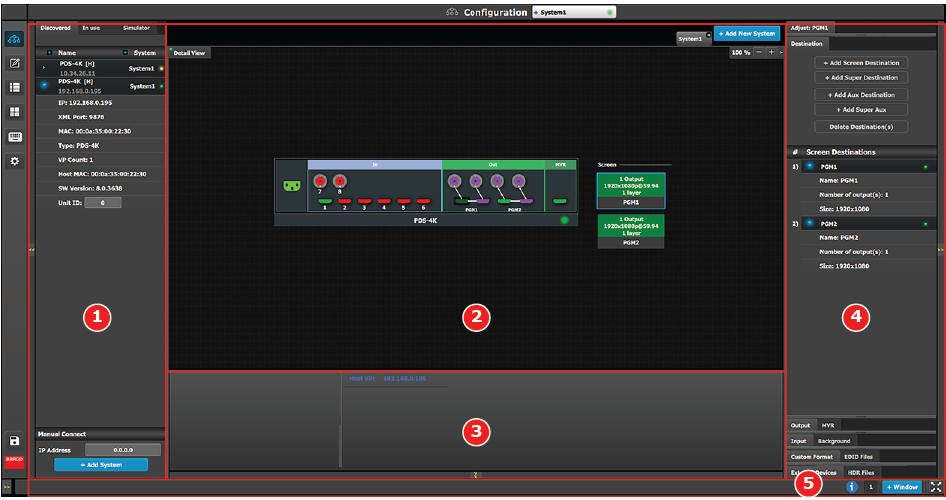
| 1 | Network resource area | Available resources on the network are listed in this area. There are 2 tabs in this section:
|
| 2 | System diagram area | The workspace has two different views: System, Detail, and VPU Resource. The selected systems details are graphically represented in this area. To view a different system you select the corresponding tab from the top of the working area. |
| 3 | System modifier area | System information (Host VP and Unit ID) is displayed in this area. To view a different system you select the corresponding tab from the top of the working area. This area also includes controls for preset conflicts. |
| 4 | Adjustment area | There are several panels in this area: Destination, Output, MVR, Input, Background, Custom Format, EDID Files, External Devices, and HDR Files. Each panel displays the list of items currently defined in the system. The user can also add or delete and define more items. The adjust tab allows the user to adjust variables in each panel. Panels can be dragged up or down to allow faster manipulation. |
| 5 | Bottom bar | The right side of the bottom bar has control for windows and maximizing the screen. The number indicates if this is window 1 or 2, two is the maximum.
Click on the information icon to show a list of the last 100 status-bar messages. Add a window by clicking the + Window button. The second window can be used on a separate screen. The out and in arrow button maximizes the interface to the screen, allowing an “OS free” look. |

