General
JSON (JavaScript Object Notation) is a lightweight format that is used for interchanging data. It is based on a subset of JavaScript language: the way objects are built in JavaScript.

JSON (JavaScript Object Notation) is a lightweight format that is used for interchanging data. It is based on a subset of JavaScript language: the way objects are built in JavaScript.
JSON is built on two structures:
Here is an example of JSON data:
{
     "firstName": "John",
     "lastName": "Smith",
     "address": {
         "streetAddress": "21 2nd Street",
         "city": "New York",
         "state": "NY",
         "postalCode": 10021
     },
     "phoneNumbers": [
         "212 555-1234",
         "646 555-4567"
     ]
 }
JSON uses JSON RPC (REST based) to interact with the PDS-4K presentation switcher. JSON-RPC is a remote procedure call protocol encoded in JSON.
JSON-RPC works by sending a request to a server implementing this protocol. The client in that case is typically software intending to call a single method of a remote system. Multiple input parameters can be passed to the remote method as an array or object, whereas the method itself can return multiple output data as well.
There are JSON RPCs defined to perform tasks on the PDS-4K presentation switcher. User needs to send JSON request through their application or open source application like Postman.
These applications should send request on IP, where the PDS-4K presentation switcher is running and fixed port 9999 (Webserver of the PDS-4K presentation switcher is running on port 9999).
To use the JSON APIs from the web application, select the Settings icon on the Menu navigation bar, and select JSONRPC API from the web app dashboard.
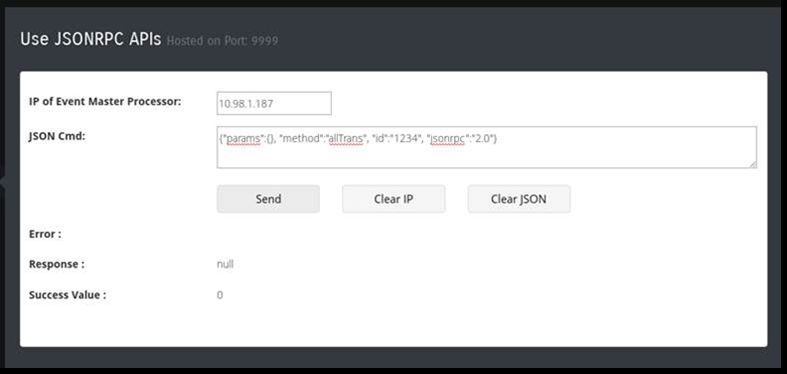
Postman is an application that you can use to test the Event Master JSON API.
Go to the GetPostman website.
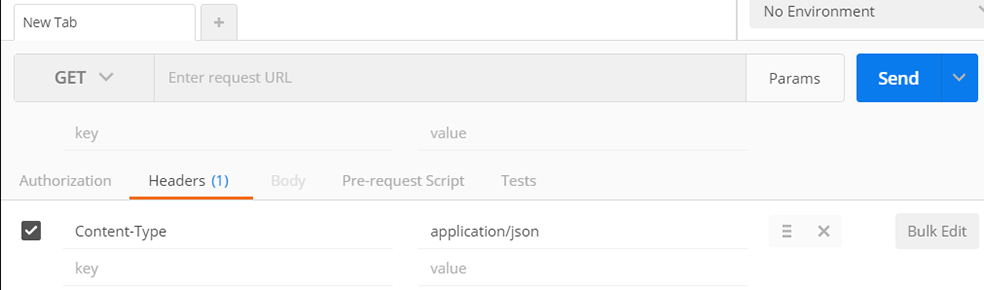
Launch Postman and follow these steps to send JSON commands to the Event Master processor.
Type “Content-Type” for header and “application/json” as value of this header.
(See https://www.getpostman.com/docs/requests for more information on sending requests.)
A request is a call to a specific method provided by a remote system. It must contain three certain properties:
The receiver of the request must reply with a valid response to all received requests. A response must contain the properties mentioned below.
result: the data returned by the invoked method.
If an error occurred while invoking the method, this value must be null.
For example: {"params":{}, "method":"powerStatus",
"id":"1234", "jsonrpc":"2.0"}
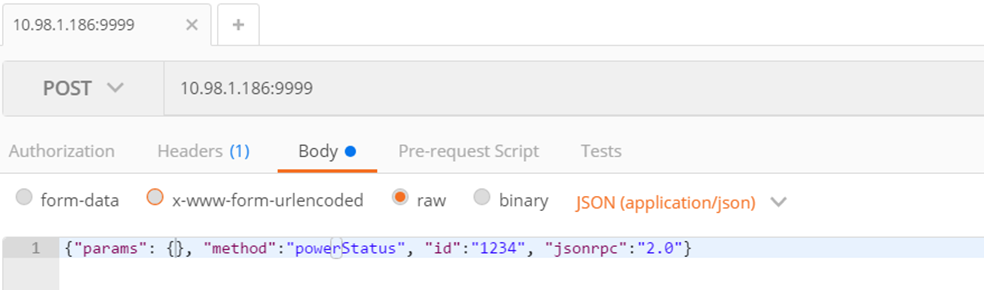
Here, powerStatus is the JSON API to be sent.
Here are some of the JSON APIs defined for controlling the PDS-4K presentation switcher. If you have a host / client Event Master setup, JSON must be sent to the host unit. For all the requests, this section explains the parameter passed or used in the RPC calls. If the params object is blank that means that API doesn’t require a parameter.

allTrans
Definition:
Request:
param: {"transTime": 12}
Response:
Example:
{"params":{}, "method":"allTrans",
"id":"1234", "jsonrpc":"2.0"}{"params": {"transTime": 1.1 }, "method":"allTrans",
"id":"1234", "jsonrpc":"2.0"}
cut
Definition:
Request:
{} - It doesn’t require any parameter.Response:
Example:
{"params":{}, "method":"cut",
"id":"1234", "jsonrpc":"2.0"}
resetFrameSettings
Definition:
Request:
params: {"reset":x},
“x” can be 0, 1, 2, 3
Response:
Example:
{"params":{"reset": 0}, "method":"resetFrameSettings",
"id":"1234", "jsonrpc":"2.0"}
powerStatus
Definition:
Request:
{} - It doesn’t require any parameter.Response:
response: {FrameId1 :{ PowerSupply1Status":X}}
Example:
{"params":{}, "method":"powerStatus",
"id":"1234", "jsonrpc":"2.0"}
listPresets
Definition:
Request:
params: {"ScreenDest":x , "AuxDest":x},
“x” can be:
Response:
response: Array of: [{"id": 0, "Name":
"Preset3.00", "LockMode": 0, "presetSno":
 3.00}, {"id": 1, "Name": "Preset4.00",
"LockMode": 0, "presetSno": 4.00}]
Example:
{"params":{"ScreenDest": 0}, "method":"listPresets",
"id":"1234", "jsonrpc":"2.0"}
listDestinationsForPreset
Definition:
Request:
params: {"id":x },
“x” can be:
Response:
response: Array of: [{"id": 0, "Name":
"Preset3.00", "LockMode": 0, "presetSno":
 3.00, "ScreenDest":[{"id": 0}, {"id":
3}]}]
Example:
{ "params":{"id": 0}, "method":"listDestinationsForPreset",
"id":"1234",
"jsonrpc":"2.0"}
savePreset
Definition:
Request:
params: {"presetName": "NewPreset",
"ScreenDestination":[{"id": 2}, {"id":
3}]}
Response:
Example:
{"params": {"presetName": "NewPreset"},
"method":"savePreset", "id":"1234",
"jsonrpc":"2.0"}
{"params": {"presetName": "NewPreset",
"ScreenDestination":
{"id": 0}, "method":"savePreset",
"id":"1234", "jsonrpc":"2.0"}
Key points regarding Preset, which are same for rename, activate, and delete:
“presetSno”: preset serial number. User can provide floating point number if required. Eg. "presetSno": 1.01, "presetSno": 1.00, "presetSno": 1, "presetSno": 1.1, "presetSno": 1.10.
Kindly note that 1.1 and 1.10 or 1.00 and 1 are same.
renamePreset
Definition:
Request params:
{"id": x, "newPresetName":
"NewPresetName"}{"presetSno": x.y, "newPresetName":
"NewPresetName"}params: {"presetName": "OldPresetName",
"newPresetName": "NewPresetName"}
Response:
Example:
{"params": {"id": 0, "newPresetName": " newPresetName "},
 "method":"renamePreset", "id":"1234",
"jsonrpc":"2.0"}
{"params": {"presetName": "NewPreset", "newPresetName": "NewPresetName"},
"method":"renamePreset", "id":"1234",
"jsonrpc":"2.0"}
{"params": {"presetSno": 1.00, "newPresetName": " newPresetName "},
 "method":"renamePreset", "id":"1234",
"jsonrpc":"2.0"}
activatePreset
Definition:
Request params:
{"id": x, "type": x}{"presetSno": x.y, "type":
x}params: {"presetName": "PresetName"}
“type”: 0 to recall in preview (default), 1 to recall in program.
This is not a mandatory parameter but should be given when the user wants to recall a Preset in program.
Response:
Example:
{"params": {"id": 0, "type":
0}, "method":"activatePreset",
 "id":"1234", "jsonrpc":"2.0"}
   //Recall in preview with id 0.
{"params": {"presetName": "abc"
}, "method":"activatePreset",
 "id":"1234", "jsonrpc":"2.0"}
 //Recall in preview with preset name "abc".
{"params": {"presetSno": 1.00, "type":
1}, "method":"activatePreset",
 "id":"1234", "jsonrpc":"2.0"}
 //Recall in program with presetSno 1.
recallNextPreset
Definition:
Recall the next Preset on the Event Master processor.
No parameter is required.
Request:
{}Response:
Example:
{"params": {}, "method":"recallNextPreset",
"id":"1234", "jsonrpc":"2.0"}
deletePreset
Definition:
Delete a Preset on the Event Master processor.
User can delete Preset with id, Preset serial number, or Preset name.
Request:
{"id": x}{"presetSno": x.y}{"presetName": "PresetName"}Response:
Example:
{"params": {"id": 1}, "method":"deletePreset",
"id":"1234", "jsonrpc":"2.0"}
{"params": {"presetSno": 1.00}, "method":"deletePreset",
"id":"1234", "jsonrpc":"2.0"}{"params": {"presetName": "Preset
5.00"}, "method":"deletePreset",
"id":"1234", "jsonrpc":"2.0"}
listDestinations
Definition:
Request:
params: {"type": x}
0: Show all the destinations.
0 is the default value for the type parameter.
Response:
response: Array of : {"ScreenDestination":[{"id":
0, "Name": "Dest1", "HSize": 3840,
"VSize": 1080, "Layers": 1,"DestOutMapColl":[{"id":
0"DestOutMap":[{"id": 0,
"Name": "Out1", "HPos":
0, "VPos": 0, "HSize": 1920, "VSize":1080,
"Freeze":
 0},{"id": 1, "Name": "Out2",
"HPos": 1920, "VPos": 0, "HSize": 1920,
"VSize":1080, "Freeze": 1}]}]}]}
Example:
{"params": {"type": 0}, "method":"listDestinations",
"id":"1234", "jsonrpc":"2.0"}
listSources
Definition:
Request:
params: {"type": x}
0: Show all the input sources.
0 is the default value for the type parameter.
Response:
response: Array of : {"id": 0, "Name":
"InSource1", "HSize": 3840, "VSize":
1080,
 "SrcType": 0, "InputCfgIndex": -1,
"StillIndex": 0, "DestIndex": -1,
"UserKeyIndex": -1, "Mode3D": 0, "Freeze":
1, "Capacity": 2,
"InputCfgVideoStatus": 4}
Example:
{"params": {"type": 0}, "method":"listSources",
"id":"1234", "jsonrpc":"2.0"}
listContent
Definition:
Request:
params: {"id": x}
Response:
response: {"jsonrpc":"2.0","result":{"success":0,"response":
{"id":1,"Name":"PGM2","IsActive":1,"BGLyr":[{"id":0,"LastBGSourceIndex":
-1,"BGShowMatte":1,"BGColor":{"id":0,"Red":0,"Green":0,"Blue":0}},{"id":
1,"LastBGSourceIndex":-1,"BGShowMatte":1,"BGColor":{"id":0,"Red":0,
"Green":0,"Blue":0}}],"Layers":[{"id":0,"Name":"LayerA","LastSrcIdx":4,
"PvwMode":1,"PgmMode":0,"LinkLayerId":-1,"LinkDestId":-1,"Capacity":4,
"PvwZOrder":0,"PgmZOrder":0,"Freeze":0,"ScalingMode":0,"Window":[{"HPos":
0,"VPos":0,"HSize":1920,"VSize":1080},{"HPos":0,"VPos":0,"HSize":1920,
"VSize":1080}],"Source":[{"HPos":0,"VPos":0,"HSize":1920,"VSize":1080},
{"HPos":0,"VPos":0,"HSize":1920,"VSize":1080}],"Mask":[{"id":0,"Top":0,
"Left":0,"Right":0,"Bottom":0},{"id":0,"Top":0,"Left":0,"Right":0,
"Bottom":0}]},{"id":1,"Name":"LayerB","LastSrcIdx":5,"PvwMode":0,
"PgmMode":1,"LinkLayerId":-1,"LinkDestId":-1,"Capacity":4,"PvwZOrder":0,
"PgmZOrder":0,"Freeze":0,"ScalingMode":0,"Window":[{"HPos":0,"VPos":0,
"HSize":1920,"VSize":1080},{"HPos":0,"VPos":0,"HSize":1920,"VSize"
:1080}],"Source":[{"HPos":0,"VPos":0,"HSize":1920,"VSize":1080},{"HPos":
0,"VPos":0,"HSize":1920,"VSize":1080}],"Mask":[{"id":0,"Top":0,"Left":
0,"Right":0,"Bottom":0},{"id":0,"Top":0,"Left":0,"Right":0,"Bottom":
0}]}],"Transition":[{"id":0,"TransTime":1,"TransPos":0,"ArmMode":1},
{"id":1,"TransTime":1,"TransPos":0,"ArmMode":0}],"OutputCfg":[{"id":2,
"Name":"HDMI2A","OutputAOI":[{"id":0,"TestPattern":[{"id":0,
"TestPatternMode":0}]}]}]}},"id":"1234"}
BGLyr: Background layer index, Last source index of background.
“id”:0 affects the Background in Program. “id”:1 affects the Background in Preview.
Example:
{"params": {"id": 0}, "method":"listContent",
"id":"1234", "jsonrpc":"2.0"}
activateCue
Definition:
Request:
params: {"id": 1, "type": x}, "method":"activateCue",
"id":"1234", "jsonrpc":"2.0"}
{"cueName": "Cue1", "type":
x}, "method":"activateCue", "id":"1234",
"jsonrpc":"2.0"}{"cueSerialNo": 1.00, "type":
x}, "method":"activateCue", "id":"1234",
"jsonrpc":"2.0"}Response:
Example:
{"params": {"id": 1}, "method":"activateCue",
"id":"1234", "jsonrpc":"2.0"}
//Play – no parame or type 0
{"params": {"type": 1}, "method":"activateCue",
"id":"1234", "jsonrpc":"2.0"}
//Pause – type 1{"params": {"type": 2}, "method":"activateCue",
"id":"1234", "jsonrpc":"2.0"}
//Stop – type 2
activateDestGroup
Definition:
Request:
{"id": x}{"destGrpSno": x.y}{"destGrName": "GroupName"}Response:
Example:
{"params": {"id": 0}, "method":"activateDestGroup",
"id":"1234", "jsonrpc":"2.0"}
{"params": {"destGrpName": "abc"
}, "method":"activateDestGroup", "id":"1234",
"jsonrpc":"2.0"}{"params": {"destGrpSno": 1.00}, "method":"activateDestGroup",
"id":"1234", "jsonrpc":"2.0"}
listCues
Definition:
Request:
{}, "method":"listCues", "id":"1234",
"jsonrpc":"2.0"}
Response:
Example:
{"params": {}, "method":"listCues",
"id":"1234", "jsonrpc":"2.0"}
changeContent
Definition:
Request:
params: {"id":0, "Layers": [{"id":0,"ScalingMode":0]}
Response:
Example:
{"params":{"id":0,"Layers":
[{"id":1, ,"ScalingMode":0, "LastSrcIdx":10,
"Source":{"HPos":0,"VPos":0,"HSize":1122,"VSize":1122},"PvwMode":1,
"PgmMode":0,"Freeze":0}]}, "method":"changeContent",
"id":"1234",
"jsonrpc":"2.0"}
{"params":{"id":0, "TestPattern"
:5 }, "method":"changeContent", "id":"1234",
"jsonrpc":"2.0"}
listStill
Definition:
Request:
{}Response:
response: Array of : [{"id":0,"Name":"StillStore1","LockMode":0,"HSize":
{"Min":0,"Max":99999,"$t":1920},"VSize":{"Min":0,
"Max":99999,"$t":1080},
"StillState":{"Min":0,"Max":4,"$t":3},"PngState":{"Min":0,"Max":2,"$t":
0},"FileSize":{"Min":0,"Max":100000,"$t":9331.2}}]
Example:
{"params": {}, "method":"listStill",
"id":"1234", "jsonrpc":"2.0"}
deleteStill
Definition:
Request:
params: {"id": x}
Response:
Example:
{"params":{"id": 0}, "method":"deleteStill",
"id":"1234", "jsonrpc":"2.0"}
takeStill
Definition:
Request:
params: { "type": x, "id": y, "file":
z}
Response:
Example:
{"params":{"type":0 , "id":
1, "file": 5}, "method":"takeStill",
"id":"1234",
"jsonrpc":"2.0"}
getFrameSettings
Definition:
Request:
{}Response:
{"System":{"id":0,"Name":"System1","FrameCollection":{"id":0,"Frame":
{"id":"00:0c:29:0e:86:d4","Name":"E2","Contact":"","Version":"4.2.30738",
"OSVersion":"NA","FrameType":0,"FrameTypeName":"E2","Enet":{"DhcpMode":0,
"DhcpModeName":"Static","IP":"10.98.0.165","StaticIP":"192.168.000.175",
"MacAddress":"00:0c:29:0e:86:d4","StaticMask":"255.255.255.000",
"StaticGateway":"192.168.000.001"},"SysCard":{"SlotState":2,
"CardStatusID":2,"CardStatusLabel":"Ready","CardTypeID":80,
"CardTypeLabel":"System","CardID":0},"Slot":[{"Card":{"CardStatusID":2,
"CardStatusLabel":"Ready","CardTypeID":70,"CardTypeLabel":"Expansion",
"CardID":"thisissometextforid0"}},{"Card":{"CardStatusID":2,"CardStatusLabel":
"Ready","CardTypeID":70,"CardTypeLabel":"Expansion","CardID":
"thisissometextforid1"}},{"Card":{"CardStatusID":0,"CardStatusLabel":
"Not Installed","CardTypeID":255,"CardTypeLabel":"Unknown","CardID":
"Undefined"}},{"Card":{"CardStatusID":2,"CardStatusLabel":"Ready",
"CardTypeID":1,"CardTypeLabel":"SDI
Input","CardID":"thisissometextforid211"}},
{"Card":{"CardStatusID":2,"CardStatusLabel":"Ready","CardTypeID":3,"CardID":
"thisissometextforid2"}},{"Card":{"CardStatusID":2,"CardStatusLabel":"Ready",
"CardTypeID":0,"CardTypeLabel":"DVI
Input","CardID":"thisissometextforid4"}},
{"Card":{"CardStatusID":2,"CardStatusLabel":"Ready","CardTypeID":2,
"CardTypeLabel":"HDMI/DP Input","CardID":"thisissometextforid5"}},
{"Card":{"CardStatusID":2,"CardStatusLabel":"Ready","CardTypeID":2,
"CardTypeLabel":"HDMI/DP Input","CardID":"thisissometextforid7"}},
{"Card":{"CardStatusID":2,"CardStatusLabel":"Ready","CardTypeID":2,
"CardTypeLabel":"HDMI/DP Input","CardID":"thisissometextforid8"}},
{"Card":{"CardStatusID":2,"CardStatusLabel":"Ready","CardTypeID":2,
"CardTypeLabel":"HDMI/DP Input","CardID":"thisissometextforid9"}},
{"Card":{"CardStatusID":2,"CardStatusLabel":"Ready","CardTypeID":22,
"CardTypeLabel":"HDMI Output","CardID":"CardID3"}},{"Card":{"CardStatusID":2,
"CardStatusLabel":"Ready","CardTypeID":22,"CardTypeLabel":"HDMI
Output",
"CardID":"CardID4"}},{"Card":{"CardStatusID":2,"CardStatusLabel":"Ready",
"CardTypeID":21,"CardTypeLabel":"SDI
Output","CardID":"CardID415"}},
{"Card":{"CardStatusID":2,"CardStatusLabel":"Ready","CardTypeID":40,
"CardTypeLabel":"MVR","CardID":"CardID15"}},{"Card":{"CardStatusID":2,
"CardStatusLabel":"Ready","CardTypeID":50,"CardTypeLabel":"VPU
Scaler",
"CardID":"thisissometextforid501"}},{"Card":{"CardStatusID":2,
"CardStatusLabel":"Ready","CardTypeID":50,"CardTypeLabel":"VPU
Scaler",
"CardID":"thisissometextforid502"}},{"Card":{"CardStatusID":2,
"CardStatusLabel":"Ready","CardTypeID":50,"CardTypeLabel":"VPU
Scaler",
"CardID":"thisissometextforid503"}},{"Card":{"CardStatusID":2,
"CardStatusLabel":"Ready","CardTypeID":50,"CardTypeLabel":"VPU
Scaler",
"CardID":"thisissometextforid504"}},{"Card":{"CardStatusID":0,
"CardStatusLabel":"Not Installed","CardTypeID":255,"CardTypeLabel":
"Unknown","CardID":"Undefined"}},{"Card":{"CardStatusID":2,"CardStatusLabel":
"Ready","CardTypeID":50,"CardTypeLabel":"VPU
Scaler","CardID":
"thisissometextforid505"}},{"Card":{"CardStatusID":2,"CardStatusLabel":"Ready",
"CardTypeID":50,"CardTypeLabel":"VPU
Scaler","CardID":
"thisissometextforid506"}},{"Card":{"CardStatusID":2,"CardStatusLabel":"Ready",
"CardTypeID":50,"CardTypeLabel":"VPU
Scaler","CardID":
"thisissometextforid507"}},{"Card":{"CardStatusID":2,"CardStatusLabel":"Ready",
"CardTypeID":50,"CardTypeLabel":"VPU
Scaler","CardID":
"thisissometextforid508"}}]}}}}}
Example:
{"params":{}, "method":"getFrameSettings",
"id":"1234", "jsonrpc":"2.0"}When a subscription is done from a JSON-based application, a notification is sent to the ip port where the application is running when there is change for which the user has subscribed.
Actual notification is sent asynchronously as an HTTP Post, with the following structure: {result: {method:
 "notification",notificationType: "ScreenDestChanged",change:
{ add: [2],
remove: [], update: [0, 1, 2] }}}.
The change field contains the XmlId(s) of the screens that were added/removed or updated.
subscribe
Definition:
Request:
params: {"hostname": hostname, "port":
port, "notification" : notificationType[]}
Response:
{"method": "subscribe"}Example:
{"params": {"hostname" : "192.168.247.131",
"port": "3000", "notification" :
 ["ScreenDestChanged"]}, "method":"subscribe",
"id":"1234", "jsonrpc":"2.0"}
unsubscribe
Definition:
Request:
params: {"hostname": hostname, "port":
port, "notification" : notificationType[]}
Response:
{"method": "unsubscribe"}Example:
{"params": {"hostname" : "192.168.247.131",
"port": "3000", "notification" :
 ["ScreenDestChanged"]}, "method":"unsubscribe",
"id":"1234", "jsonrpc":"2.0"}