
Description
Use the Programming Menu to set up an event. Users can define sources from inputs, assign layers and backgrounds into screens and create User keys and presets and more. Once programmed and defined this is where the show is played back as well.
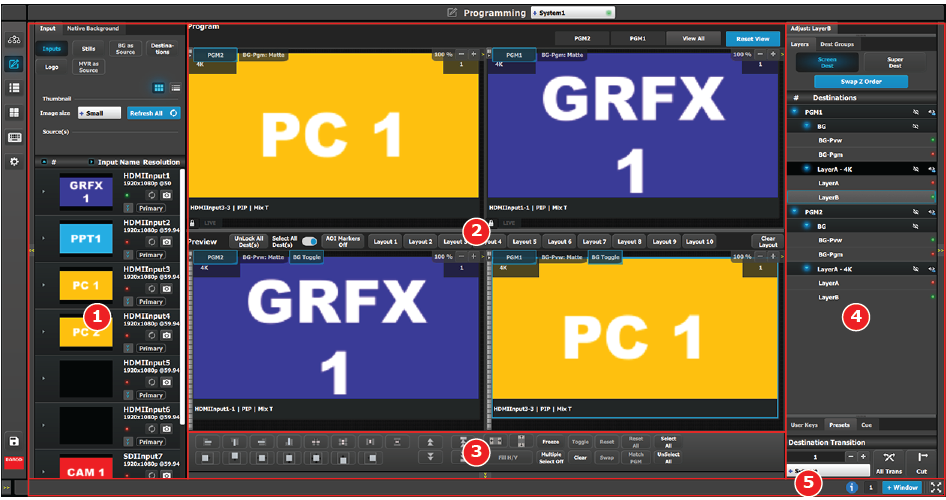
| 1 | Resources area | This area contains the available resources for programming and playback, as inputs and sources. Still images, Screen Destinations (automatically re-inserted into the system), and Background sources (automatically re-inserted into the system) are also available as resources to be used in a PIP or Keying Layer. |
| 2 | Workspace / Programming Diagram area | For each destination, the Program and Preview screens can be viewed individually by selecting the corresponding tab at the top of the Programming Diagram area. Program and Preview screens can be viewed individually or simultaneously by selecting the individual Destination tab or the “View All” tab. The space between Program and Preview has Layouts, a function where a certain group of destinations can be laid out in the workspace |
| 3 | Workspace / Layer modification area | Layer Alignment adjustments and controls to manage the Preview/Program screens. |
| 4 | Adjustment area | The menus in this area provide control of parameters for selected layer and source. These can be modified and managed. This is where creation of User Keys and presets is done |
| 5 | Bottom bar | The right side of the bottom bar has control for windows and maximizing the screen. The number indicates if this is window 1 or 2, two is the maximum.
Click on the information icon to show a list of the last 100 status-bar messages. Add a window by clicking the + Window button. The second window can be used on a separate screen. The out and in arrow button maximizes the interface to the screen, allowing an “OS free” look. |

