5.10 Setup Menu: LED Setup

General

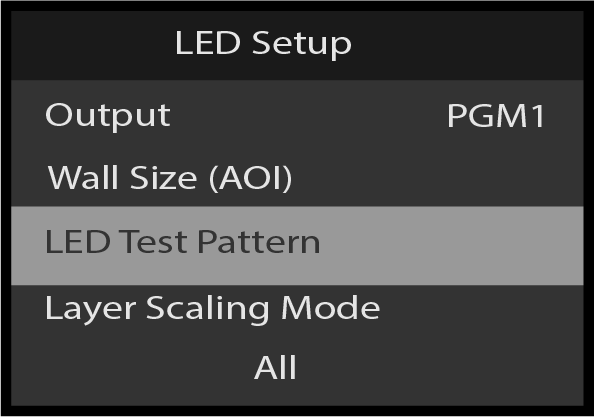
Use the Setup Menu: LED Setup menu to setup and adjust the LED attributes. To enter the LED Setup menu from the Setup menu, scroll to and select LED Setup.
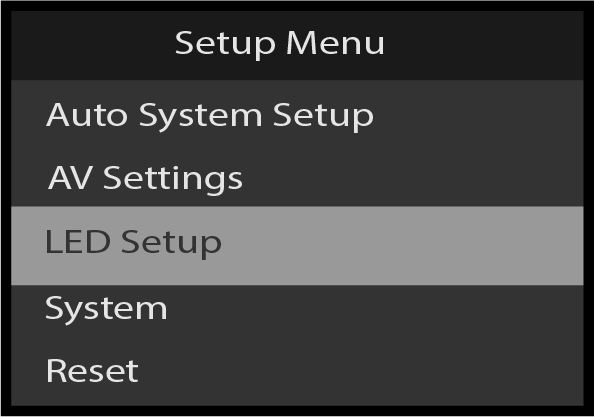
Image 5–196 Setup Menu: LED Setup

Use the LED Setup Menu to adjust LED parameters.

The LED Setup menu has the following parameters:

LED Setup: Menu tree

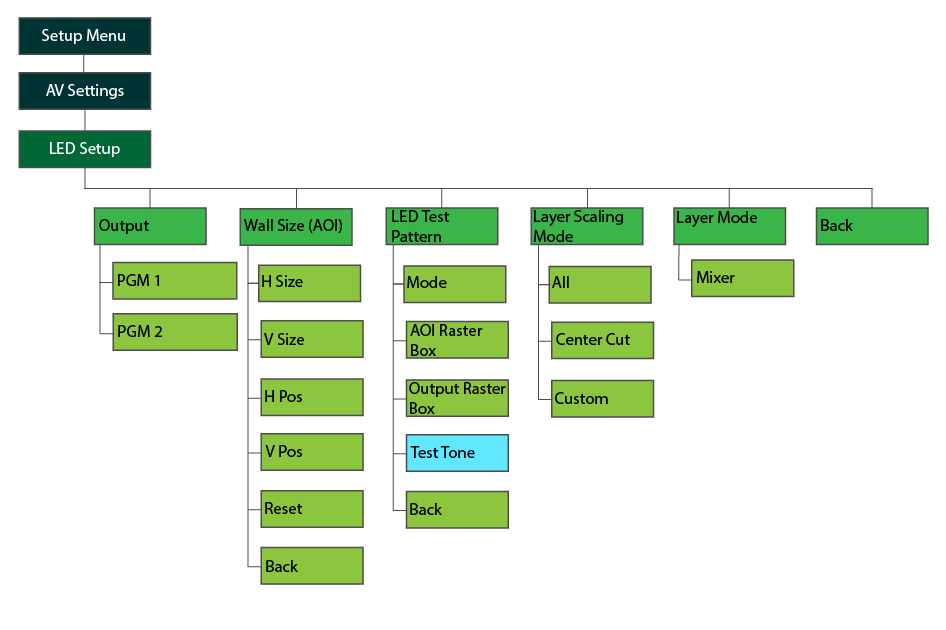
Refer to Image 5–197 for an illustration of the LED Setup menu tree. Menu tree items in blue are only available with the Audio option card installed.

Image 5–197 Setup Menu: LED Setup menu tree
LED Setup: Output
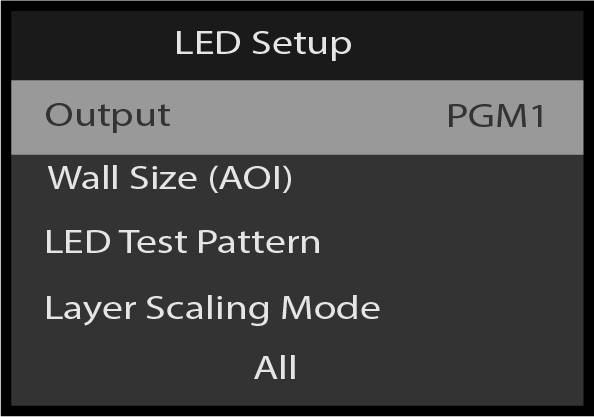
  1. In the LED:Setup menu, scroll to Output.

    Image 5–198 LED Setup: Output
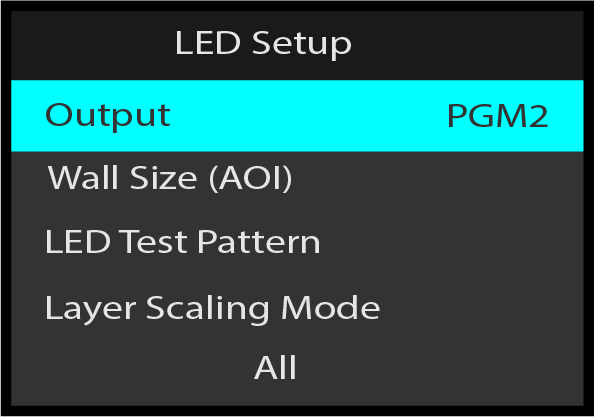
  2. Select Output, and choose the desired output.

    Image 5–199 LED Setup: Output choose output
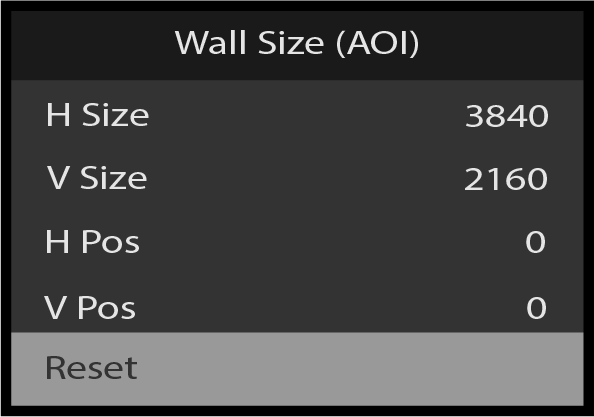
LED Setup: Wall Size (AOI)
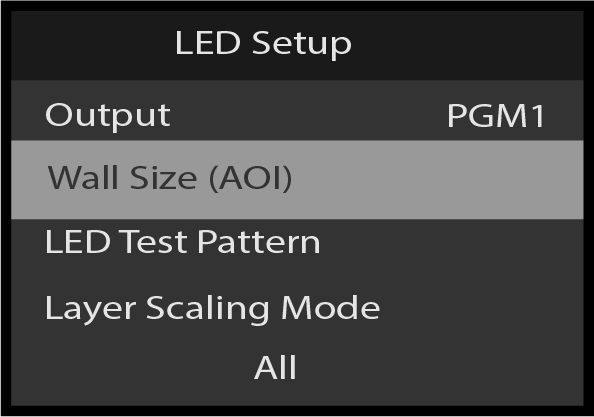
  1. From the LED: Setup menu scroll to and select Wall Size (AOI).

    Image 5–200 LED Setup: Wall Size (AOI)
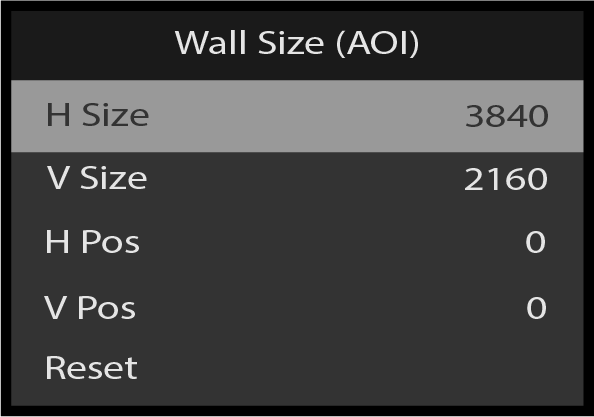
  2. From the Wall Size (AOI) menu select H Size to adjust the horizontal size.

    Image 5–201 Wall Size (AOI): H Size
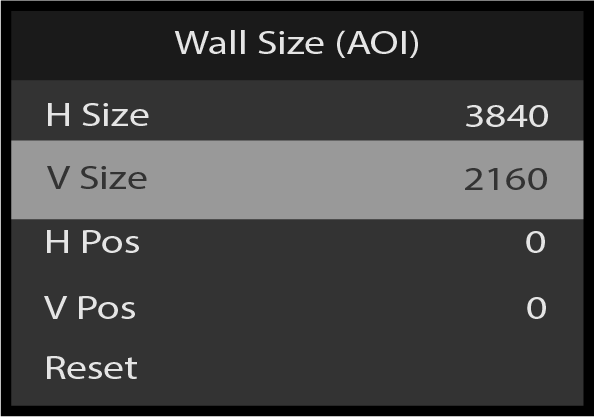
  3. From the Wall Size (AOI) menu select V Size to adjust the vertical size.

    Image 5–202 Wall Size (AOI): V Size
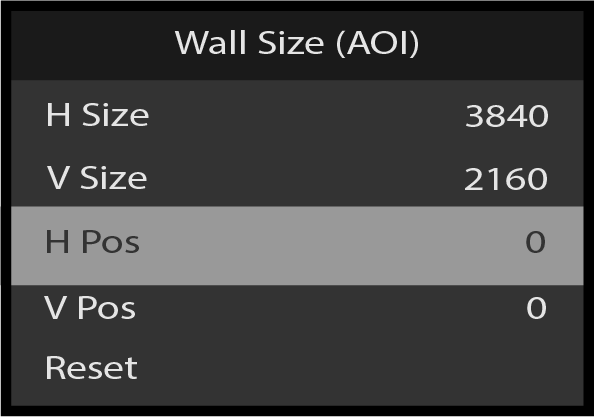
  4. From the Wall Size (AOI) menu select H Pos to adjust the Horizontal position.

    Image 5–203 Wall Size (AOI): H Pos
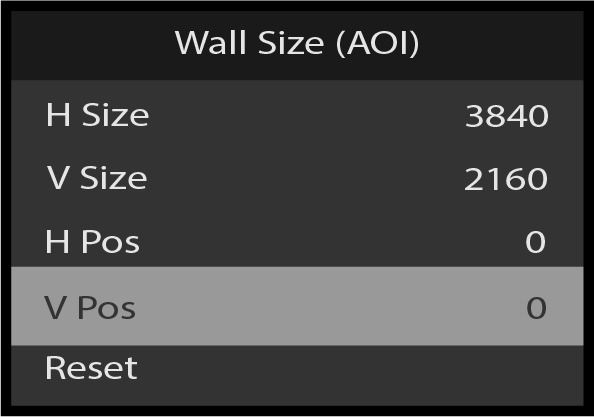
  5. From the Wall Size (AOI) menu select V Pos to adjust the Vertical position.

    Image 5–204 Wall Size (AOI): V Pos
  6. To reset size and position values back to default, scroll to and select reset.

    Image 5–205 Wall Size (AOI): Reset
  7. To return to the LED Setup menu scroll to and select Back.
LED Setup: LED Test Pattern
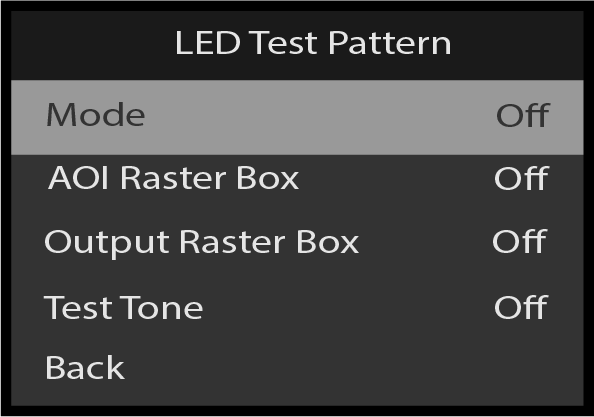
  1. To enter the LED Test Pattern menu from the LED Setup menu, scroll to and select LED Test Pattern.

    Image 5–206 LED Setup: LED Test Pattern
  2. To change the Mode, scroll to and select Mode from the LED Test Pattern menu.

    Image 5–207 LED Test Pattern: Mode
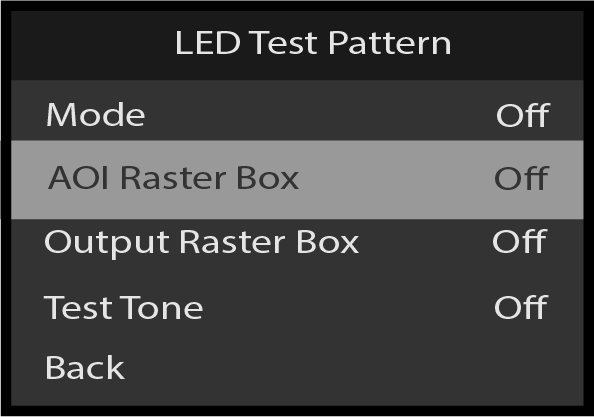
  3. To turn the AOI Raster Box on or off, scroll to and select AOI Raster Box.

    Image 5–208 LED Test Pattern: AOI Raster Box
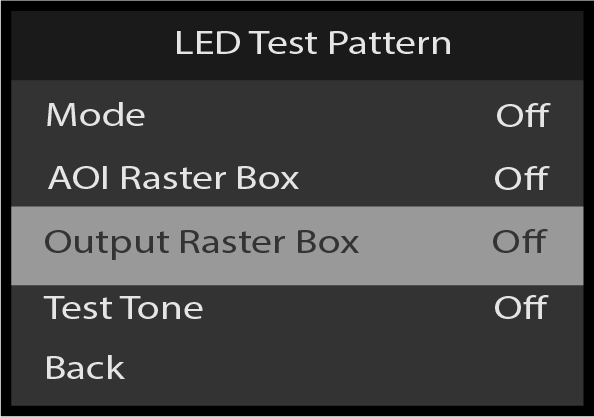
  4. To turn the Output Raster Box on or off, scroll to and select Output Raster Box.

    Image 5–209 LED Test Pattern: Output Raster Box
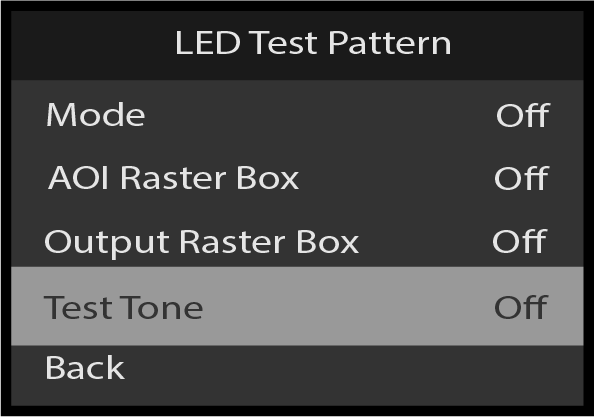
  5. To turn the Test Tone on or off, scroll to and select Test Tone.

    Test Tone is only available with the Audio Card installed.

    Image 5–210 LED Test Pattern: Test Tone
  6. Scroll to and select Back to return to the LED Setup menu.
LED Setup: Layer Scaling Mode
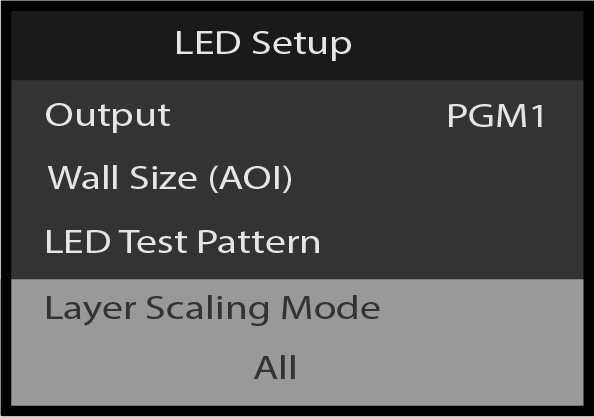
  1. From the LED Setup menu, scroll to Layer Scaling Mode.

    Image 5–211 Led Setup: Layer Scaling Mode
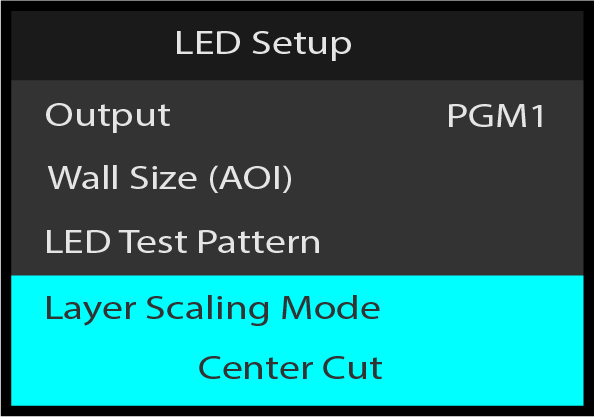
  2. Select Layer Scaling Mode, and select the desired setting.

    Image 5–212 Lay Scaling Mode: select Center Cut
LED Setup: Layer Mode

To adjust the Layer Mode, scroll to and select Layer Mode from the LED Setup menu.

Scroll to and select Back to return to the Setup Menu.