

How to update the software using the web interface.
- Power on the projector.
Download the latest firmware file ( format .iso) from Barco's website. The firmware can be downloaded for free from Barco's website, (URL: http://www.barco.com). Click on and log in to get access to secured information. Registration is necessary.
If you are not yet registered, click on and follow the instructions. With the created login and password, it is possible to log in where you can download the software.
- Connect your computer to the projector, using a LAN cable.
Browse to the IP address of the projector (e.g. the default 192.168.1.100).
The login screen will be displayed.
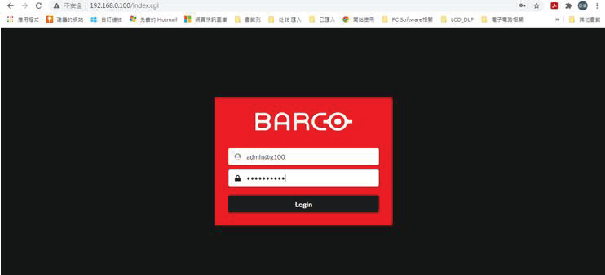
Image 3–26 Example of the login page Log in, using the following (default) settings:
- Username: admin@g62
- password: admin@g62

Navigate to System Settings > Upgrade (reference 1).
The upgrade page will be displayed.
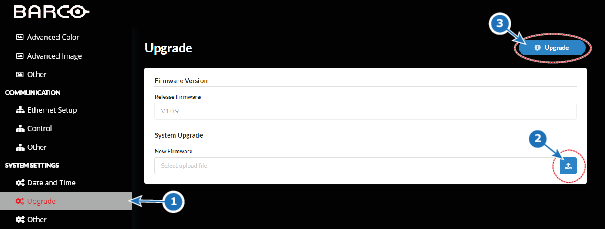
Image 3–27 Example of the upgrade page Browse to the desired update package (format .iso) and confirm (reference 2). Click Upgrade (reference 3) to start the upgrade process.
The update file will be transferred to the projector and installed. The projector will reboot when completed.
