6.2.1 Automated update

Location and availability
About automated software updates

From Pulse 2.10 onward, the option exists to download new updates automatically to the projector. Updates becomes available under the following conditions:

When is new software available?

When new software is available on the system to install, it will be displayed on the dashboard as illustrated in the following example image (reference 1).
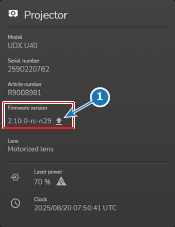
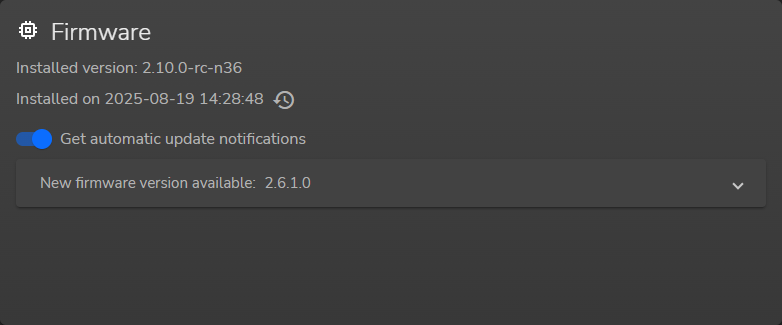
Image 6–5 Example of update icon on the Projector panel of the Dashboard menu
Layout
Image 6–6 Example of the firmware panel, new firmware collapsed
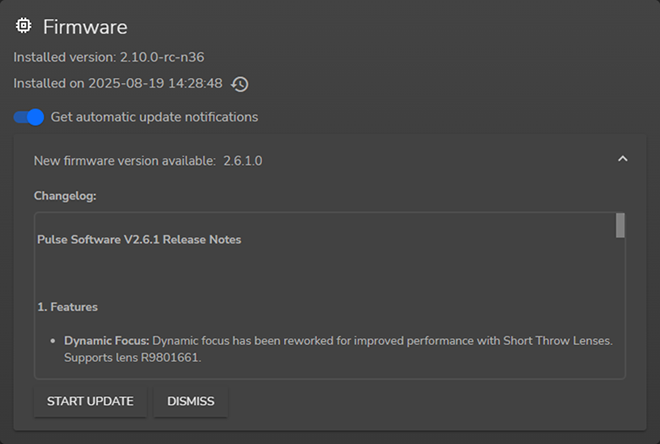
Image 6–7 Example of the Firmware panel, new firmware opened
How to configure automated software updates
  1. In the Firmware panel, make sure the Get automatic update notifications toggle is enabled.
  2. When a new software update is listed, click on the listed package, to open the collapsed panel.
  3. Do one of the following:

    • If the new software should be installed, press START UPDATE and confirm.
    • If the new software is not (yet) desired, press DISMISS and confirm.
    Note: If Dismiss is chosen, the update icon on the dashboard page (reference 1, Image 6–5) will disappear. However, it will remain possible to install the software from this menu.

[13] Automated updates is not supported on HDBaseT™

[14] enabled by default