When connecting to the projector for the first time, or connecting after a full factory reset has been performed on the projector, a number of steps will need to be completed before obtaining access to the UI. These steps are the following:
Selection of the UI language
Approving the End User License Agreement (EULA)
Creating a new user with administrator rights.
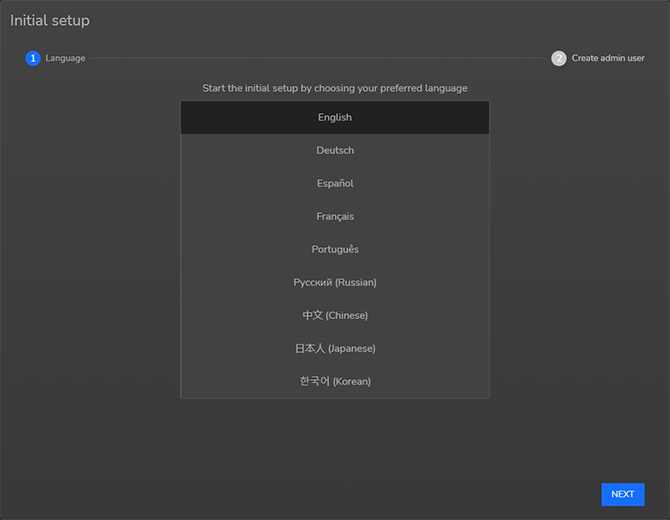
Select UI language
Select the desired language of the user interface from the list of available languages, and confirm:
Image 1–2Example of the language selection screen
End User License Agreement (EULA)
The Pulse product-specific End User License Agreement (EULA) will be displayed. Fully read the text and mark the checkbox on the bottom of the window to confirm you have fully read and the EULA.
Access to the projector software will be restricted until the EULA has been fully read and accepted.
Note: For simulation projectors (e.g. F70, F400, FL40, FS40), the EULA will not be displayed on-screen. The EULA approval process for simulation projectors happens during the purchasing process instead.
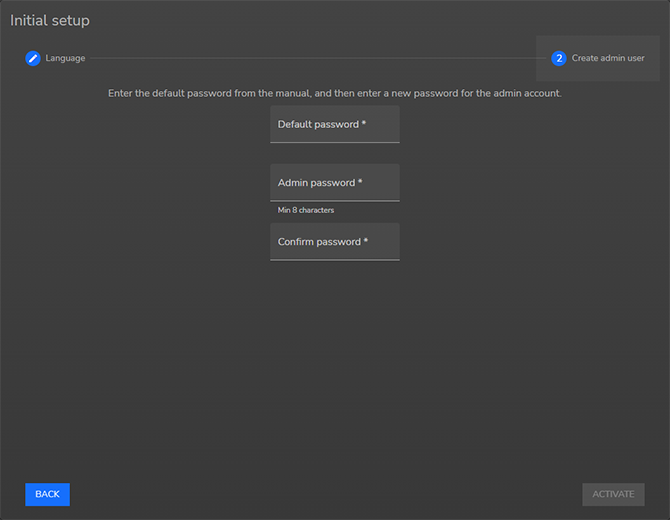
Creation of the admin user
Before having full access to the projector, the configuration of the default administrator user is required. While other users can be created later on, it is mandatory to configure the default administrator.
In order to do so, proceed as follows:
Fill in the default password: “setup123”.
Fill in a strong password of at least eight characters.
Confirm the filled-in password.
Click ACTIVATE.
Tip: It is advised to fill in a password that is longer than eight characters. Ideally, the password should also be a mix of upper case letters, lower case letters, numbers and special characters.
Image 1–3Example of the admin creation page
In order to create other users, see “User accounts”.