3.13.2 Device registration using Pulse Mobile

Prerequisites

Download and install the Pulse Mobile app on your mobile device.

Tip: The Pulse Mobile app is available both in the Google Play Store and the Apple App Store.
Location and availability
Layout
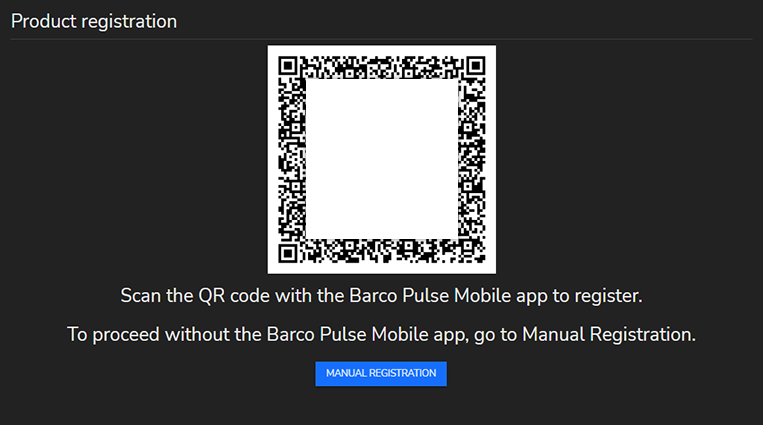
Image 3–136 Example of a QR code to be scanned with the Barco Pulse Mobile app
How to register using the QR code
  1. Make sure the QR code is visible on the screen of your computer.
  2. Open the Pulse Mobile app on your mobile device.
  3. Press the QR code icon in the top right corner of the app.

    The Scan QR-code page will be displayed.

  4. Scan the QR code in Pulse Prospector with the Pulse Mobile app.

    Note: The Pulse Mobile app will require authorization to use the camera of the mobile device.

    The mobile device will be redirected to the appropriate registration page.

  5. Log in with the appropriate credentials.
  6. Follow the instructions of the registration wizard to complete registration of the device.
  7. Is the registered device directly connected to the internet?

    • If yes, the registration process ends here. The device will have been successfully registered.
    • If no, continue with the manual registration by manually obtaining the device registration file. For more info, see “Downloading a device registration file”.