4.2.2 Virtual remote

About the virtual remote

The virtual remote allows any user connected to the CB Core, CB Pro to manage the camera and speakers from inside the ClickShare app.

Click on the remote icon in the ClickShare app to open the remote pop-up.
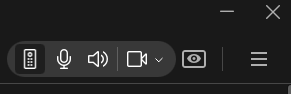
Image 4–20 Example of virtual remote icon
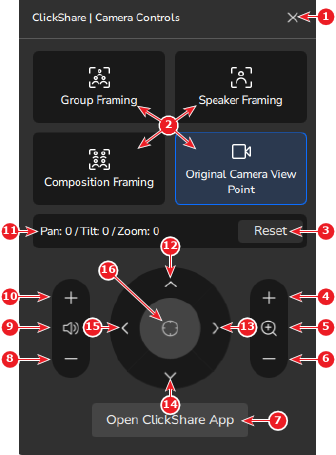
Virtual remote layout
Image 4–21
1
Close the remote
2
Camera mode options
3
Reset any modification to the camera position
4
Zoom in (Original Camera View Point only)
5
Zoom in halfway (Original Camera View Point only)
6
Zoom out (Original Camera View Point only)
7
Opens the ClickShare desktop app
8
Volume down
9
Mute / unmute speakers
10
Volume up
11
Camera position information (Original Camera View Point only)
12
Tilt up (Original Camera View Point only)
13
Pan right (Original Camera View Point only)
14
Tilt down (Original Camera View Point only)
15
Pan left (Original Camera View Point only)
16
Reset pan and tilt (Original Camera View Point only)