8.12.12.2 Recalling a preset

Location
  1. Navigation side bar: Programming
  2. Central work area: PREVIEW
  3. Right panel: Preset
About recalling

Presets can be recalled to any selected destination or layout group. Presets always recall to the preview section, never the program section. This allows time for conflicts to be resolved without affecting the displayed image.

How to recall
  1. Must the preset be transitioned to program the moment it is recalled?
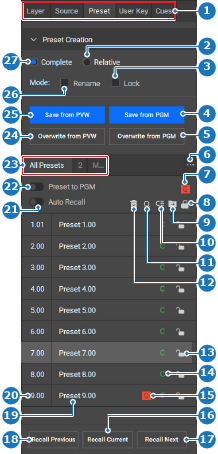
    • If yes, enable the Preset to PGM (reference 22) toggle button.
    • If no, disable the Preset to PGM (reference 22) toggle button.
    Image 8–133
    1
    Category selection
    2
    Relative preset radio button
    3
    Lock new preset check box
    4
    Save scene in program
    5
    Overwrite selected preset with scene in program
    6
    Preset folder menu
    7
    Global preset toggle button
    8
    Lock or unlock all presets
    9
    Move selected preset to folder
    10
    Reorganise presets
    11
    Search presets
    12
    Delete selected preset
    13
    Lock or unlock specific preset
    14
    Complete or relative preset label
    15
    Global preset label
    16
    Recall selected preset
    17
    Recall preset below the selected preset
    18
    Recall preset above the selected preset
    19
    Preset name input field
    20
    Preset ID input field
    21
    Auto recall toggle button
    22
    Allow recall to program toggle button
    23
    Preset folders
    24
    Overwrite selected preset with scene in preview
    25
    Save scene in preset
    26
    Rename new preset check box
    27
    Complete preset radio button
  2. Must the preset be recalled the moment it is selected?

    • If yes, enable the Auto Recall (reference 21, Image 8–133) toggle button.
    • If no, disable the Auto Recall (reference 21, Image 8–133) toggle button.
  3. Select a preset from the list.

    If Auto Recall (reference 21, Image 8–133) is turned enabled, then the preset is applied to the preview of the selected destinations.

  4. Recall the desired preset.

    • For the preset one entry above the selection, click Recall Previous (reference 18, Image 8–133).
    • For the selected preset, click Recall Current (reference 16, Image 8–133).
    • For the preset one entry below the selection, click Recall Next (reference 17, Image 8–133).
    Tip: The buttons will be red when Preset to PGM (reference 22, Image 8–133) is turned enabled.

    The preset will be recalled.

  5. Click the save icon () in the header.