Note: This menu is only visible in the Event Master Toolset client on an EC-210.
Location
Navigation side bar: Settings
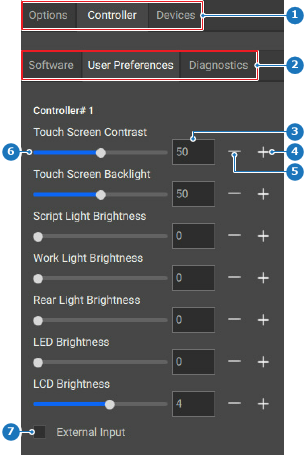
Left panel: Controller > User preferences
About user preferences
User preferences are settings that change functionalities across the entire EC-210 controller.
How to change
Adjust the desired settings using one or more of the following methods:
Using the slider (reference 6): drag the white ball over the slider until the desired amount is reached.
Entering a value (reference 3): enter any desired value in the input field.
Using the + and - buttons: click on the + (reference 4) to increase the value with one point and on the - (reference 5) to decrease the value with one point.
Image 8–194
1
Category selection
2
Subcategory selection
3
Setting input field
4
Increase setting button
5
Decrease setting button
6
Setting slider
7
External input check box
Must external input be accepted?
If yes, check the check box in front of External Input (reference 7, Image 8–194).
If no, uncheck the check box in front of External Input (reference 7, Image 8–194).