8.10.6.7 Temperature

Location
  1. Navigation side bar: Configuration
  2. Central work window: Detail View or System View
  3. Right panel: Adjust unit
About temperature

The temperature category reads out the temperature and fan sensors of the selected unit. A general thermal indicator () is shown. This indicator can have the following states:

How to check
  1. Is there more than one unit in the system?
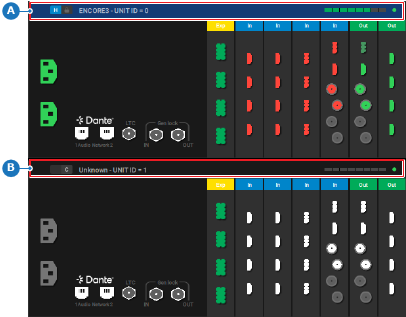
    • If yes, click on the header of the desired unit (reference A or B) in the central work window. Go to next step.
    • If no, go to next step.
    Image 8–37 Example where the host unit is selected
    A
    Host unit selection area
    B
    Client unit selection area
  2. Is the thermal indicator (reference 14) green?
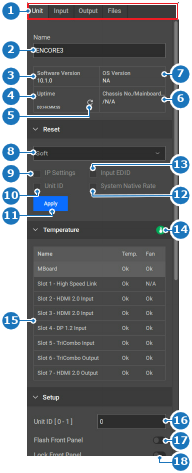
    • If yes, no further actions required.
    • If no and any Event Master card shows NOK in the table (reference 15), replace the affected cards. For more information, see “Removing an Event Master card”.
    • If no and the motherboard (MBoard) shows NOK in the table (reference 15), contact Barco customer service support for further assistance. For more information, see https://www.barco.com/en/support.
    • If no and both Event Master card and motherboard (MBoard) show NOK in the table (reference 15), contact Barco customer service support for further assistance. For more information, see https://www.barco.com/en/support.
    Image 8–38
    1
    Category selection
    2
    Unit name input field
    3
    Running software version
    4
    Last loaded uptime of the unit
    5
    Refresh the unit uptime
    6
    Unit serial number
    7
    Operating system version
    8
    Reset type drop down
    9
    Keep IP settings toggle
    10
    Keep Unit ID toggle
    11
    Start reset button
    12
    Keep system native rate toggle
    13
    Keep input EDID toggle
    14
    Unit health icon
    15
    Temperature diagnostics table
    16
    Unit ID input field
    17
    Flash unit front panel toggle
    18
    Lock unit front panel toggle