8.10.6.8 Front panel settings

Location
  1. Navigation side bar: Configuration
  2. Central work window: Detail View or System View
  3. Right panel: Adjust unit
About front panel settings

Some settings from the front panel are available from Event Master Toolset. These select settings are linked to the same options within the front panel interface. For more information about all available front panel settings, see “Encore3 front panel”.

About flash front panel

Flash front panel will sequentially increase the brightness of the front panel. This changing brightness can assist in locating a desired Encore3.

About locking the front panel

The front panel can be locked to prevent accidental touches or unwanted modifications to the Encore3.

How to manage
  1. Is there more than one unit in the system?
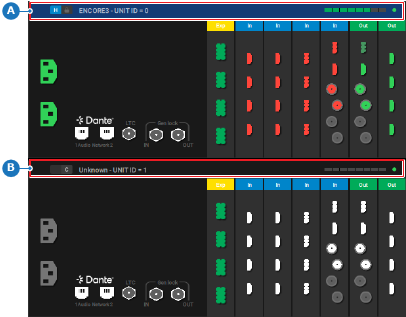
    • If yes, click on the header of the desired unit (reference A or B) in the central work window. Go to next step.
    • If no, go to next step.
    Image 8–39 Example where the host unit is selected
    A
    Host unit selection area
    B
    Client unit selection area
  2. Must the front panel be locked or unlocked?
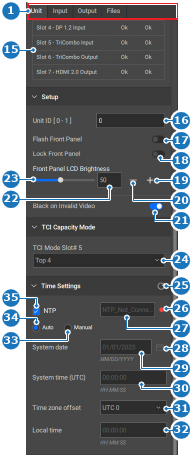
    • In case of locked, enable the toggle button after Lock Front Panel (reference 18).
    • In case of unlocked, disable the toggle button after Lock Front Panel (reference 18).
    Image 8–40
    1
    Category selection
    15
    Temperature diagnostics table
    16
    Unit ID input field
    17
    Flash unit front panel toggle
    18
    Lock unit front panel toggle
    19
    Increase unit front panel brightness
    20
    Decrease unit front panel brightness
    21
    Solid black signal on invalid video toggle
    22
    Front panel brightness input field
    23
    Front panel brightness slider
    24
    Active input ports drop down
    25
    Refresh time settings button
    26
    NTP server status
    27
    NTP server input field
    28
    Calendar menu
    29
    Manual date input field
    30
    Manual system time input field
    31
    Manual time zone drop down
    32
    Manual local time input field
    33
    Manual time settings radio button
    34
    Automatic time settings radio button
    35
    Use NTP server toggle
  3. Must front panel flash be used?

    • If yes, enable the toggle button after Flash Front Panel (reference 17, Image 8–40).
    • If no, disable the toggle button after Flash Front Panel (reference 17, Image 8–40).
  4. Change the brightness of the front panel using one of the following methods: (optional)

    • Using the slider (reference 23, Image 8–40): drag the white ball over the slider until the desired amount is reached.
    • Entering a value (reference 22, Image 8–40): enter any desired value between ‘10’ and ‘100’ in the input field.
    • Using the + and - buttons: click on the + (reference 19, Image 8–40) to increase the value with one point and on the - (reference 20, Image 8–40) to decrease the value with one point.
  5. Click the save icon () in the header.