8.12.10.3 Mix background layer

Location
  1. Navigation side bar: Programming
  2. Central work area: PREVIEW > BG or PROGRAM > BG
  3. Right panel: BG
About the mix background layer

The mix background layer of a destination functions like a normal mix layer. It can have a matte color or a source applied. By default, the mix background layer is set to a matte black color.

How to edit
  1. Click on the desired destination from the top panel or desired screen destination group from the bottom panel.
  2. Click on the background icon () or the mix background layer.
  3. Is the mix background layer in program?

    • If yes, click the lock icon () of PROGRAM to modify the mix background layer and go to next step.
    • If no, go to next step.
  4. Must a source be applied to the mix background layer?

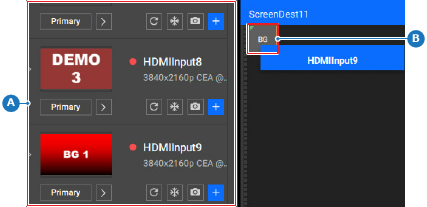
    • If yes, drag (reference A) and drop (reference B) the desired source from the left panel on the background icon (). Go to next step.
    • If no, go to step 6.
    Image 8–118
    A
    Layer drag area
    B
    Layer drop area
  5. Position the background. For more information, see “Positioning a layer”. (optional)
  6. Modify the background using the options from the right panel.
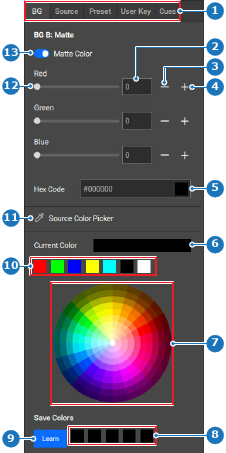
    Image 8–119
    1
    Category selection
    2
    Color value input field
    3
    Decrease color value button
    4
    Increase color value button
    5
    Hex code input field
    6
    Current color label
    7
    Color wheel
    8
    Saved color options
    9
    More information button
    10
    Standard color options
    11
    Color picker button
    12
    Color value slider
    13
    Matte color toggle
  7. Click the save icon () in the header.