8.16.3 ShowFile editor

Location
  1. Navigation side bar: ShowFile
  2. Top panel: ShowFile Editor
About ShowFile editor

Sometimes not all settings must be restored from a backup file. With ShowFile editor it is possible to select specific user created content from a backup. Any selected content will be combined with any current configuration.

The following content can be selectively imported:

Note: Usage of the USB stick is only supported in Event Master Toolset for the EC-210.
Required parts

8GB+ USB stick formatted in FAT32.

How to import
  1. Is the restore feature being accessed from an EC-210?

    • If yes, store the desired ShowFile file in a folder ‘EM\backup\sys’ on the USB stick. Go to next step.
    • If no, go to 3.
  2. Insert the USB stick in the desired port:
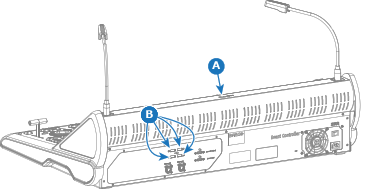
    • ‘USB-A’ port (reference A) at the top.
    • any free ‘USB-A’ ports (reference B) at the back.
    Image 8–168
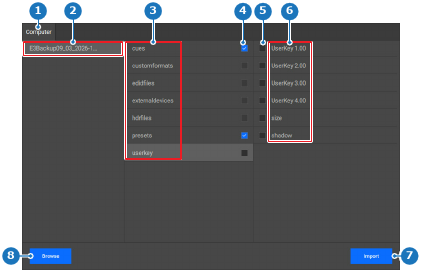
  3. Click Browse (reference 8).

    Image 8–169
    1
    Computer tab
    2
    Detected ShowFile list
    3
    Categories list
    4
    Category check box
    5
    Subcategory check box
    6
    Subcategories list
    7
    Import button
    8
    Browse button
  4. Navigate to and open the desired ShowFile using the pop-up window.

    The ShowFile is loaded into the memory of the Encore3 and appears on the left side (reference 2, Image 8–169).

  5. Click on the name of the imported ShowFile (reference 2, Image 8–169) to show the available categories (reference 3, Image 8–169).
  6. Must an entire category be imported?

    • If yes, click the check box after the name of the category (reference 4, Image 8–169). Go to step 8.
    • If no, click on the name of the category (reference 3, Image 8–169) to show the subcategories (reference 6, Image 8–169). Go to next step.
  7. Click the check box in front of each desired subcategory (reference 5, Image 8–169).
  8. Must another category be fully or partially imported?

    • If yes, go to step 6.
    • If no, click Import (reference 7, Image 8–169). Go to next step.
  9. Must the current selection be combined into a new ShowFile?
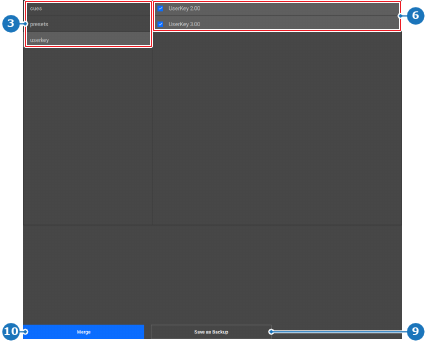
    • If yes, click Save as Backup (reference 9). Go to next step.
    • If no, go to step 11.
    Image 8–170
    3
    Categories list
    6
    Subcategories list
    9
    Create new ShowFile button
    10
    Restore selected ShowFile settings button
  10. Click Continue (reference 11) and store the ShowFile in the desired folder using the pop-up.
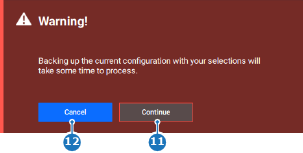
    Image 8–171
    11
    Confirm button
    12
    Cancel button
  11. Must the selection be imported into the current configuration?

    • If yes, click Merge (reference 10, Image 8–170). Go to next step.
    • If no, no further actions required.

    A confirmation pop-up is shown.

  12. Click on Merge (reference 11) to recall the selected settings from the ShowFile.
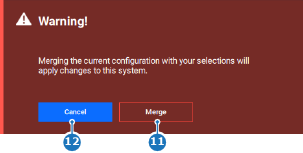
    Image 8–172
    11
    Confirm button
    12
    Cancel button

    The selected ShowFile settings are applied and the Encore3 reboots.