8.7 Multi-operator mode

About multi-operator

Event Master Toolset allows for multiple operators to work on the same system at the same time from different computers. Each operator is assigned to an account with the relevant presets and screen destinations available. These operator accounts are managed from a password protected super operator. This super operator has access to all presets and screen destinations.

How to configure
  1. Click on the Configure Multi-Operator icon () in the header (reference 8).

    Image 8–12
    1
    Hide or show the left panel
    2
    Open category icon and name
    3
    System drop down
    4
    Unit drop down
    5
    Test pattern menu
    6
    Save button
    7
    Current logged in operator
    8
    Multi-operator menu

    the Multi-Operator window is shown.

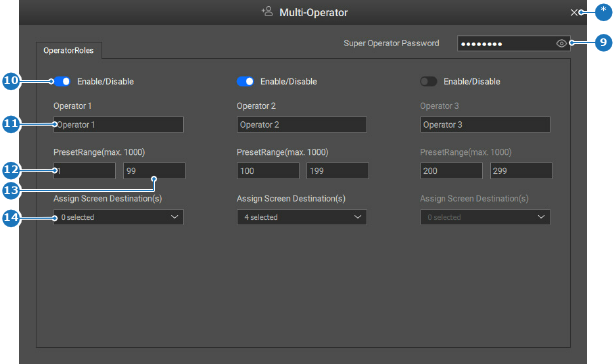
  2. Turn on the toggle button (reference 10) in the column of the desired operators to enable them.

    Image 8–13
    9
    Super operator password input field
    10
    Operator toggle button
    11
    Operator name input field
    12
    Minimum available preset input field
    13
    Maximum available preset input field
    14
    Screen destination selection drop down
    *
    Close button
  3. Enter a unique name for each operator account in the input field after Operator x (reference 11, Image 8–13).

    Tip: Provide clear names that reflect the intended purpose.
  4. Enter the range of presets that the operator can use in the input fields after PresetRange(max. 1000) (reference 12 and 13, Image 8–13).
  5. Select all screen destinations that the operator can interact with from the drop down after Assign Screen Destination(s) (reference 14, Image 8–13).
  6. Change the default Super Operator password in the input field after Super Operator Password (reference 9, Image 8–13).

    Note: The default Super Operator password is ‘password’.
    Tip: To see the entered password, use the eye icon () in the input field.