8.10.6.2 Preset conflict

Location
  1. Navigation side bar: Configuration
  2. Central work window: Detail View or System View or Link Resources
About preset conflict

Recalling presets can lead to conflicts between content that is currently in program with the content that is being loaded in preview. If program is locked, then the selected conflict mode will decide how those conflicts are resolved. The following modes are available:

How to change
  1. Is the bottom panel hidden?

    • If yes, click the burger menu (). Go to next step.
    • If no, go to next step.
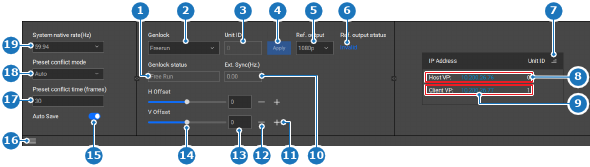
  2. Select the desired mode from the drop down after Preset conflict mode (reference 18).

    Image 8–30
    1
    Current Genlock mode label
    2
    Genlock mode drop down
    3
    ID of the genlock enabled unit
    4
    Apply genlock settings button
    5
    Genlock reference output drop down
    6
    Current status of the genlock reference output
    7
    Unit ID sorting button
    8
    Host unit details
    9
    Client unit details
    10
    External genlock sync status label
    11
    Increase offset button
    12
    Decrease offset button
    13
    Offset input field
    14
    Offset slider
    15
    Auto save toggle
    16
    Show or hide the bottom panel
    17
    Preset conflict frames input field
    18
    Preset conflict mode drop down
    19
    System native rate drop down
  3. Select the maximum frames the conflict mode can take from the drop down after Preset conflict time (frames) (reference 17, Image 8–30).
  4. Click the save icon () in the header.