8.13.3 Creating commands

Location
  1. Navigation side bar: External Devices & Cues
  2. Left panel: Device(s)
  3. Right panel: Configuration > Command
About command documentation

All Barco developed devices will communicate to Event Master Toolset using the REST API. For more information, see the the Barco website:

How to create
  1. Click on a desired device in the left panel.
  2. Must an existing command be overwritten?
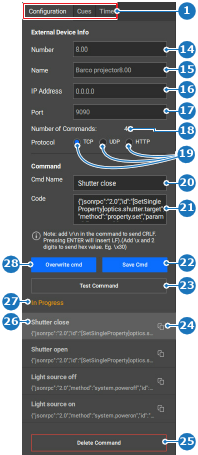
    • If yes, select the desired command (reference 26) in the right panel and go to next step.
    • If no, go to next step.
    Image 8–142
    1
    Category selection
    14
    External device number input field
    15
    External device name input field
    16
    External device IP address input field
    17
    External device port number input field
    18
    Total available commands label
    19
    Communication protocol radio buttons
    20
    Custom command name input field
    21
    Custom command input field
    22
    Save custom command
    23
    Test selected command
    24
    Copy command button
    25
    Delete selected command
    26
    Command name input field
    27
    Command status label
    25
    Overwrite selected command
  3. Enter a name for the command after Cmd Name (reference 20, Image 8–142) in the right panel.

    Tip: Provide clear names that reflect the intended purpose.
  4. Write the command that must be sent to the external device in the input field after Code (reference 21, Image 8–142).
  5. Click Test Command (reference 23, Image 8–142) to ensure the code works.
  6. Click Save Cmd (reference 22, Image 8–142) or Overwrite cmd (reference 28, Image 8–142).
  7. Click the save icon () in the header.