8.12.13.1 Cut transitions

Location
  1. Navigation side bar: Programming
  2. Right panel: Transition
About cut transitions

Cut transitions ignore all armed or set movements of any layers. The old program scene is removed from the outputs and the preview scene is copied to program.

How to transition
  1. Select the desired destinations from the top panel or layout group from the bottom panel.
  2. Click the CUT button in the right panel (reference 28) or the bottom panel (reference 28).
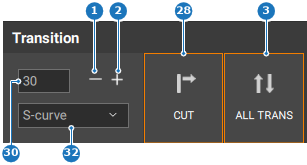
    Image 8–134
    1
    Decrease transition frames
    2
    Increase transition frames
    3
    Transition all destinations
    28
    Cut preview to program
    30
    Transition frames input field
    32
    Crossfade drop down
    Image 8–135
    4
    Left align selection
    5
    Vertical middle align selection
    6
    Right align selection
    7
    Top align selection
    8
    Horizontal middle align selection
    9
    Bottom align selection
    10
    Horizontal distribute selection
    11
    Vertical distribute selection
    12
    Make selections same size
    13
    Align selection with the right destination border
    14
    Align selection with the bottom destination border
    15
    Align selection with the center of the destination
    16
    Align selection with the vertical center of the destination
    17
    Align selection with the horizontal center of the destination
    18
    Align selection with the top destination border
    19
    Align selection with the left destination border
    20
    Move selection up in Z-order
    21
    Move selection to top in Z-order
    22
    Move selection to bottom in Z-order
    23
    Move selection down in Z-order
    24
    Size selection to fill horizontal
    25
    Size selection to fill vertical
    26
    Size selection to the source
    27
    Size selection to fill horizontal and vertical
    28
    Cut preview to program
    29
    Transition preview to program
    30
    Transition frames input field
    31
    Execute move animation button
    32
    Crossfade drop down
    33
    Toggle selected layer opacity in software
    34
    Lock or unlock selection
    35
    Arm button
    36
    Toggle selection between preview and program
    37
    Split or unsplit layer
    38
    Merge or unmerge layer
    39
    Match program to preview button
    40
    Reset modifications of selection
    41
    Reset modifications to all layers
    42
    Select all layers
    43
    Freeze selection
    44
    Swap layer modifications between preview and program
    45
    Hide or show selected layer from presets
    46
    Remove selections

    The scene from the preview is shown on program.
