8.12.7 Source thumbnail

Location
  1. Navigation side bar: Programming
  2. Left panel: All Sources
About thumbnails

Thumbnails provide a visual aid on what the source displays. These thumbnails are a static snapshot of the content from the source at a random time. To update a thumbnail, click the refresh icon () of the desired source. Thumbnails are not visible outside of Event Master Toolset.

It is possible to overwrite the snapshot thumbnails to a custom image. For more information on how to set a custom thumbnail, see the following procedure.

Tip: No thumbnails will be generated when using the simulator. Custom thumbnails can help create a more realistic overview.
How to set
  1. Is the Source List toggle button (reference 8) enabled?

    • If yes, disable the Source List toggle button (reference 8) and go to next step.
    • If no, go to next step.
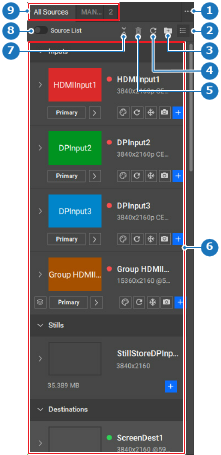
    Image 8–107
    1
    Folder menu
    2
    Source view options
    3
    Source organise menu
    4
    Refresh input thumbnail button
    5
    Delete button
    6
    Available sources
    7
    Collapse or expand all sources
    8
    Toggle source list view
    9
    Source folders
  2. Set the source view (reference 2, Image 8–107) of the left panel to Show thumbnail view ().

    Note: Thumbnails can only be viewed in the All Sources tab (reference 9, Image 8–107). They are not visible in the folders.
  3. Click on the thumbnail (reference 11) of the desired source in the left panel.
    Tip: Collapse all categories and groups in the panel by clicking on the collapse icon ().

    Expand all categories and groups in the panel by clicking on the expand icon ().

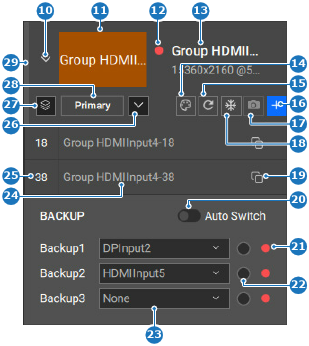
    Image 8–108
    10
    Show or hide sources
    11
    Input thumbnail
    12
    Signal validity icon
    13
    Input name input field
    14
    Thumbnail background color menu
    15
    Refresh thumbnail button
    16
    Add source button
    17
    Capture still button
    18
    Freeze input button
    19
    Copy source button
    20
    Toggle auto backup signal
    21
    Backup signal validity icon
    22
    Manual backup source radio button
    23
    Backup source drop down
    24
    Source name input field
    25
    Source ID input field
    26
    Show or hide backup section
    27
    Show or hide group sources
    28
    Backup or primary source button
    29
    Input usage indicator

    A pop-up window is shown.

  4. Navigate to the location of the image and click open.

    The image is shown in the thumbnail (reference 11, Image 8–108) of the source and in the central work area if the source is used.

  5. Click the save icon () in the header.