8.15.3.2 Manual mapping

Location

Navigation side bar: Controller

About manual mapping

Manual mapping allows for the individual mapping of a functionality or target to any compatible controller button.

How to map
  1. Select the desired category (reference 1) from the left panel.
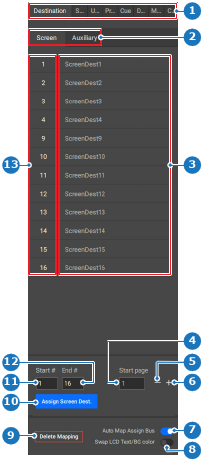
    Image 8–156
    1
    Category selection
    2
    Folder or subcategory selection
    3
    Options list
    4
    Start page number input field
    5
    Decrease start page number
    6
    Increase start page number
    7
    Auto map assign bus toggle button
    8
    Swap text color and background color toggle button
    9
    Delete mapping button
    10
    Assign button
    11
    Start number input field
    12
    End number input field
    13
    Options number list
  2. Select the desired folder or subcategory (reference 2, Image 8–156).
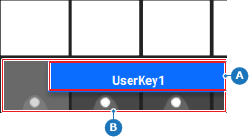
  3. Drag (reference A) the desired entry on the button (reference B) in the central work window.

    Tip: If the button supports the functionality, then it will flash while hovering over it.
    Image 8–157
    A
    Dragged functionality
    B
    Drop area
  4. Click the save icon () in the header.