7.4.4 Editing a user

Location and availability
How to edit a user
  1. In the settings menu, click Users.

    Image 7–62 Settings menu, Users

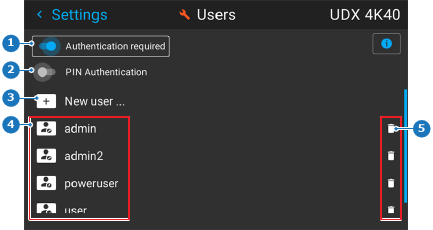
    The Users menu will be displayed.

    Image 7–63 Example of the Users menu
    1
    Authentication required toggle
    2
    PIN authentication
    3
    New User button
    4
    Example of existing users
    5
    Delete icon for each user
  2. Select the desired user and confirm.

    The user menu for the chosen user will be displayed.
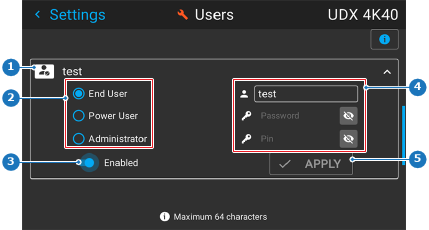
    Image 7–64 Example of the user menu
    1
    Edit user pane
    2
    User group
    3
    Enable toggle
    4
    User credentials
    5
    Apply button
  3. Enter or edit the user settings as follows:

    • User name: Enter a text of maximum 64 characters
    • Password: Enter a code of minimum 8 characters[13]
    • Pin code: Choose a pin code of 4–6 digits.[14]
    • User group: Choose between End user, Power user or Administrator.[15]
    • Enable user toggle: Use this when certain users can only have access to the projector for a limited time (e.g. a short, but recurring event).
  4. Click APPLY.

[13] When it comes to creating strong passwords, length of the password is more important than the complexity. It is safer to opt for a password of 16 characters that is not “complex” rather than a “short” password that is very complex.

[14] PIN codes cannot start with 0.

[15] A service user cannot be created, nor edited.