7.10.6 Electronic convergence

Location and availability
Note: For QDX, the Electronic convergence function requires Pulse 2.9.3 or later.
Tip: While the electronic convergence menu is visible to all users, the Convergence test pattern required to correctly use the menu is only available when logged in as power user or higher.
About convergence

Convergence alignment of the red, green and blue can drift due to multiple reasons. There are two ways to compensate for this drift:

Note: Electronic convergence can only be used to align up to two pixels in each direction in increments of one pixel. For a more refined convergence method, use the mechanical convergence instead.

For more info on the mechanical convergence, consult the service manual of the projector.

About the convergence test pattern

The convergence test pattern consists of horizontal and vertical center lines, as well as two diagonal lines. It features three red arrows numbered 1 to 3, and three green arrows numbered 4 to 6. These numbers and colors correspond to the extended control knobs found on the light processor of the projector. The direction of each arrow indicates the movement of the channel color (red or green) when turning the corresponding control knob in the direction indicated by the arrow on the knob.
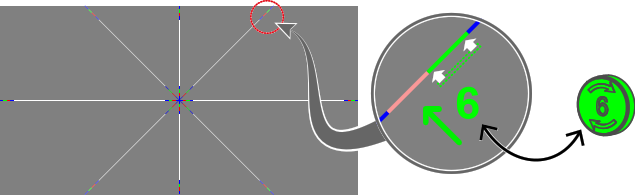
Image 7–119 Convergence test pattern.
Note: Depending on the projector model the convergence test pattern may be slightly different, but the principle remains the same.
How to adjust convergence electronically
  1. Project the Convergence test pattern.
  2. In the Maintenance menu, select Electronic convergence.

    Image 7–120 Maintenance menu, electronic convergence

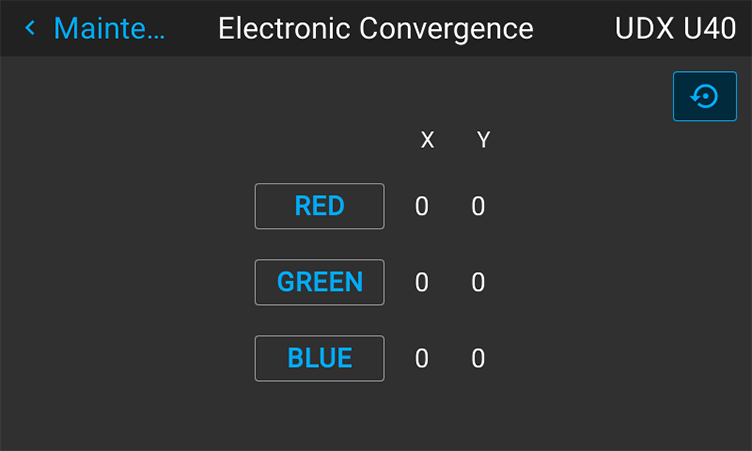
    The Electronic Convergence menu is displayed.

    Image 7–121 Example of the electronic convergence menu
  3. Select the desired X or Y value for one of the three colors and confirm.
  4. Use the arrow keys to raise or lower the value and confirm.
  5. Repeat all steps until the desired alignment is achieved.
Tip: Press the Reset icon to return all values to the factory settings.