10.3 Disconnecting the Mobile App

About disconnecting

Disconnecting breaks the link between the device and the ClickShare. This signals to the ClickShare that the meeting is finished or that the device will no longer be used in the meeting. If a device is disconnected accidentally, then it can be reconnected.

Prerequisites

The device must be connected using the Mobile App. For more information, see “Mobile App connection”.

Tip: It is not required to stop sharing before disconnecting.
How to disconnect
  1. Disconnect from the ClickShare using one of the following methods:

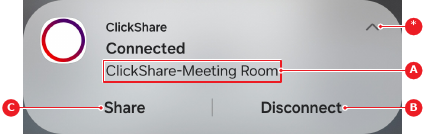
    • Using the ClickShare notification, tap Disconnect (reference B). (recommended)
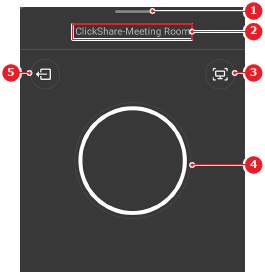
    • Using the Mobile App, tap the disconnect button (reference 5). (recommended)
    • Lock the connected device.
    • Take the device outside the range of the Base Unit.
    Note: If the sharing menu in the Mobile App is not visible, tap the toggle bar (reference 1).
    Image 10–3 Mobile App
    1
    Toggle bar
    2
    Connected meeting room name
    3
    Screenshot menu
    4
    Share button
    5
    Disconnect button
    Image 10–4 Notification example on Android
    A
    Connected meeting room name
    B
    Disconnect button
    C
    Share button
    *
    Collapse or expand notification

    Any shared content disappears from the meeting room displays. This may take a while for the methods that are not recommended. The ClickShare wallpaper is shown.