7.8.1 Control Panel settings

Location & availability
About Control Panel settings

The ClickShare Control Panel has additional settings that only affect the device.

How to adjust
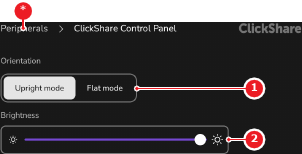
  1. Select the installation orientation of the Control Panel after Orientation (reference 1).

    • Select Upright mode if the Control Panel is standing.
    • Select Flat mode if the Control Panel is laying down.
    Note: The text of the return button (reference *) will change depending on which account is logged in. For the admin account it will be Peripherals and for the user account it will be System.
    Image 7–39 Example from the user menu
    1
    Orientation options
    2
    Brightness slider
    *
    Return button

    The user interface rotates based on the selected orientation.

  2. Drag the slider after Brightness (reference 2, Image 7–39) to adjust the brightness.

    The brightness of the screen changes.