7.4.1 Ethernet status

IP address
An IP address is a numeric address given to a device on a network. A generation four address (IPv4) is built up using four digits between ‘0’ - ‘255’, for example ‘192.168.0.50’. This allows different network devices to find each other on the network.
DHCP
Dynamic Host Configuration Protocol (DHCP) is a protocol that manages IP addresses. When a device is connected to a DHCP network, the DHCP server will assign an unused IP address to the connected device automatically. This ensures all connected devices have unique IP addresses, within the same range.
Subnet
Subnetting is a network principle that subdivides local networks into multiple smaller networks. Each subnet gets given a certain range of IP addresses based on the subnet mask. The subnet mask highlights how many bits, and therefore possible devices, are part of the smaller network.
Default gateway
The default gateway is the IP address of the nearest networking device, often a router, in charge of sending network information and traffic to the unit. The default gateway typically hosts the DHCP server for the network or the subnet.
DNS
Domain Name System (DNS) is a server that matches IP addresses to human readable links. A typical use case is allowing browsers to send URLs to the DNS server and get an IP address back to contact the desired website over the network.
MAC address
A Media Access Control (MAC) address is a unique number for the network capabilities of a device. This number cannot be changed and is used as an identifier by the network.
Location & availability
About network

The network status page shows the current network configuration of the Base Unit. Information like the IP address can be found here. These network settings can be adjusted if needed. For more information, see the following procedure.

Note: An active network connection is required for the room system to function.
How to configure
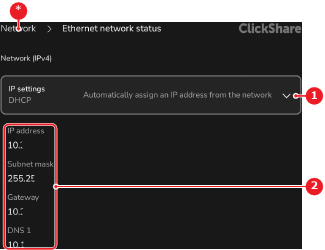
  1. Select the desired method for setting network configuration after IP settings (reference 1).

    • DHCP, to automatically set the network configuration. Go to step 7. (default)
    • Static, to manually adjust the network configuration. Go to next step.
    Note: Changing from DHCP to static will not clear the data. Making it possible to get a configuration from DHCP, then switch the Base Unit to static to lock the configuration or get a head start on common fields.
    Image 7–11 DHCP IP method menu
    1
    Method drop down menu
    2
    Cancel button
    3
    Save button
    *
    Return button
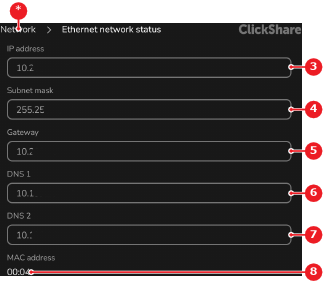
  2. Enter or update the desired IP address after IP address (reference 4).

    Tip: Tap the x icon () in the input field to clear the entered data.
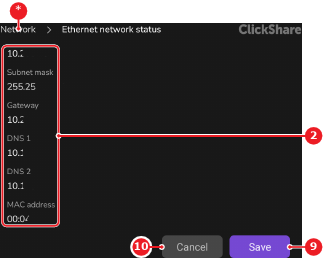
    Image 7–12 Static IP method menu
    2
    Cancel button
    3
    Save button
    4
    Static IP address input field
    5
    IP address subnet mask input field
    6
    Default gateway IP address input field
    7
    Main DNS server IP address input field
    8
    Backup DNS server IP address input field
    9
    Device MAC address
    *
    Return button
  3. Enter or update the desired subnet mask after Subnet mask (reference 5, Image 7–12).

    Tip: Tap the x icon () in the input field to clear the entered data.
  4. Enter or update the desired default gateway after Gateway (reference 6, Image 7–12).

    Tip: Tap the x icon () in the input field to clear the entered data.
  5. Enter or update the desired DNS server after DNS 1 (reference 7, Image 7–12).

    Tip: Tap the x icon () in the input field to clear the entered data.
  6. Enter or update a backup DNS server after DNS 2 (reference 8, Image 7–12). (optional)

    Tip: Tap the x icon () in the input field to clear the entered data.
  7. Tap Save (reference 3, Image 7–11 or Image 7–12).

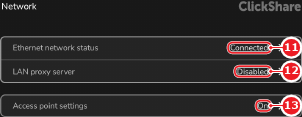
    The Base Unit uses the configuration to connect to the network. On success, the label Connected (reference 10) is shown after the Ethernet Network Status menu.

    Image 7–13
    10
    Connection status label